Make a purchase order
Tell a supplier what you want to buy, how many and at what price.
Who can do this: Owner and Manager
This is not in every plan. See Pricing.
A purchase order, or PO, is a list of goods you want from a supplier. It says how many you want and at what price. Orio360 keeps it, so you can check the goods when they come. An Owner or a Manager can make one.
Make the order
- In the menu, open Purchase and press Purchase Order.
- Press New PO.
- Type 3 letters of the name in Supplier Name. Then choose the supplier from the list.
- Choose where the goods go in Receiving Location.
- Press Next.
- Choose a product. Type the Quantity and check the Unit Cost.
- Press Next, and check the order.
- Press Create Purchase Order.
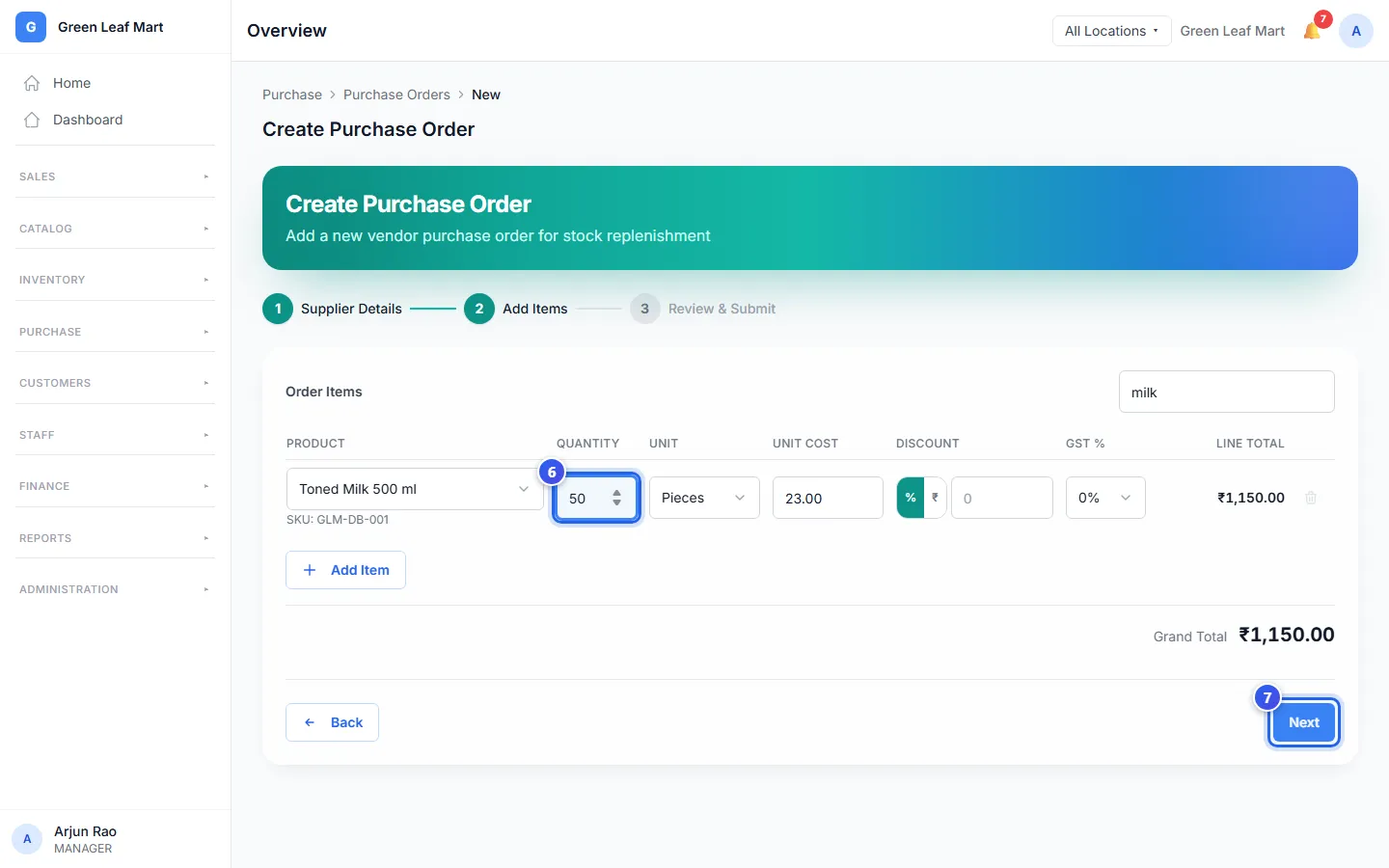
When you choose a product, Orio360 fills in its Unit Cost and GST %. Change them if the supplier's price is not the same. Did you start from Low Stock? Then the cost is what you paid the last time that product came in. Press Add Item to add more products.
Each product goes on 1 line. For a product with sizes or colours, choose the size or colour you want.
Don't know the price yet? Leave the Unit Cost empty. The line says Cost to be confirmed before approval, and the order is saved as a Draft.
Is the supplier new? Type the whole name and press Next. Orio360 adds them to your suppliers.
Approve and send the order
A new order waits as Draft. An Owner must approve it before it goes to the supplier.
- Open the order from the list.
- Press Approve. In the box, press Approve again. The order is now Ordered.
- Press Notify Supplier to email the order to the supplier.
- Or press Download PO to get a PDF. Print it, or share it your own way.
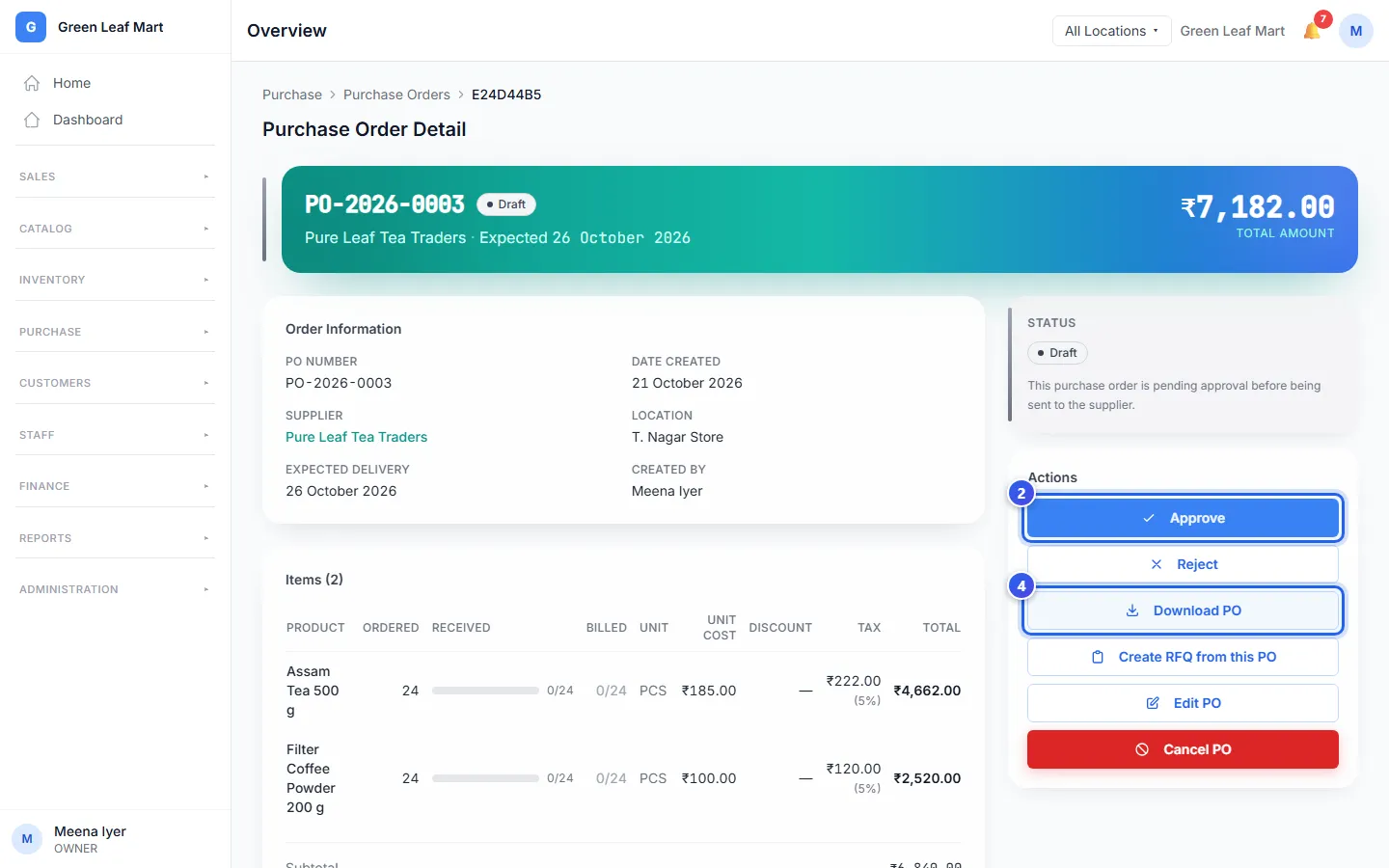
Approve stays off while a line has no cost. First add the costs with Edit PO. See Change a purchase order.
Notify Supplier shows only after the order is approved. An Owner can also press Reject to turn a draft down.
Buy in another currency
Does the supplier bill you in other money, like US dollars? Then the order is in that money too. First save the supplier with their Currency.
- Choose the supplier in Supplier Name.
- Check the Currency. It changes to the supplier's money, like USD — US Dollar.
- Check the rate in Exchange rate: 1 USD in INR. Orio360 fills it in from your Exchange Rates, if you saved one there.
- On the next step, check the tax. For a supplier in another country, each line starts at 0%.
- Type each Unit Cost in the supplier's money.
- Check the total. Under it, Orio360 shows the amount in rupees.
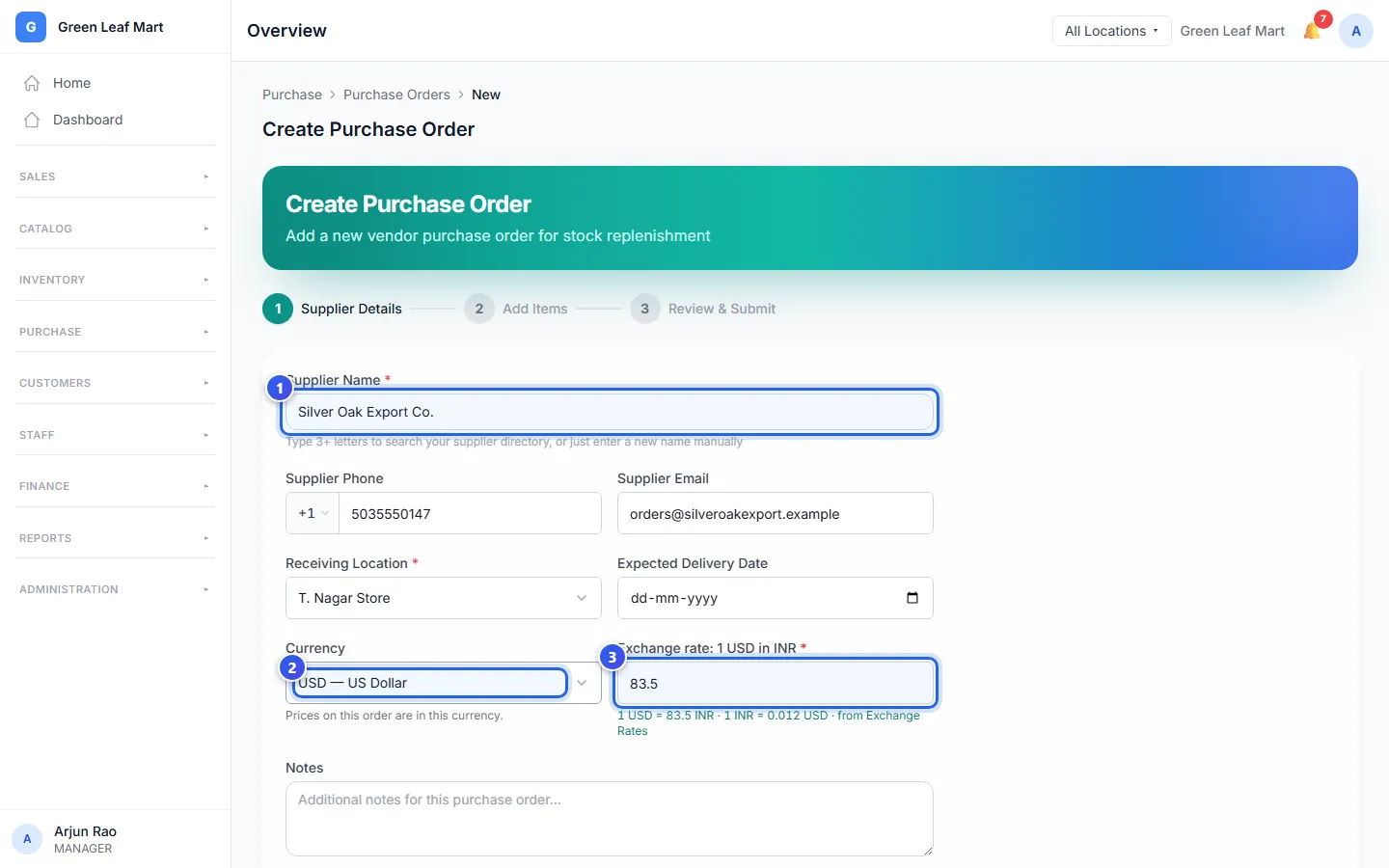
Orio360 works out your stock cost and what you owe in rupees, at this rate. It does not add customs or import tax. A new Currency clears the costs you typed. An order made from an RFQ is always in rupees.
Related help
Add a supplier
Save the people and companies you buy stock from.
On some plans
Receive goods from a supplier
Check the goods that arrive and add them to your stock.
On some plans
Change a purchase order
Change the items or amounts on a purchase order after you send it.
On some plans
Find items that run low
See which items you need to buy again before they run out.
Still need help?