Find items that run low
See which items you need to buy again before they run out.
Who can do this: Owner and Manager
An empty shelf loses sales. Orio360 lists the items that are low or gone, so you can buy more in time. An Owner or a Manager can see this list in the admin app.
See what to buy again
- In the menu, open Inventory and press Low Stock.
- Look at the cards at the top. Out of Stock and Low Stock Items count the items.
- In the list, compare Current Stock with Threshold for each item.
- Press Create PO to order more of one item from a supplier.
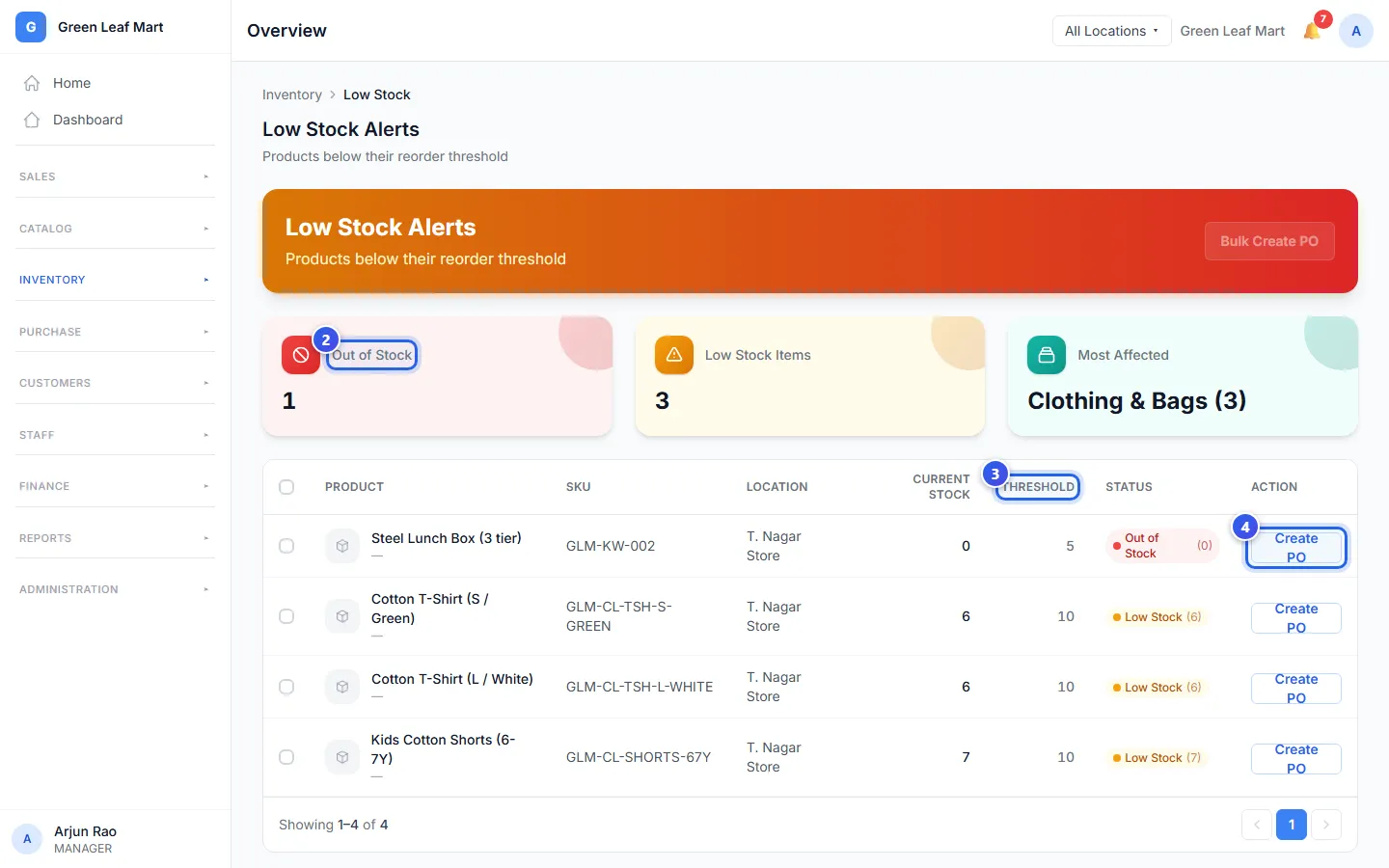
Does the top of the page say All Locations? Then the list has a Location column. It shows which location is low.
Create PO opens a new purchase order with the item already on it. Purchase orders are not in every plan.
Order many items at once
- Tick each item you want to buy.
- Press Bulk Create PO at the top.
- Choose the supplier in Supplier Name, and the Receiving Location.
- Press Next. The order has 1 line for each item you ticked.
- Check the Quantity and the Unit Cost on each line.
- Press Next, and check the order.
- Press Create Purchase Order.
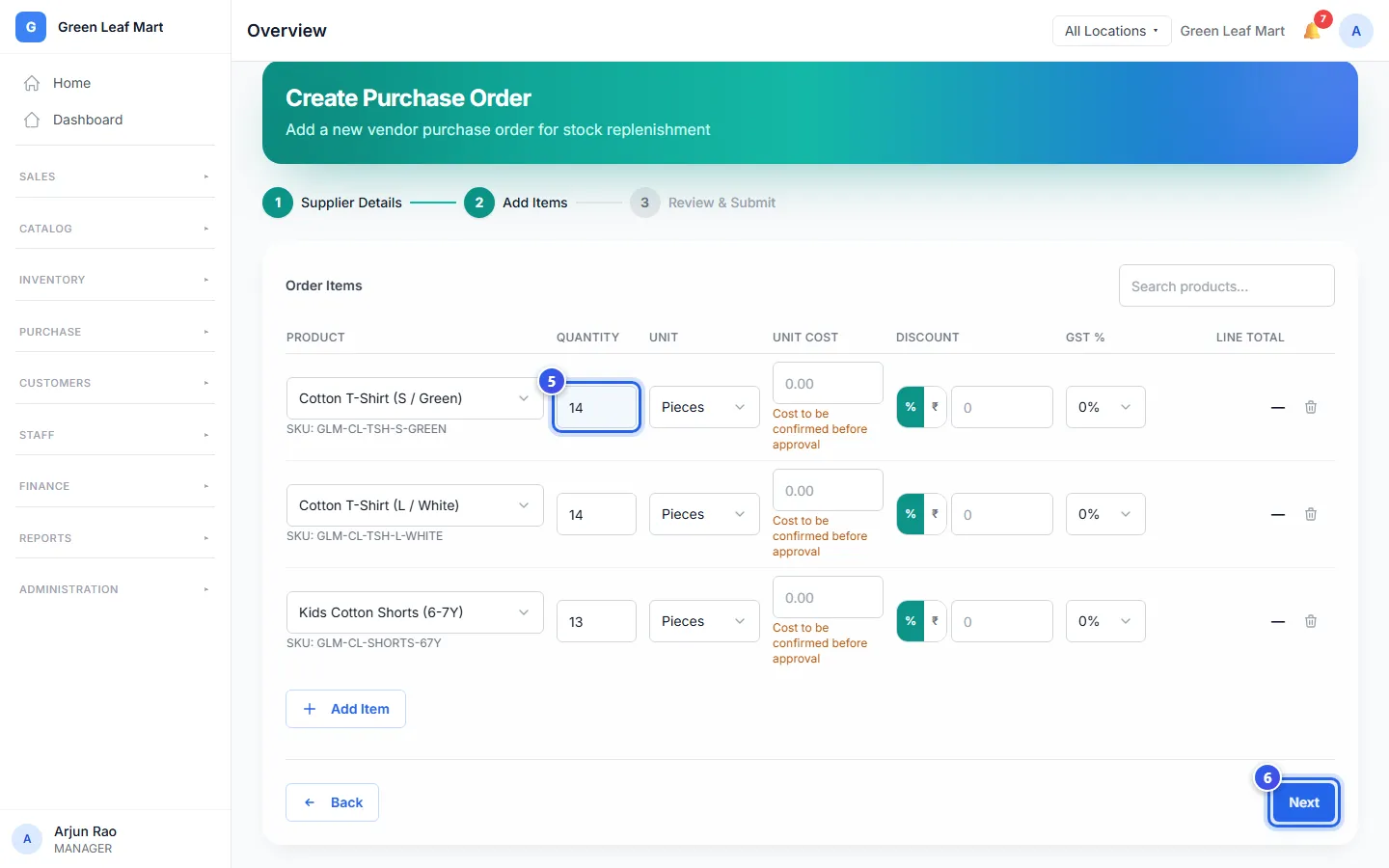
Each line shows the product name, with its SKU under it. Orio360 also fills in:
- Quantity: enough to bring the stock up to 2 times the threshold, and at least 1. Say the threshold is 10 and 6 are left. The line asks for 14.
- Unit Cost: in a shop, what you paid the last time this product came in.
Is this the first time you buy the product? Then its Unit Cost is empty. You can still save the order as a Draft. An Owner adds the cost before approving it. See Make a purchase order.
Set when an item counts as low
The threshold is the number you never want to go below. When the stock reaches it, the item shows on this list. When the stock is 0, the item is out of stock.
To set it, open the product from your list in Products. On the Details tab, type the number in Low Stock Threshold. Then press Save changes. You can also set it when you add a new product, on the Stock step.
Each variant has its own number. Open the product's Variants tab, and press Edit next to the variant. Type the number in Minimum Stock, and press Save Variant.
Choose a number that lasts until your next delivery. For example, if you sell 5 a day and your supplier takes 2 days, keep at least 10.
Related help
Check your stock and what it is worth
See how much stock you have and what it is worth at each location.
Find and change a product
Search your product list and change a price, a name or another detail.
Move stock to another location
Send stock from one location to another and receive it at the other end.
On some plans
Make a purchase order
Tell a supplier what you want to buy, how many and at what price.
On some plans
Still need help?