Find and change a product
Search your product list and change a price, a name or another detail.
Who can do this: Owner and Manager
Prices go up and names change. Find the product in your list, change it and save. You do this in the admin app.
Only an Owner can change a price, a cost or a GST rate. A Manager can change the name, the barcode, the category and the other details.
Find a product
- In the menu, open Catalog and press Products.
- Type part of the name in Search products…. A product code, a barcode or a category name works too.
- Press the product in the list. Its page opens.
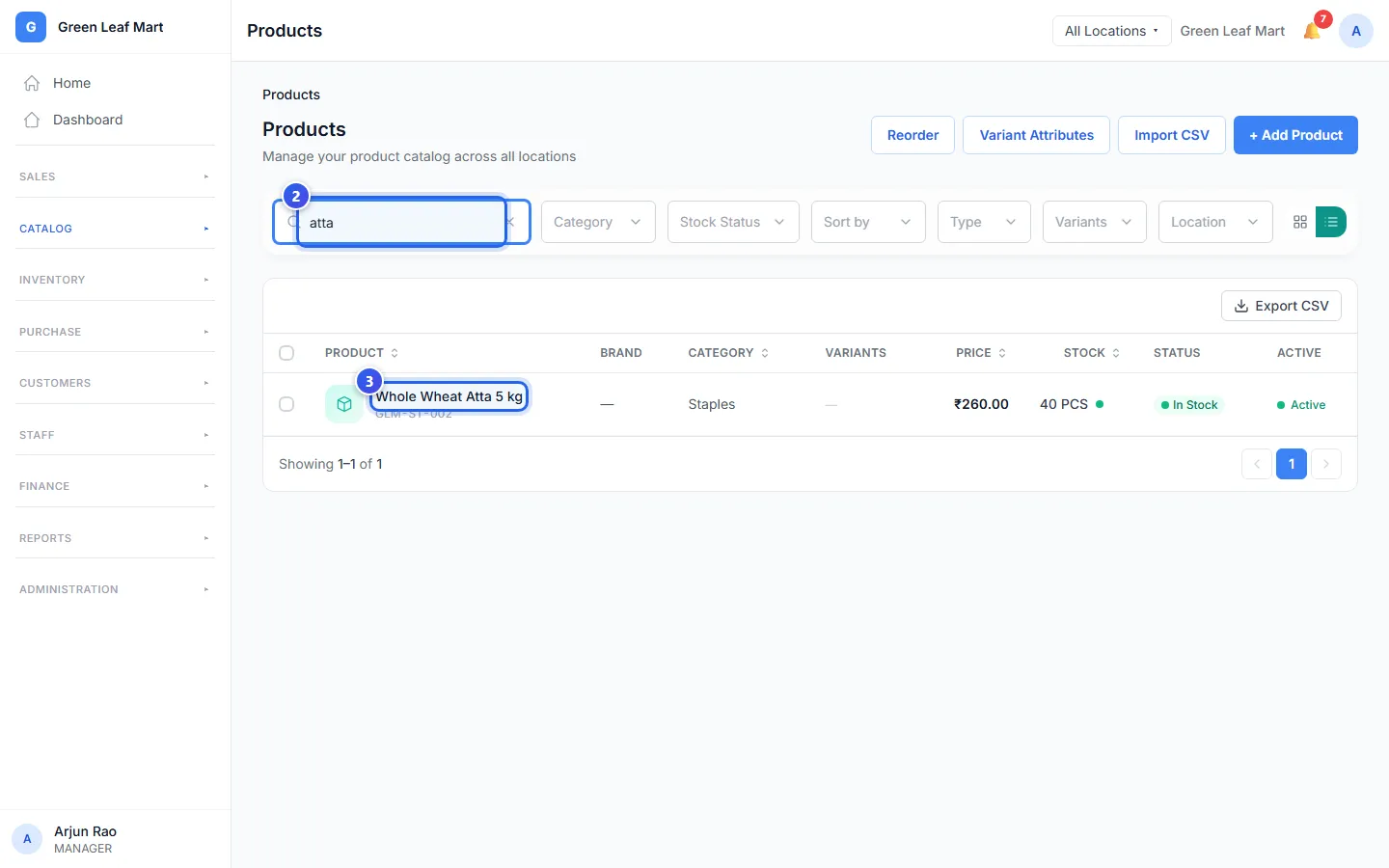
The boxes next to the search show fewer products. For example, choose Low Stock in Stock Status. Or choose one category in Category.
When the top of the page says All Locations, a product can show twice. It shows once for each location that has it in stock. Each one has its own price. To change the price everywhere, change each one.
Change it and save
- On the Details tab, change what you need. For a new price, go down to Selling Price (₹) and type it.
- Press Save changes at the top.
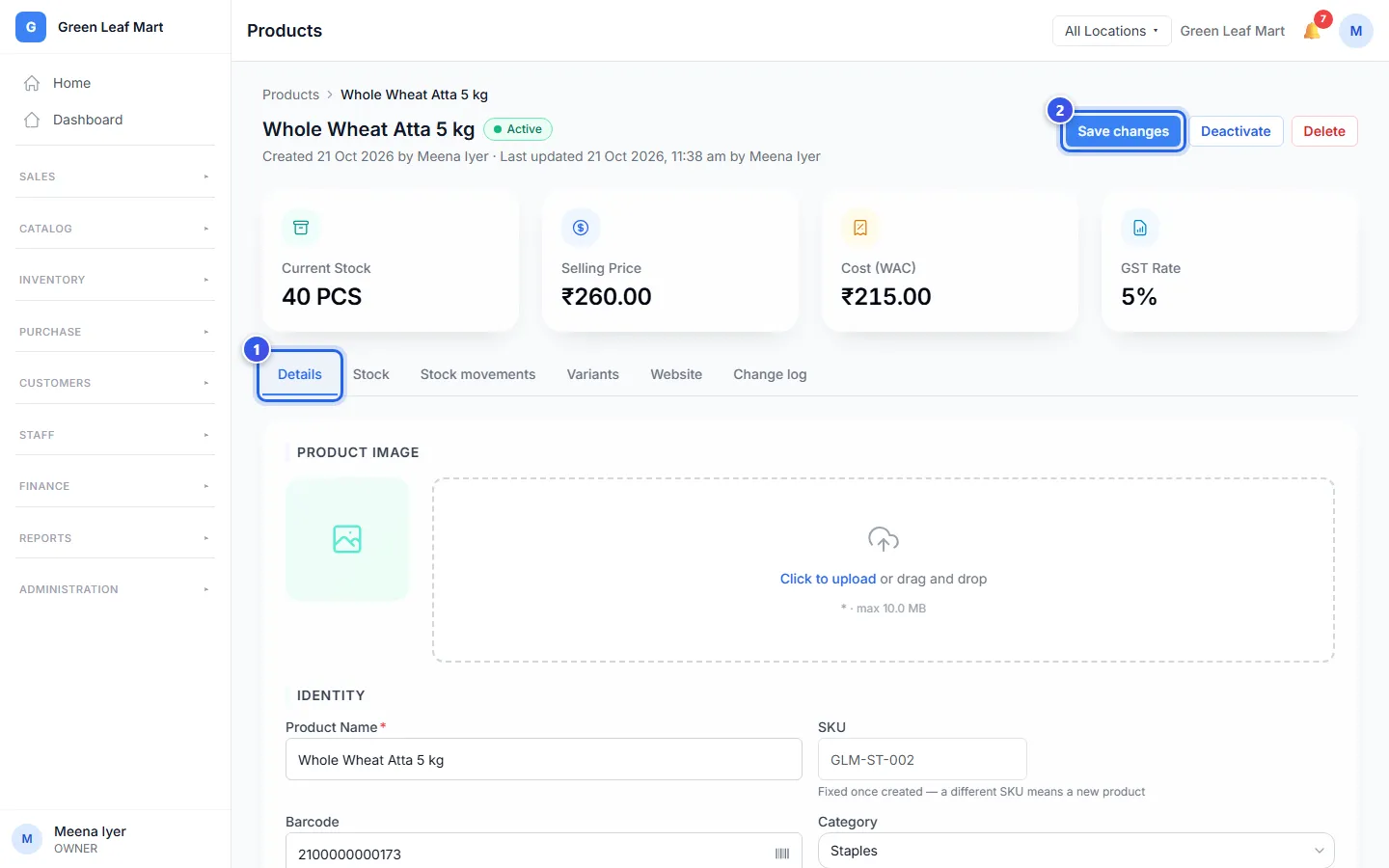
The button says Save and stays grey until you change something. After you save, the message Product saved shows.
A new price is used on new bills. A bill you made before keeps the old price.
You cannot change the SKU. A different code makes a new product.
Stop selling a product
Press Deactivate at the top of the product page. Then press Deactivate in the message. The product no longer shows at the till. Its old bills and reports stay.
To sell it again, open it and turn on the Active switch. Then press Save changes.
Related help
Still need help?