Correct a stock count
Change the stock of a product when your count is different.
Who can do this: Owner and Manager
Count the items on your shelf. Is your number different from the one in Orio360? Then correct the stock. An Owner or a Manager can do this in the admin app.
Correct the count
- Open the product from your list in Products.
- Press the Stock tab. It shows the stock at each location.
- Press Adjust Stock.
- Choose the location in Location.
- Choose Manual Adjustment in Adjustment Type.
- In Quantity, type the difference. Put a minus sign in front when you have fewer.
- Type the reason in Notes, like "Shelf count".
- Press Adjust Stock.
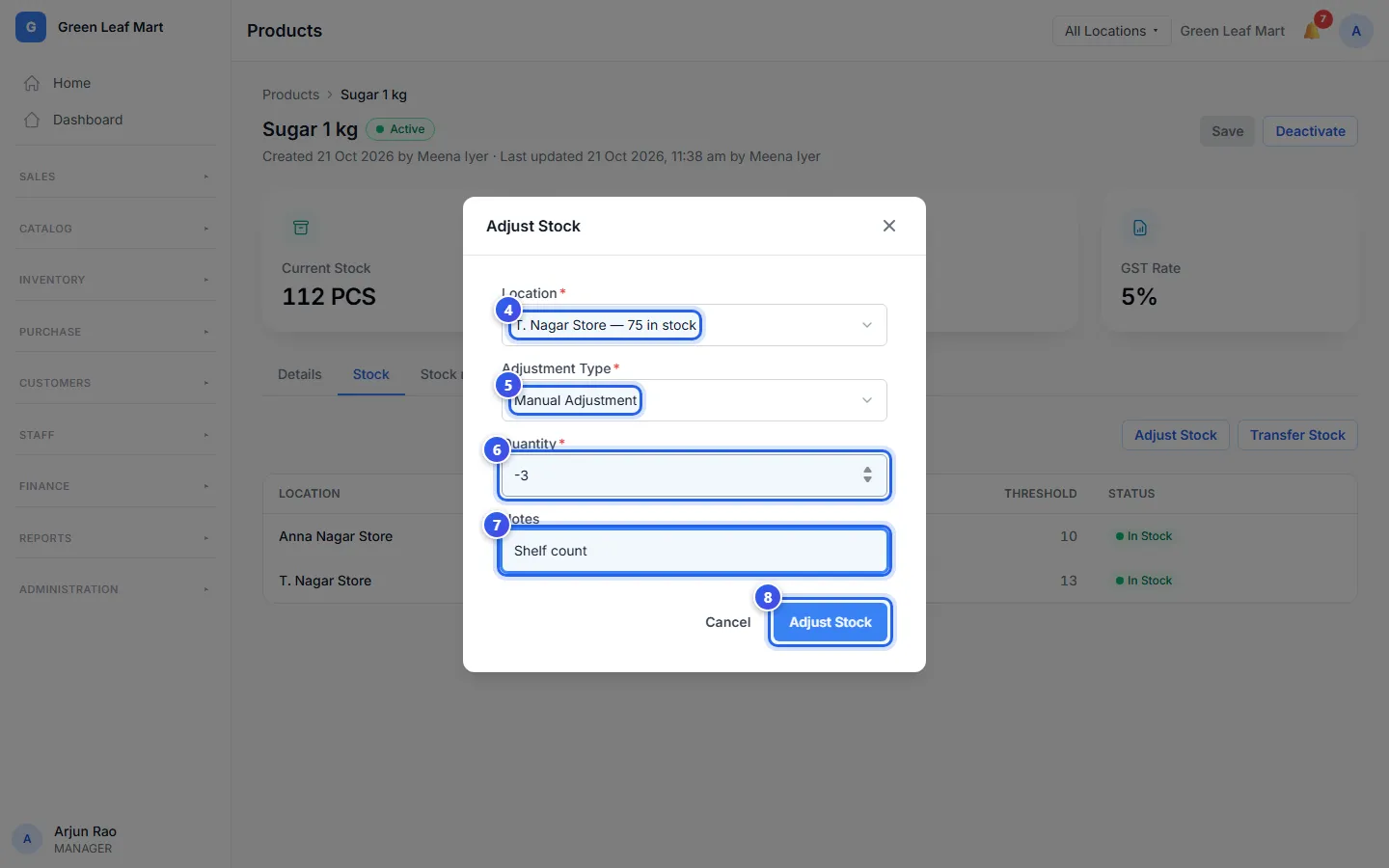
For example, Orio360 says 75 and you count 72. Type -3. If you count 80, type 5.
The message Stock adjusted shows. Location shows only when the product is at more than one location.
Other kinds of change
Adjustment Type has more choices. For these, type the number with no minus sign.
- Purchase (Stock In) is for goods that came in. Also type the Unit Cost (₹) you paid. Orio360 uses it to work out the WAC.
- Opening Stock is the stock you had when you started with Orio360.
- Damage Write-off, Wastage and Expiry Write-off are for items you throw away. Orio360 takes them out of stock.
You cannot take out more than you have. Then the window shows an error, and nothing changes.
Does the product have variants? Then the Stock tab lists each one. Press Adjust next to the variant you counted.
Related help
Still need help?