Check your stock and what it is worth
See how much stock you have and what it is worth at each location.
Who can do this: Owner and Manager
Your stock is money on the shelf. Orio360 shows how much you have and what it is worth. An Owner or a Manager can see this in the admin app.
See your stock at a glance
- In the menu, open Inventory and press Overview.
- Look at the cards at the top. Stock Value is what all your stock is worth.
- Under Stock Value by Category, see how much money sits in each category.
- Go down to Slow-Moving Stock. These items did not sell in the last 30 days.
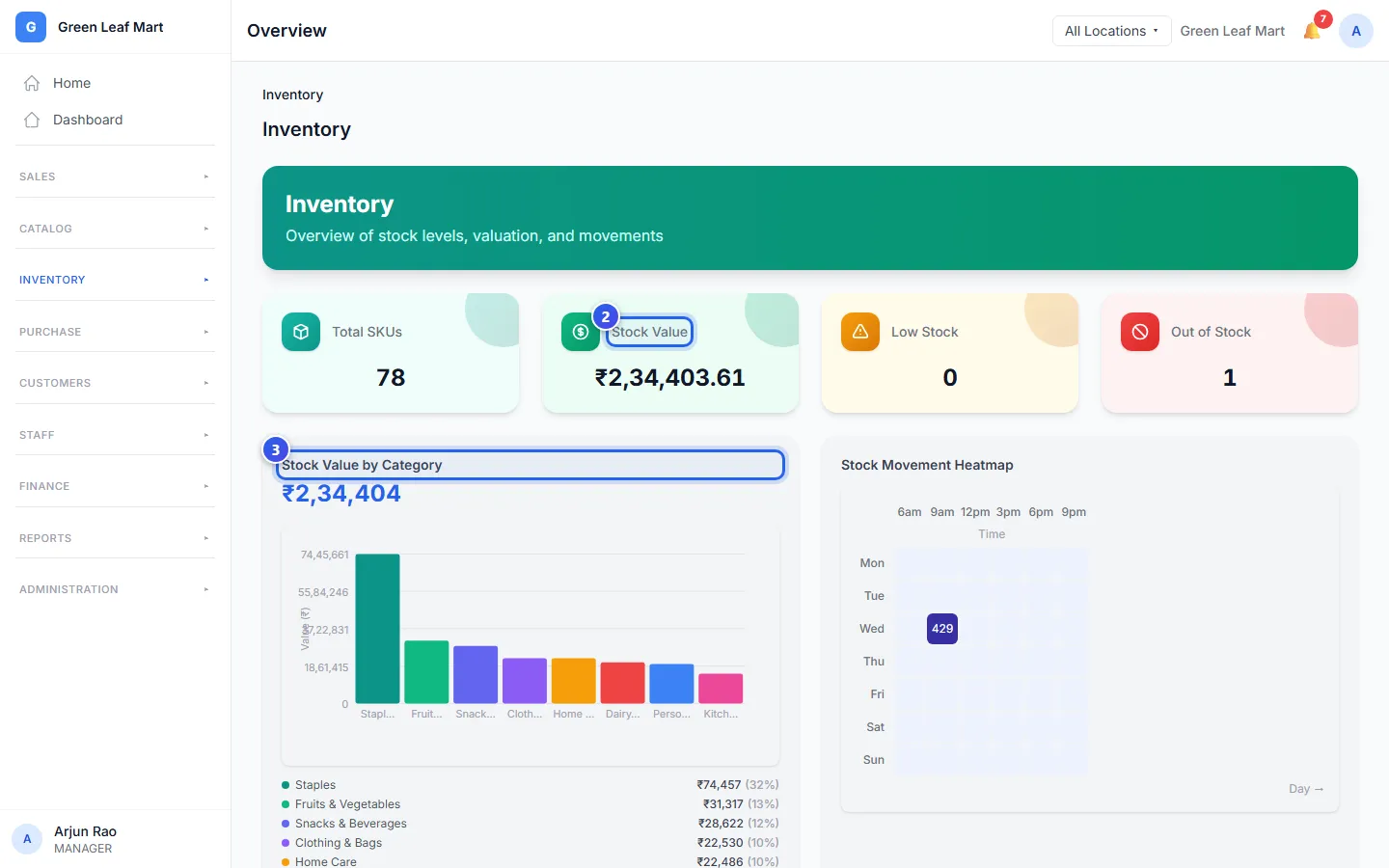
Low Stock and Out of Stock count the items you need to buy again. To see one location, choose it at the top of the page, where it says All Locations.
See what each product is worth
- Press View Valuation on Overview. You can also press Valuation in the menu.
- Read Total Valuation at the top.
- In the list, read WAC / Unit and Total Value for each product.
- Press Export CSV to keep the list in a file.
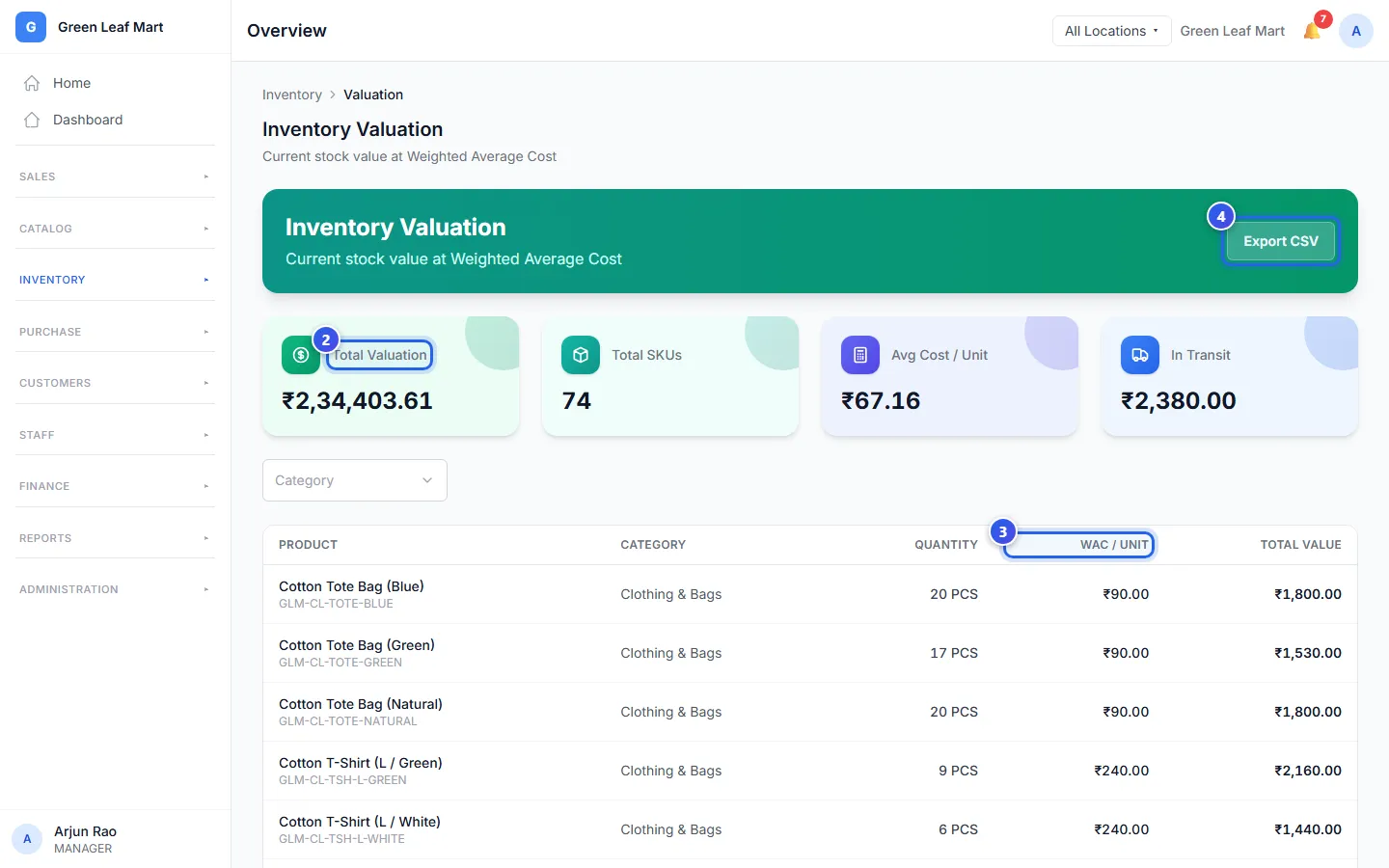
WAC / Unit is the WAC of one item. That is the average price you paid for it. Each time you buy more at a new price, Orio360 works out the average again. Total Value is the number of items times that price.
In Transit is the stock that is on its way from one of your locations to another.
Each product page also shows this price, as Cost (WAC).
Related help
Still need help?