A day with Orio360
A day in your shop
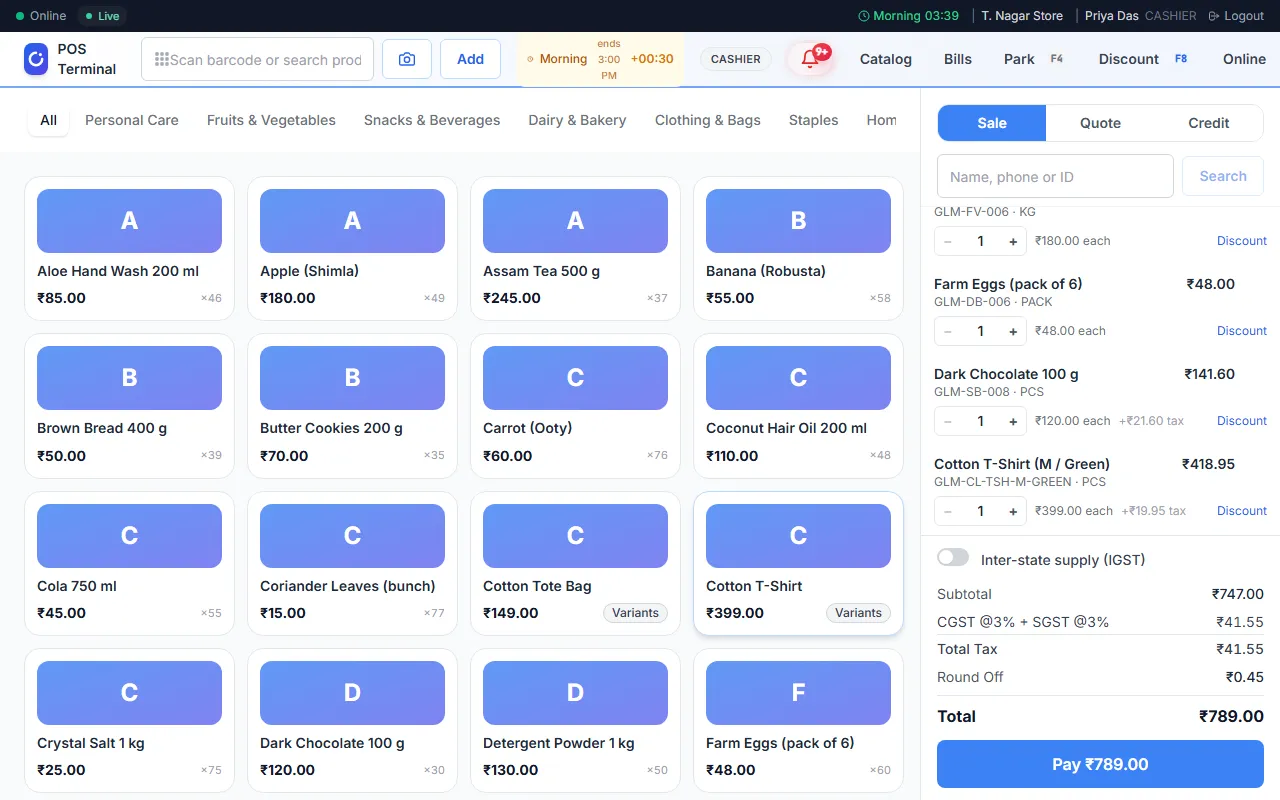
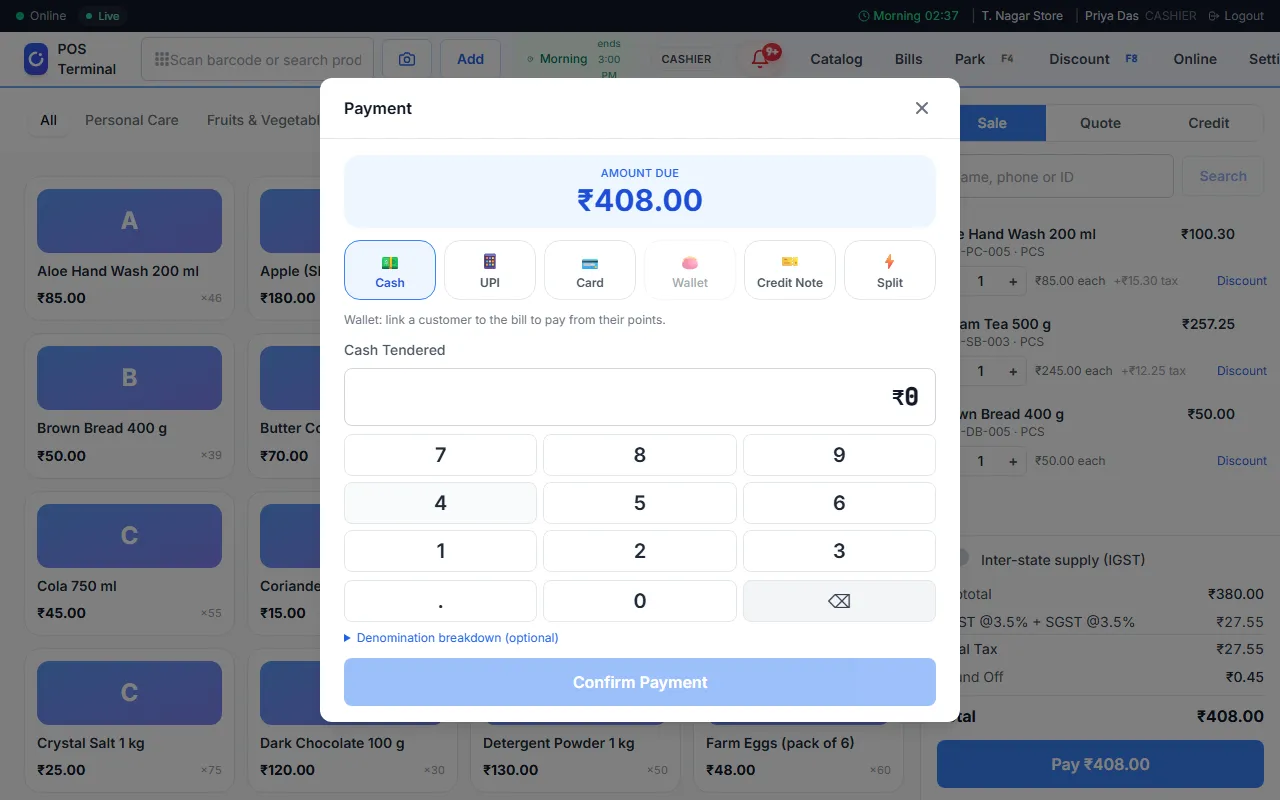
Here is how a day goes, from the first sale to the last.
Stock goes down by itself
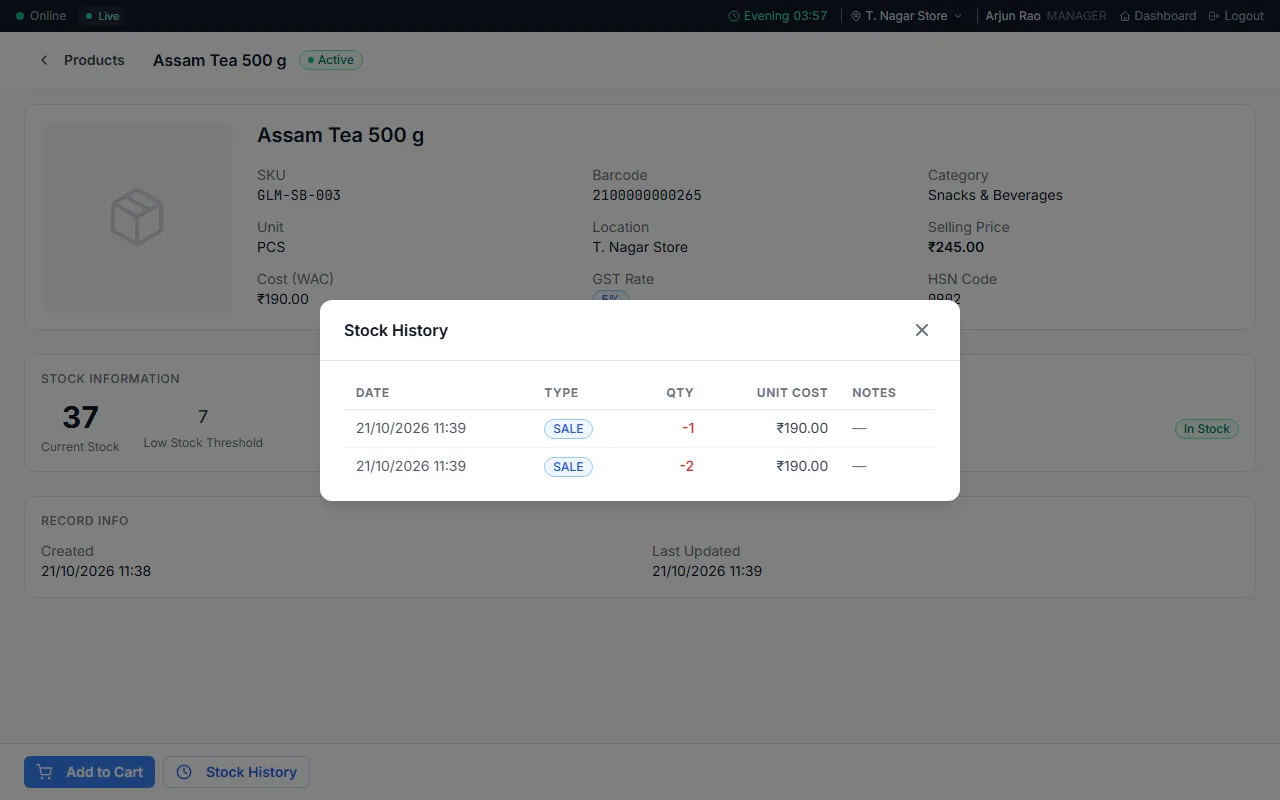
When you sell, Orio360 takes the items out of stock. Open the Stock History of a product to see each sale.
See today's sales
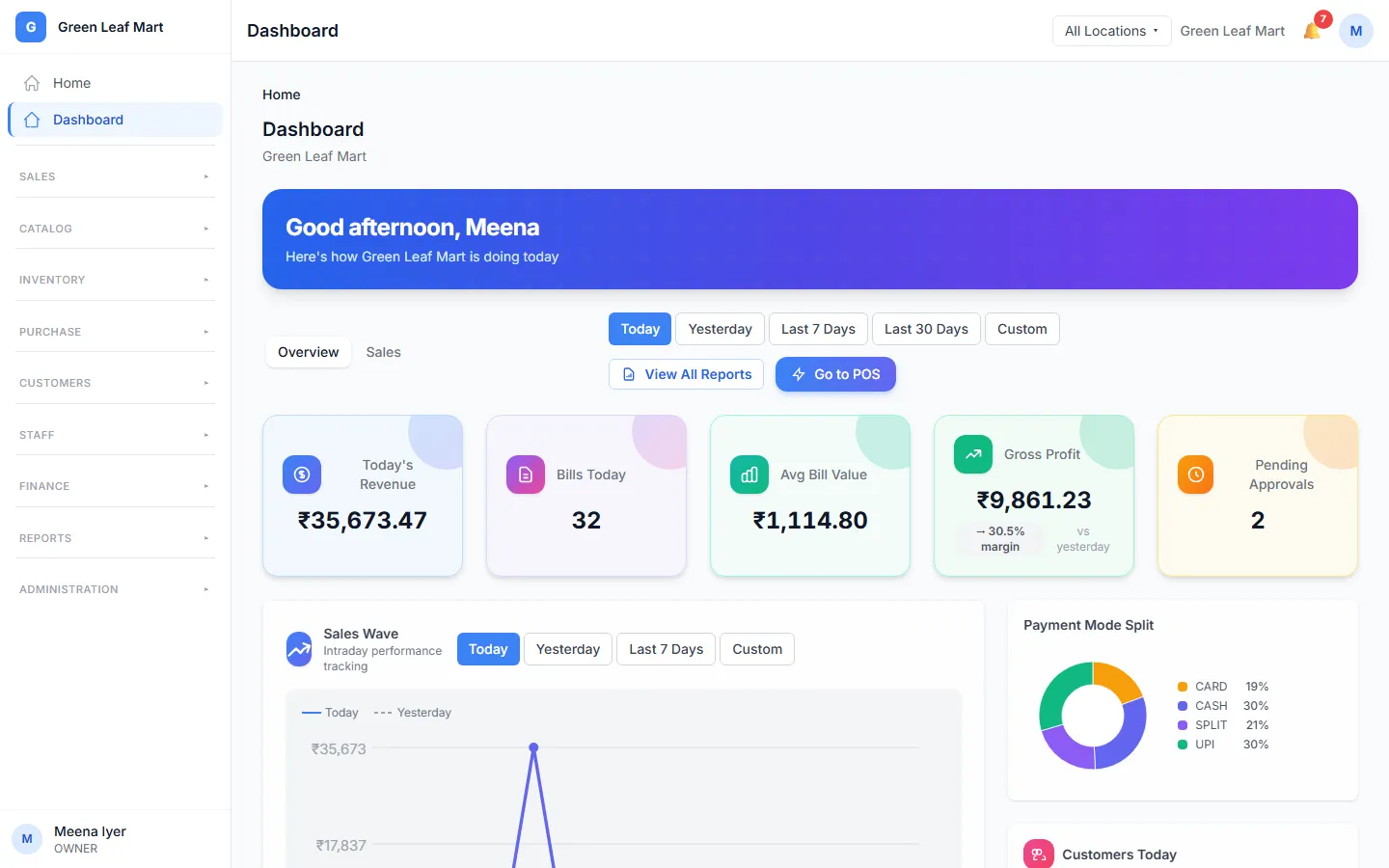
Open the Dashboard in the admin app. See today's sales next to yesterday's.
Close the day
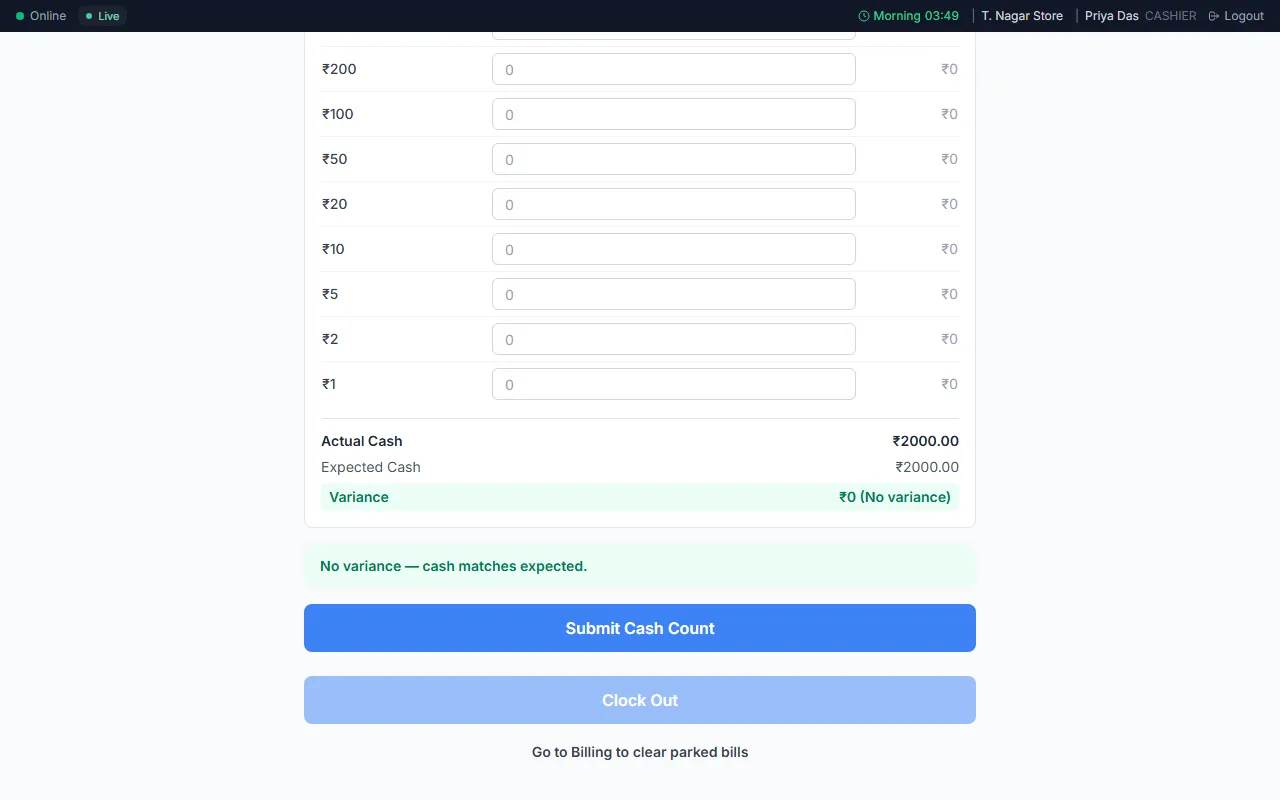
Count the notes in the cash drawer. Orio360 shows the cash it expected, and any difference. Then press Clock Out.
Made for shops
What your shop gets
These parts of Orio360 are made for shops like yours.
Barcodes
Give each product its own barcode. Scan it to put the item on the bill.
Learn moreSizes and colours
Sell one product in many sizes and colours. Each variant has its own barcode and its own stock.
Learn moreKnow what is running low
See the stock at each location. The Low Stock page shows what is running out.
Learn moreMove stock between locations
Send stock from one location to another with a stock transfer. This is on some plans.
Learn moreBuy from your suppliers
Send a purchase order to a supplier. When the goods come in, your stock goes up. This is on some plans.
Learn moreReturns and exchanges
Take items back as a return or an exchange. Give the money back, or give store credit.
Learn moreBring customers back
Customers earn loyalty points when they buy. They can use the points next time. This is on some plans.
Learn moreGST on every bill
Orio360 adds the right GST to each item. It makes the GSTR-1 report for your tax return.
Learn more
Works on phones too
Your shop on your phone
You do not have to be at the counter to see how your shop is doing.
Manager app
Check your sales and approve expenses with the Manager app.
Help for shops
Learn how to use Orio360 in our help centre. This link opens the help for shops.
See Orio360 in a shop like yours
Tell us about your shop. Our team will show you how Orio360 works for you.