Move stock to another location
Send stock from one location to another and receive it at the other end.
Who can do this: Owner and Manager
This is not in every plan. See Pricing.
One location has too much rice, and another has too little. Move it with a stock transfer. Orio360 takes the stock out at one end and adds it at the other. An Owner or a Manager can do this.
Send the stock
- In the menu, open Inventory and press Stock Transfers.
- Press New Transfer.
- Choose where the stock leaves from in Source Location.
- Choose where it goes in Destination Location.
- Type part of a product name in Search products.... Then choose the product in the list below.
- Type how many to send under Transfer Qty.
- Press Create Transfer.
- When the goods leave, open the transfer and press Dispatch from Source.
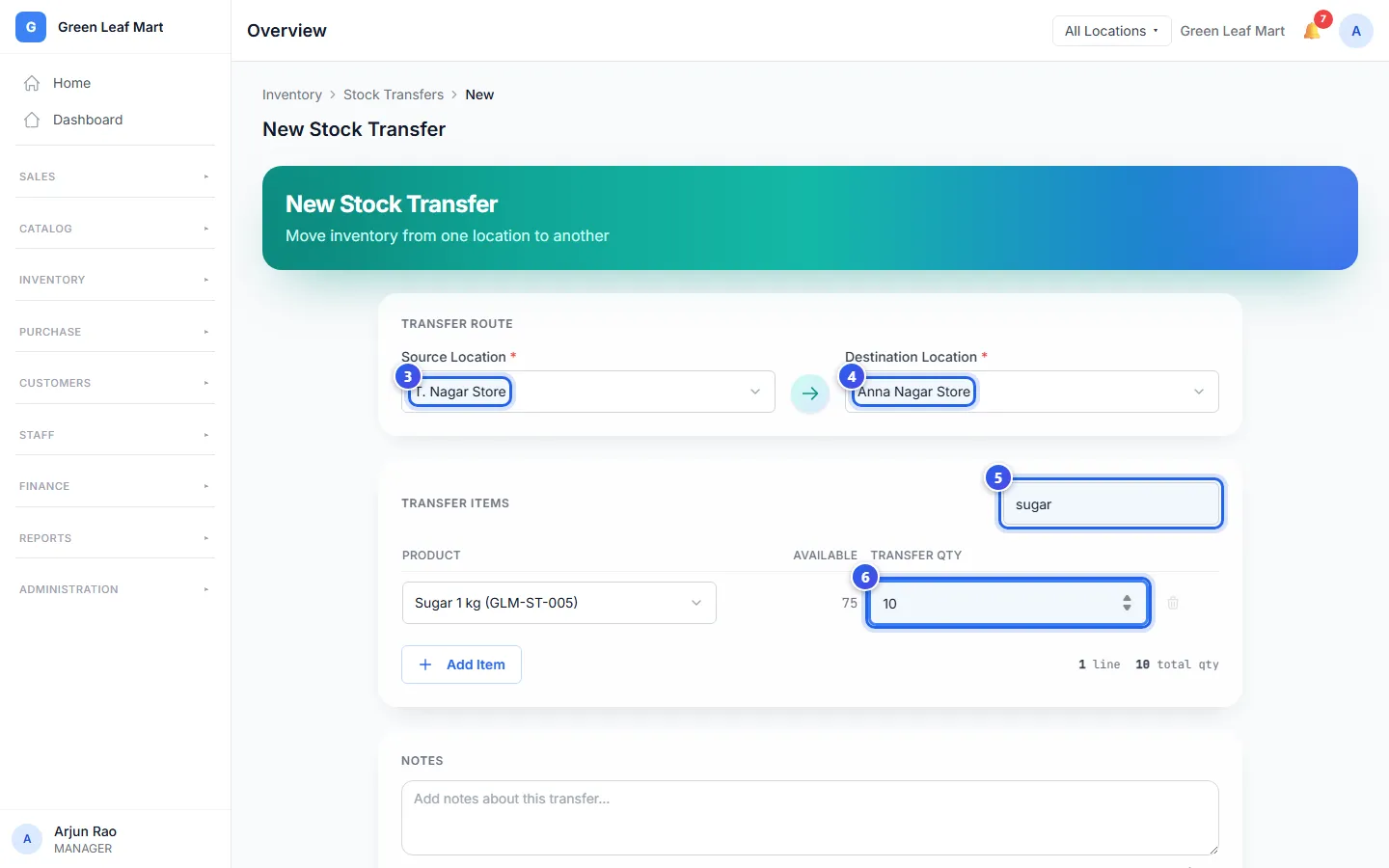
To send more than one product, press Add Item before step 7. A new transfer waits as Pending. When you dispatch it, the stock leaves the first location. The transfer is then In Transit.
Receive the stock
- Open the transfer from the Stock Transfers list.
- Press Confirm Receipt.
- Check the number that came for each item. If fewer came, type the real number.
- Type the reason for the missing items.
- Press Confirm Receipt at the bottom.
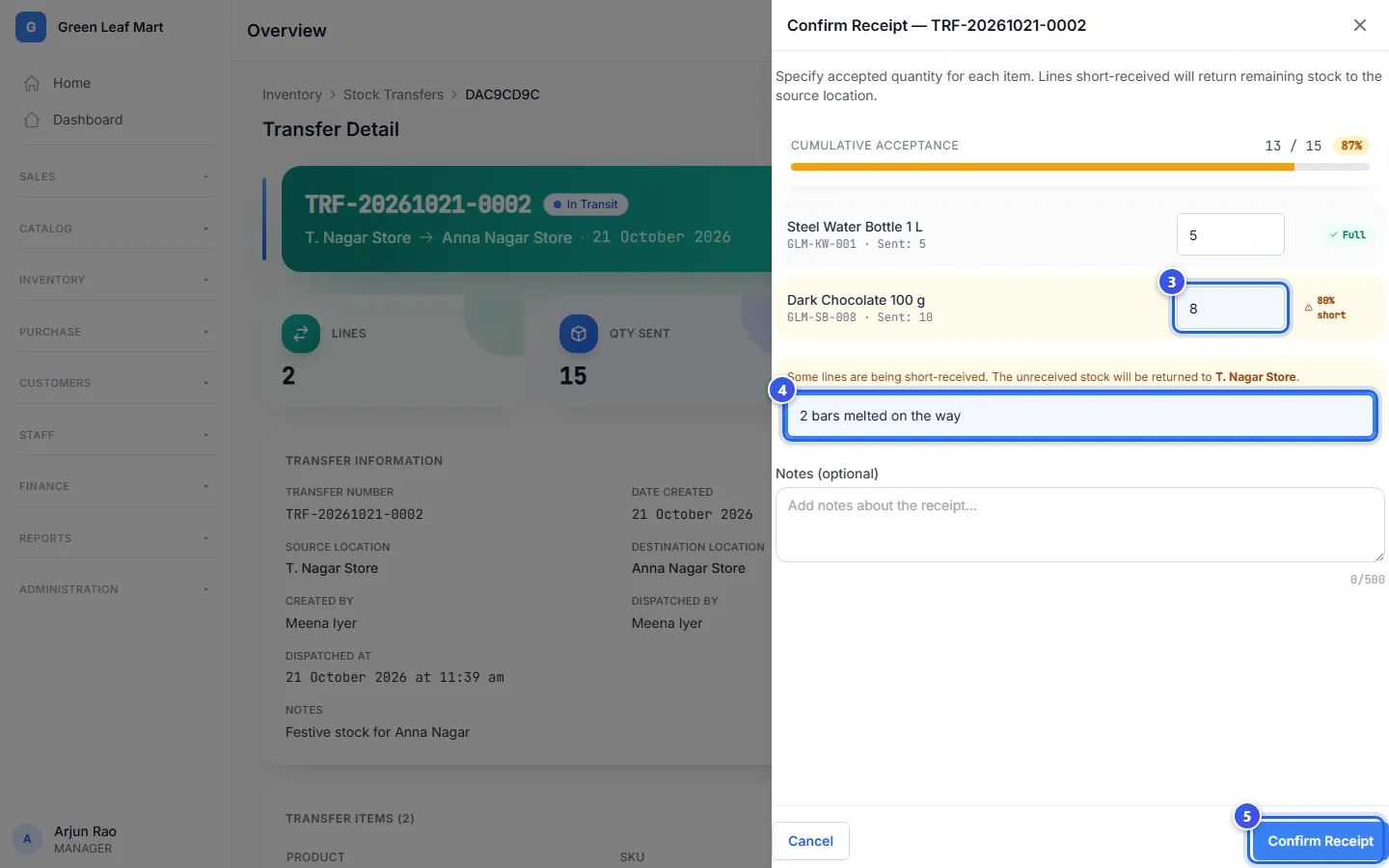
The stock is added at the new location. Any items that did not come go back to the first location.
Receive it at the till
A Manager can also receive a transfer at the till.
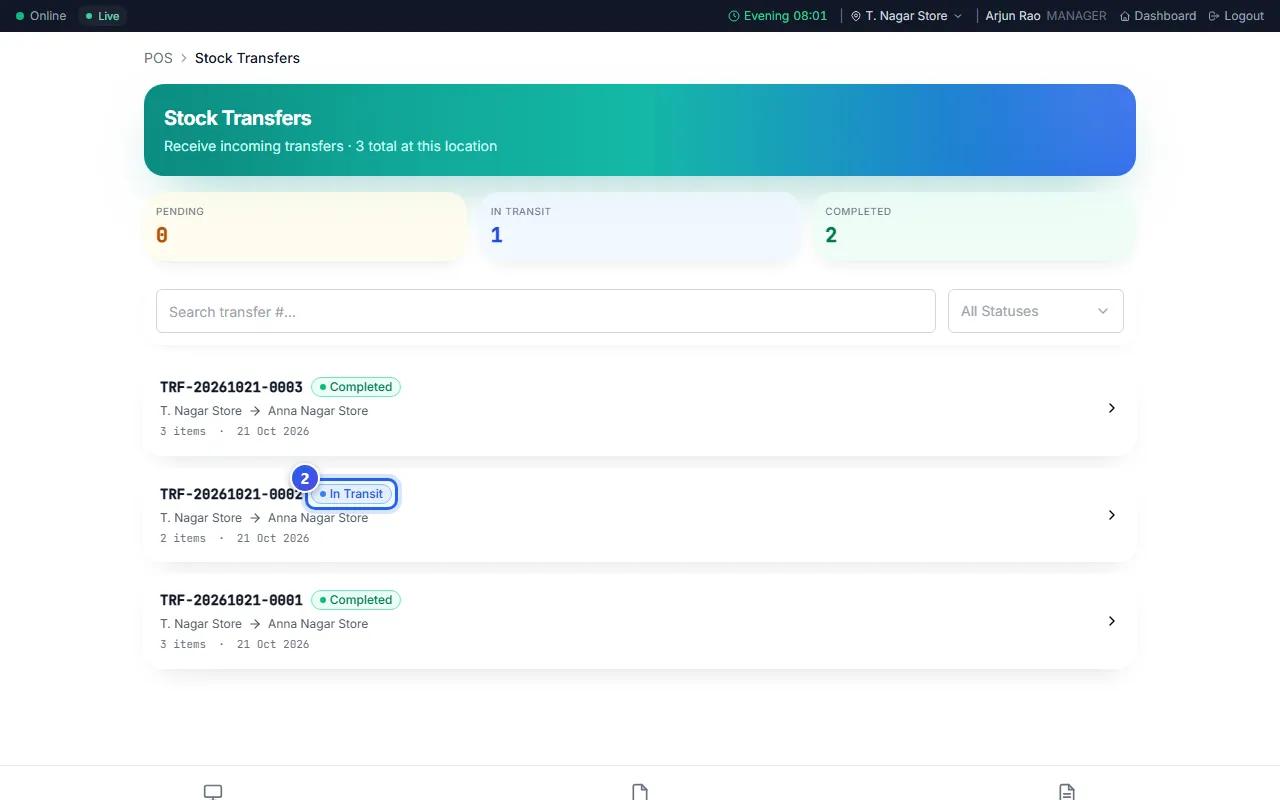
- On the billing screen, press Transfers.
- Press the transfer that is In Transit.
- Press Confirm Receipt. Check the numbers as above, and confirm.
Related help
Still need help?