Record wasted stock
Take broken or spoiled items out of stock and note why.
Who can do this: Owner and Manager
Bread goes past its date. A jar breaks. Record each loss, so your stock stays right and you can see what you lose. An Owner or a Manager can do this in the admin app.
Record wasted items
- In the menu, open Inventory and press Wastage.
- Press Record Wastage.
- Check the location in Location.
- Choose the item in Select item.
- Type how many in Qty. Check the unit next to it.
- Choose the kind of loss, like Spoilage, Expired or Damaged.
- Type the reason in Reason for wastage (min 5 characters).
- Press the Record button, like Record 1 Item.
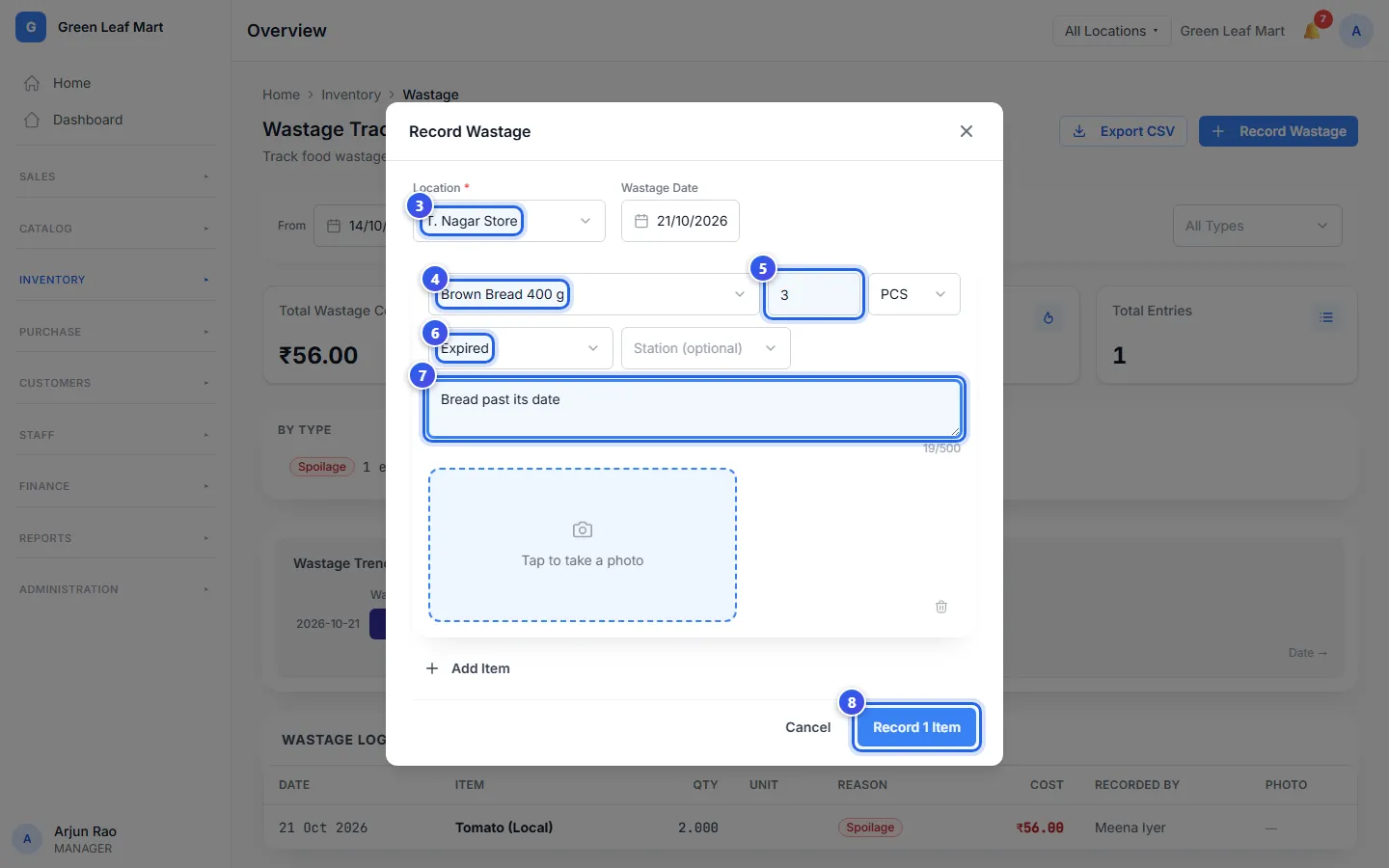
Orio360 takes the items out of stock at that location. The cost of the loss shows in the Wastage Log.
Did you waste more than one item? Press Add Item for a new row before you record. You can also add a photo of each item.
See what you lose
The Wastage Tracking page shows the losses in the dates you choose in From and To.
- Total Wastage Cost is what the lost items cost you.
- Wastage % of Sales compares your losses with your sales.
- Top Wasted Item is the item you lose most.
Press Export CSV to keep the list in a file.
Related help
Still need help?