Add a product
Put a new item in your list so you can sell it.
Who can do this: Owner and Manager
Put each thing you sell in your product list. Then you can scan it or find it at the till. An Owner or a Manager can add products in the admin app.
The New Product page has a few steps. You see them at the top: Basic Info, Pricing & Tax, Stock, Images and Variants.
Fill in the basics
- In the menu, open Catalog and press Products.
- Press + Add Product.
- Type the name in Product Name.
- Scan the barcode into Barcode. You can also type it.
- Type a few letters in Category. Then choose a category from the list.
- Choose how you count the item in Unit of Measure, like Pieces.
- Press Next.
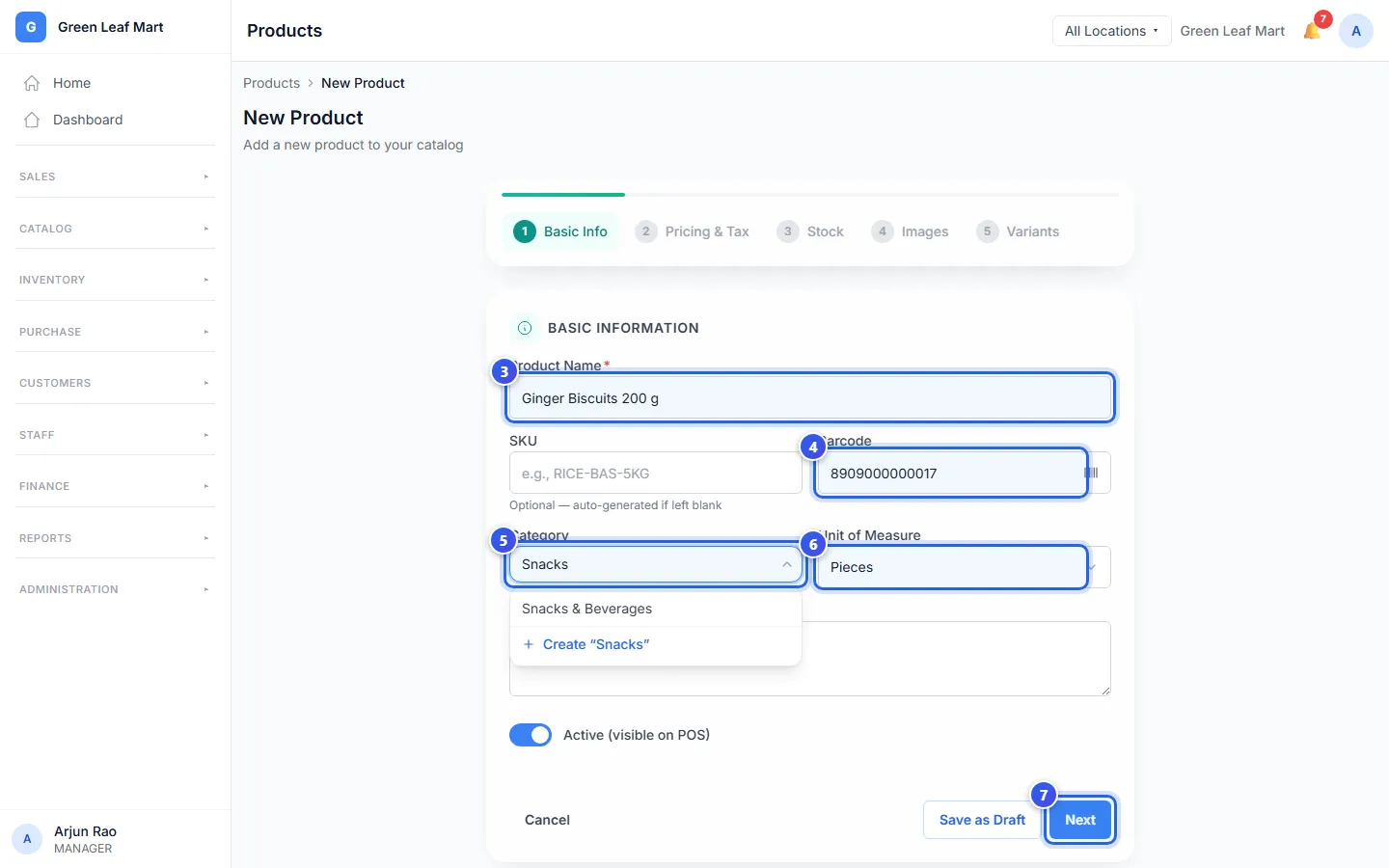
Leave SKU empty, and Orio360 makes a product code for you. Is the category new? Choose Create in the list, and Orio360 adds it.
Add the price and the stock
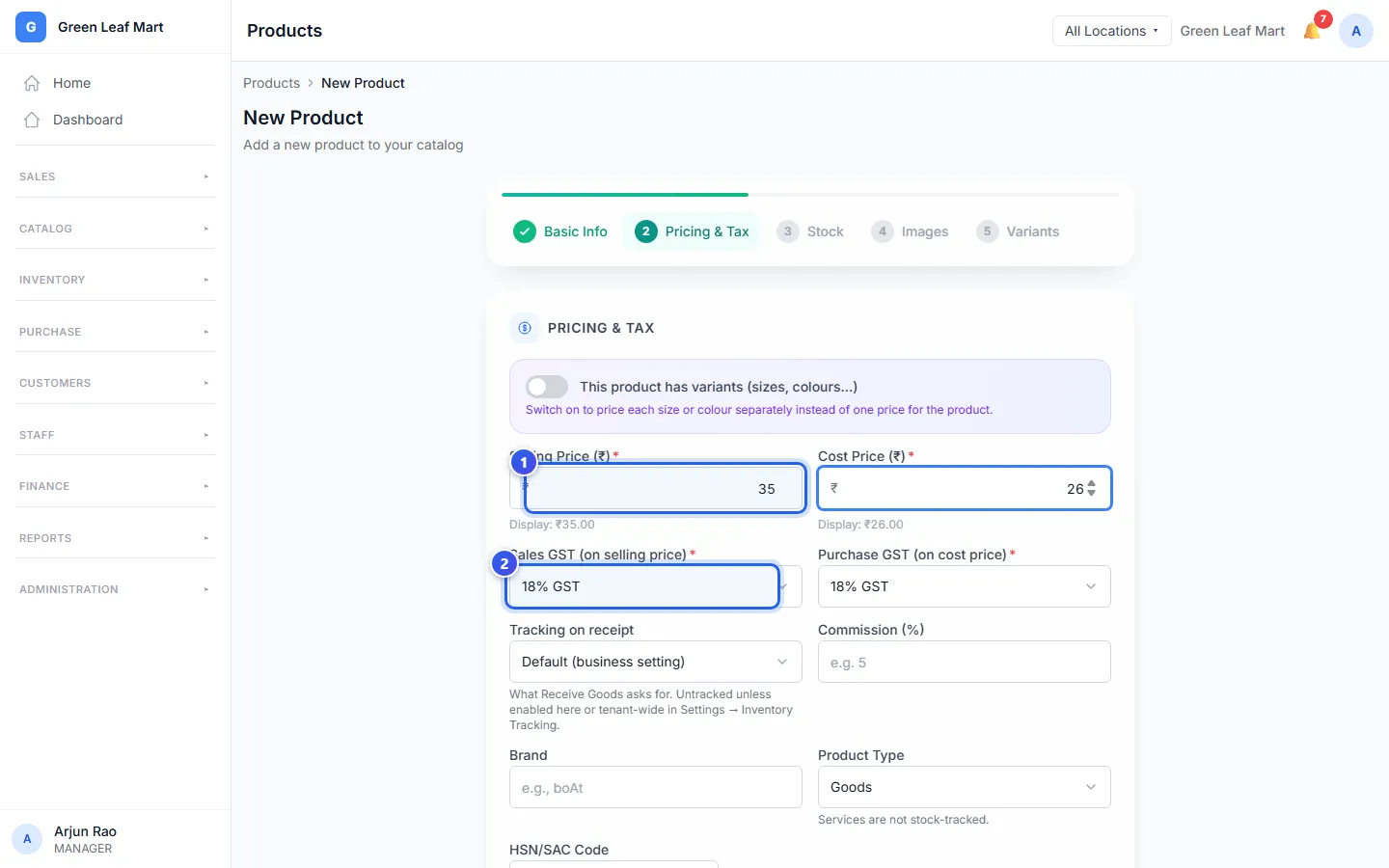
- Type the Selling Price (₹) and the Cost Price (₹).
- Check the GST rate in Sales GST (on selling price).
- Press Next.
- Under Stock per Location, type how many you have at each location.
- Press Next. On Images, you can add a photo.
- Press Next again.
- Press Create Product.
The message Product created successfully shows. The product is now in your list, and the till can sell it.
When you type both prices, Orio360 shows your Margin. That is what you earn on one item, before GST.
Do you sell one item in many sizes or colours? See Sell a product in sizes and colours.
Related help
Sort products into categories
Put products into groups so they are easy to find at the till.
Sell a product in sizes and colours
Add sizes, colours and other choices to a product as variants.
For shops
Add many products from a file
Fill in our sheet and add many products at once.
Quick-add a product at the till
Add a new product from the till when a customer brings one that is not in your list.
Still need help?