Sell a product in sizes and colours
Add sizes, colours and other choices to a product as variants.
Who can do this: Owner and Manager
For shopsA T-shirt can come in sizes S, M and L, and in 2 colours. Each choice is a variant. Each variant has its own product code, barcode, price and stock. At the till, each one sells as its own item.
Size and colour are attributes. S, M and L are values of the size attribute. Orio360 keeps a list of your attributes, so you can use them again.
Add variants to a product
- Open the product from your list in Products.
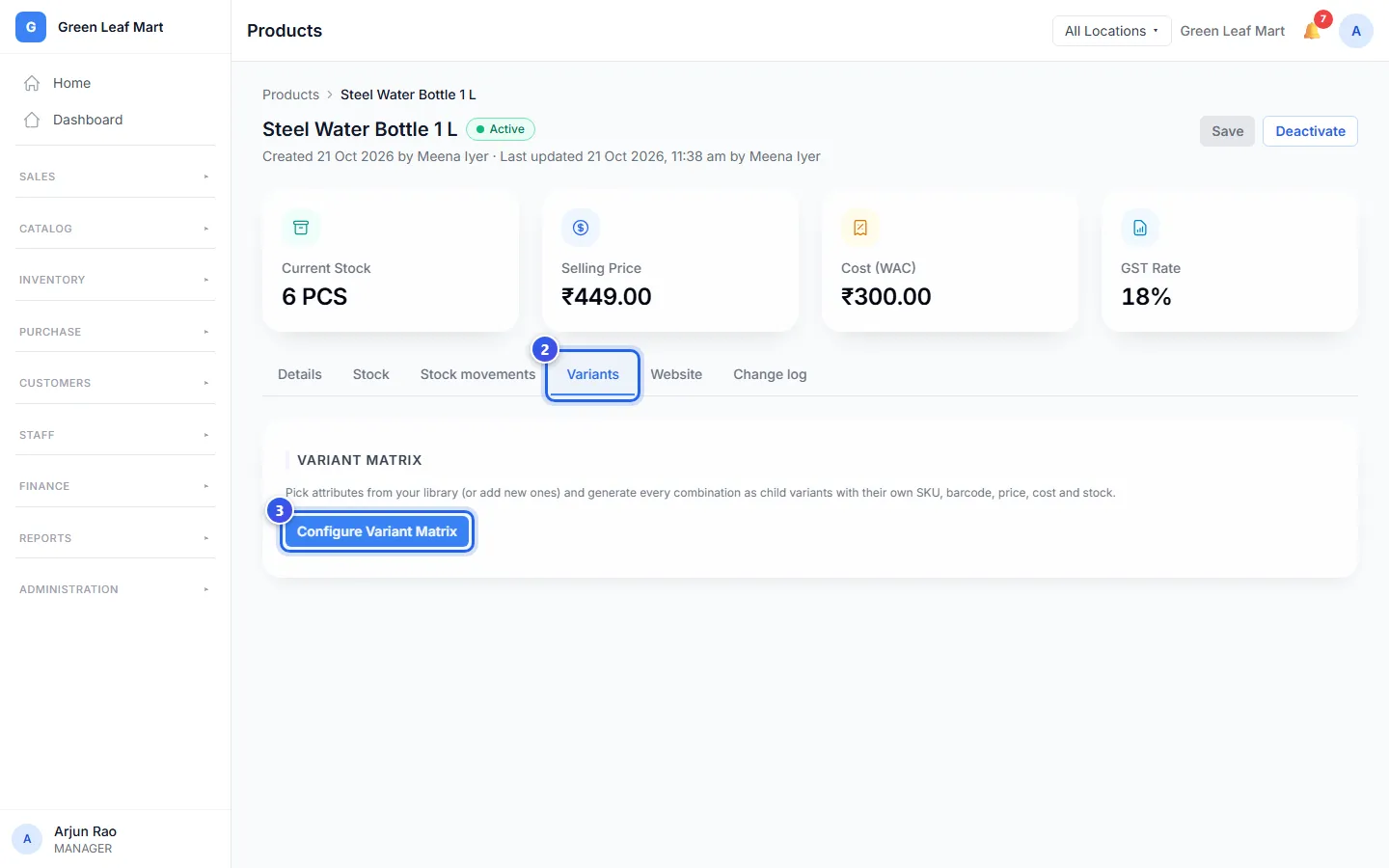
- Press the Variants tab.
- Press Configure Variant Matrix.
- Under From library, press an attribute, like + Colour. It moves to the top, with all its values switched on.
- Press each value you do not sell. That switches it off.
- Press the Generate button. It says how many variants you get, like Generate 2 Variants.
- In the list, check each variant. Move the list sideways to type a price and the stock.
- Press the Create button, like Create 2 Variants.
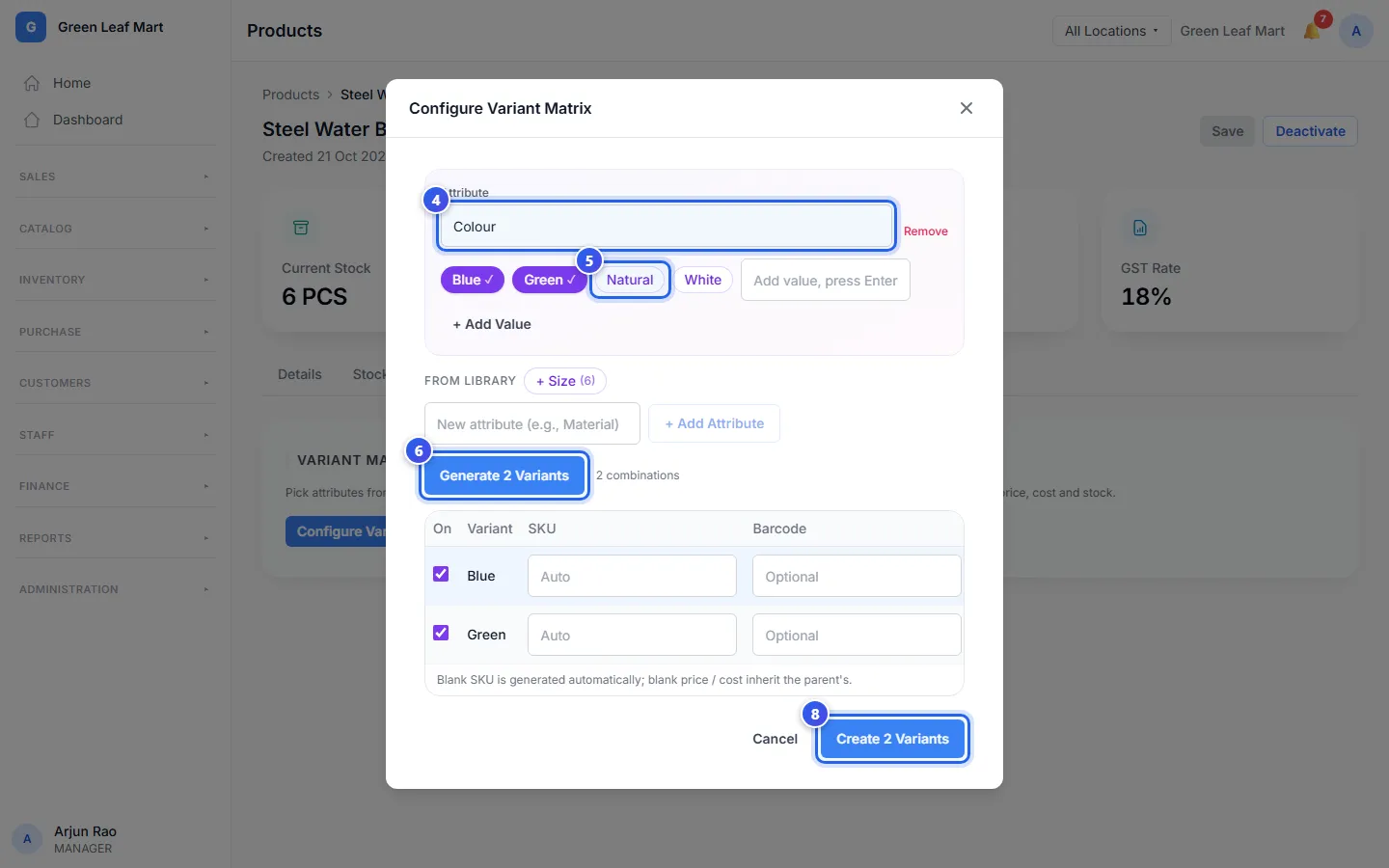
Leave a price empty, and the variant uses the product's price. Leave SKU empty, and Orio360 makes a code.
A new attribute is not in the library yet? Type it in New attribute (e.g., Material). Press + Add Attribute. Then type each value and press the Enter key.
A new product with variants
On the New Product page, go to Pricing & Tax. Turn on This product has variants (sizes, colours…). Then make the variants on the last step, Variants.
After you make them
The Variants tab lists every variant. Press Edit to change one. An Owner can also type new prices in the list and press Save prices.
Did the product have stock before? The till sells only the variants. Open the Stock tab and press Assign to variant to move that stock.
Related help
Still need help?