Quick-add a product at the till
Add a new product from the till when a customer brings one that is not in your list.
Who can do this: Owner and Manager
Sometimes a customer brings an item that is not in your list. You do not need the admin app. A Manager or an Owner can add it at the till in a minute. A Cashier does not see this button.
Add a new product
- On the billing screen, press Quick-Add.
- Scan the barcode. You can also type it and press Look Up.
- Add new product opens for a new barcode. Type the name in Product Name.
- Type the Selling Price (₹). Check the GST Rate.
- Type how many you have in Opening Stock.
- Press Add Product.
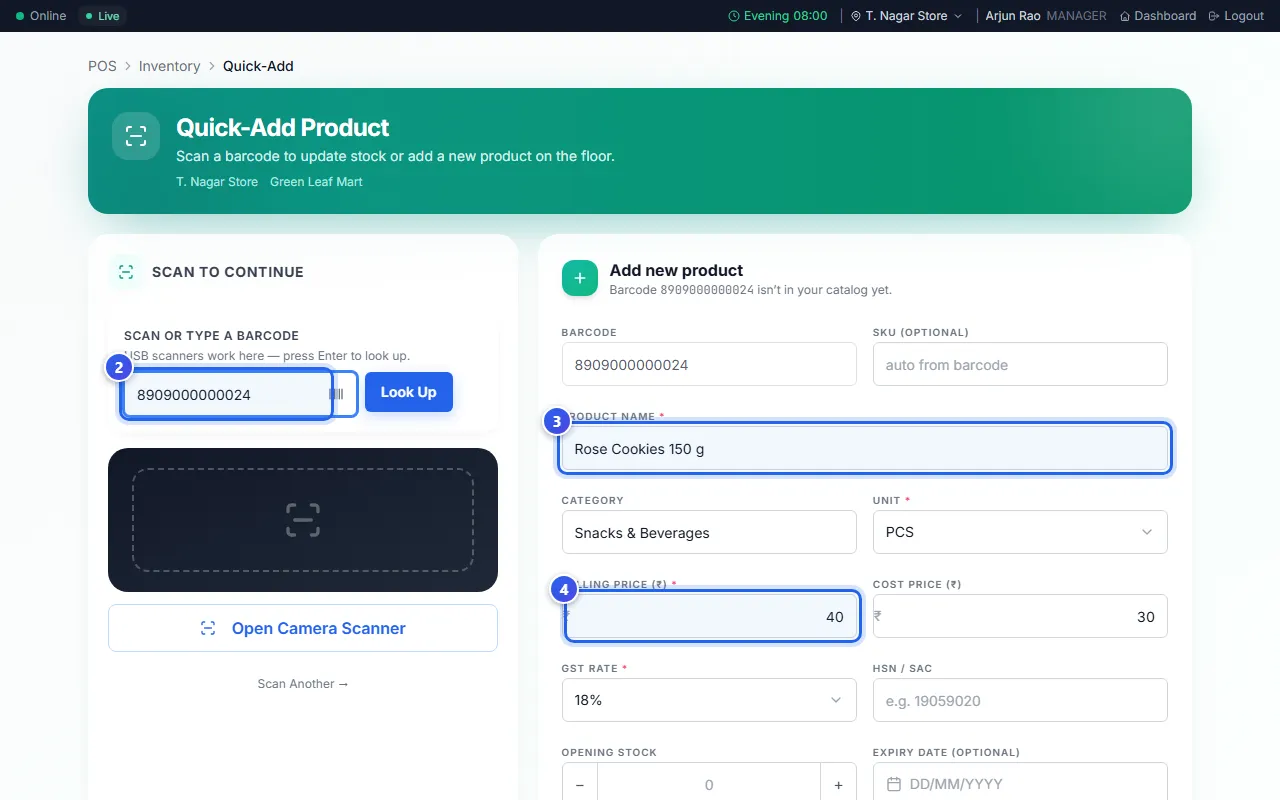
The message Product added shows. Go back to the bill and scan the item again. Now it sells.
Orio360 may fill in a name and a category for you. It finds them in a public list of barcodes. Check them before you press Add Product.
Leave SKU (optional) empty, and Orio360 makes a product code from the barcode. To add a photo, variants or more details later, open the product in the admin app.
When the barcode is already in your list
Then you see the product and its stock. You can add the stock that just came in:
- Choose Stock Adjustment in Adjustment Type.
- Type how many came in, in Stock to Add.
- Press Update Stock.
The same place also takes stock out. Choose Damaged, Wastage or Expired. Press Scan Another to go on to the next item.
Related help
Still need help?