Make a bill
Scan or search for items and add them to a bill at the till.
Who can do this: Owner, Manager and Cashier
The POS app opens on the billing screen. Your products are on the left. The bill is on the right. It shows each item, the GST and the total.
Put items on the bill
- Scan the barcode on the item. Or type a name or a code in the search box, then press Add.
- Or press the item in the list of products.
- Press + on the bill to sell more than 1. Press − to sell fewer.
- Check the Total at the bottom of the bill.
- Press the blue Pay button. It shows the total, like Pay ₹201.00.
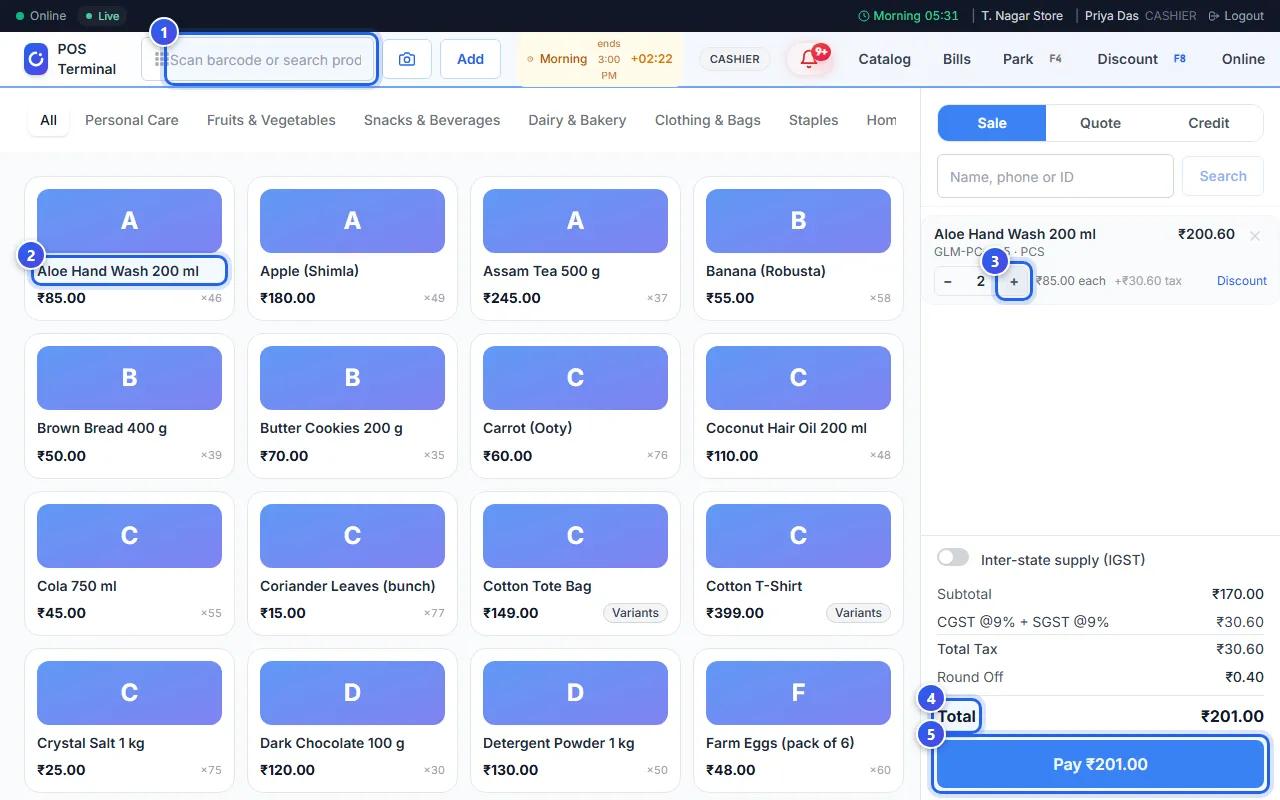
Each time you add the same item again, the number on the bill goes up by 1.
Find items faster
- Press the / key to jump to the search box.
- Use the tabs above the products, like All, to see one category.
- An item with the Variants label comes in sizes or colours. Press it, choose the one you want, then press Add to Cart.
- A grey item that says Out of Stock has none left at this location.
Take an item off the bill
Point at the item on the bill. A small cross shows next to its price. Press the cross. You can also press Ctrl and Z to take off the last item you added.
Related help
Take a payment
Finish a bill and take cash, UPI, card or a split payment.
Look up a product at the till
Find a product's price and stock without leaving the till.
Add a customer to a bill
Find a customer at the till and put their name on the bill.
Find your way in the POS app
Learn the buttons at the top of the billing screen at the till.
Still need help?