Add a customer to a bill
Find a customer at the till and put their name on the bill.
Who can do this: Owner, Manager and Cashier
Put the customer's name on the bill. Then the bill shows in their history. They can also earn and use loyalty points.
Find a customer on the bill
- On the bill, type a name or a phone number in Name, phone or ID.
- Wait a moment. A list of customers who match shows under the box.
- Press the right customer.
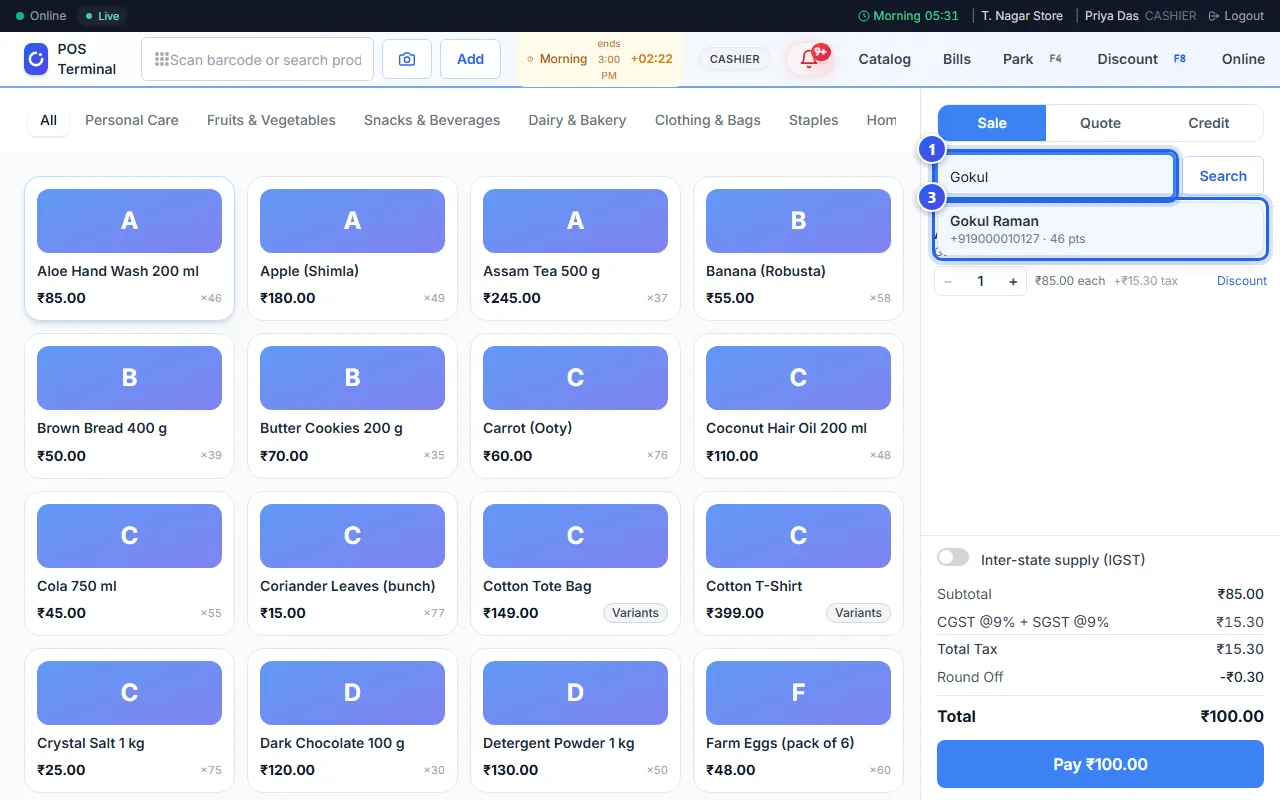
The name, the phone number and the points now show on the bill. A short card also shows their visits and what they spent.
To take the name off, press the small cross next to it.
When you press Pay
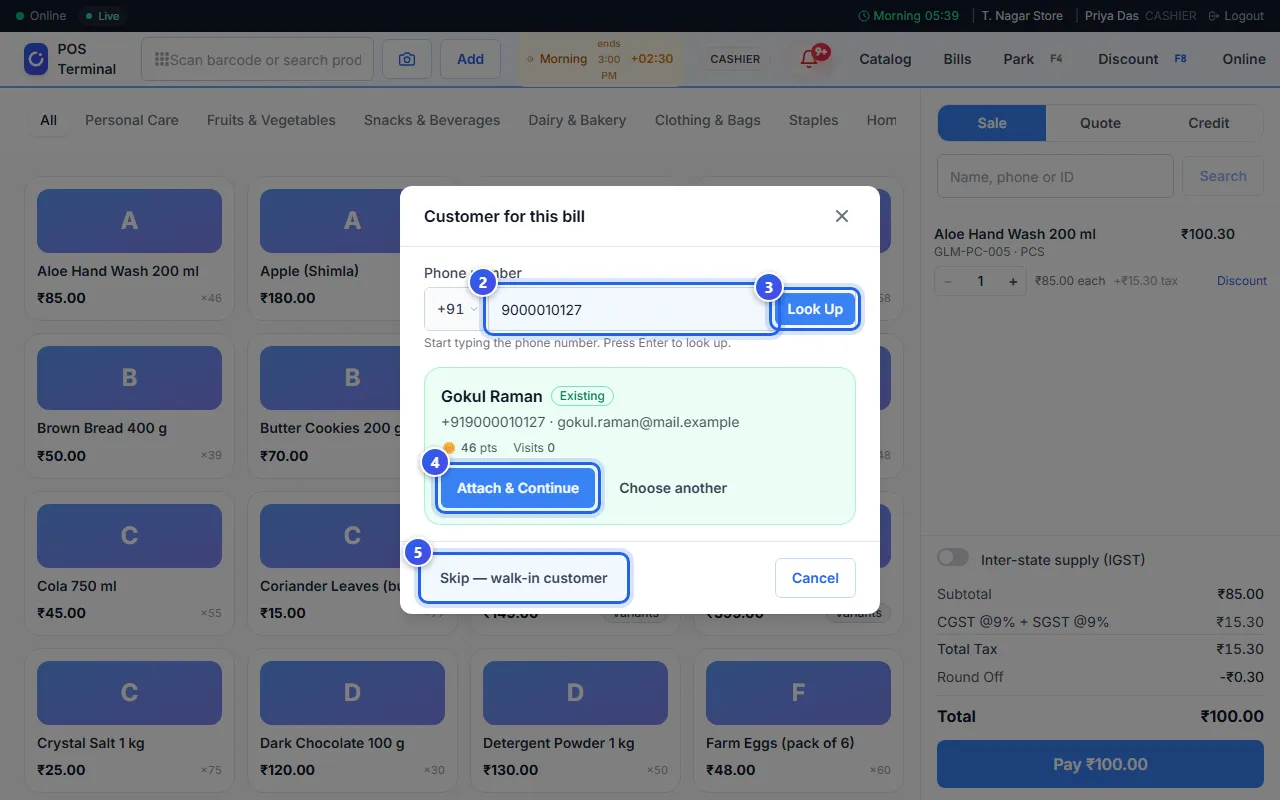
Is there no customer on the bill? Then the Customer for this bill window opens when you press Pay.
- Press Pay on the bill.
- Type the customer's number in Phone number.
- Press Look Up.
- If Orio360 knows the number, check the name. Then press Attach & Continue.
- Or press Skip — walk-in customer to go on with no name.
The payment window opens next. See Take a payment.
Add a new customer
Did Orio360 not find the number? Then you can add the customer right there. Type their name. You can also type their email. Then press Add & Continue.
Press Use a different number if you typed the wrong number.
Related help
Still need help?