Add a location
Add another shop or branch with its own address and code.
Who can do this: Owner
A location is one shop or branch of your business. Each location has its own stock, bills and staff. Only the Owner can add one.
Add a location
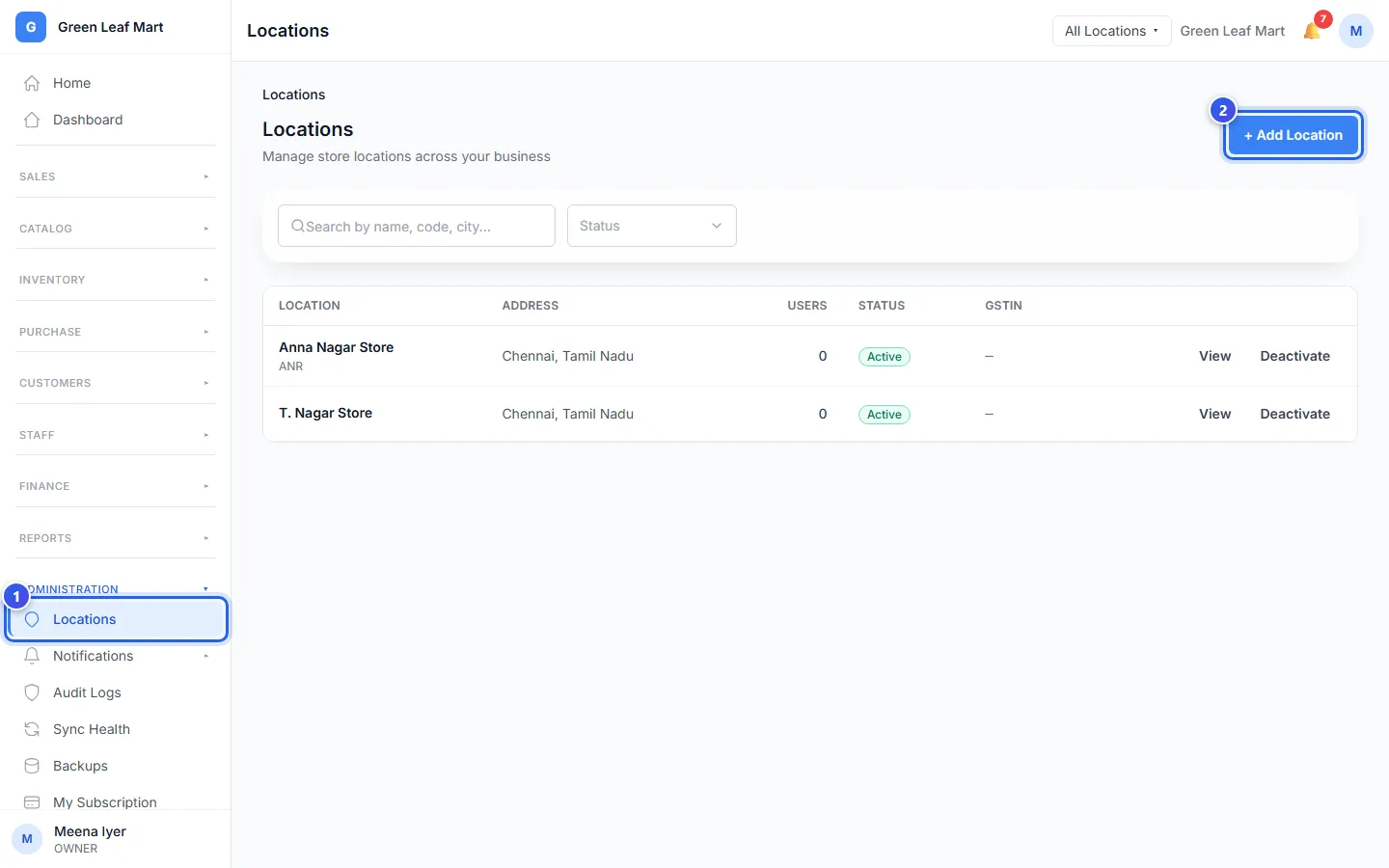
- In the Administration group, press Locations.
- Press + Add Location.
- Type the name in Location Name, like "Adyar Store".
- Check the Location Code. Orio360 makes it from the name, and you can change it.
- Type the Address. Then fill in the City, the State and the Pincode.
- Type the phone number of this location in Phone.
- Type the location's GSTIN, if it has its own.
- Press Create Location.
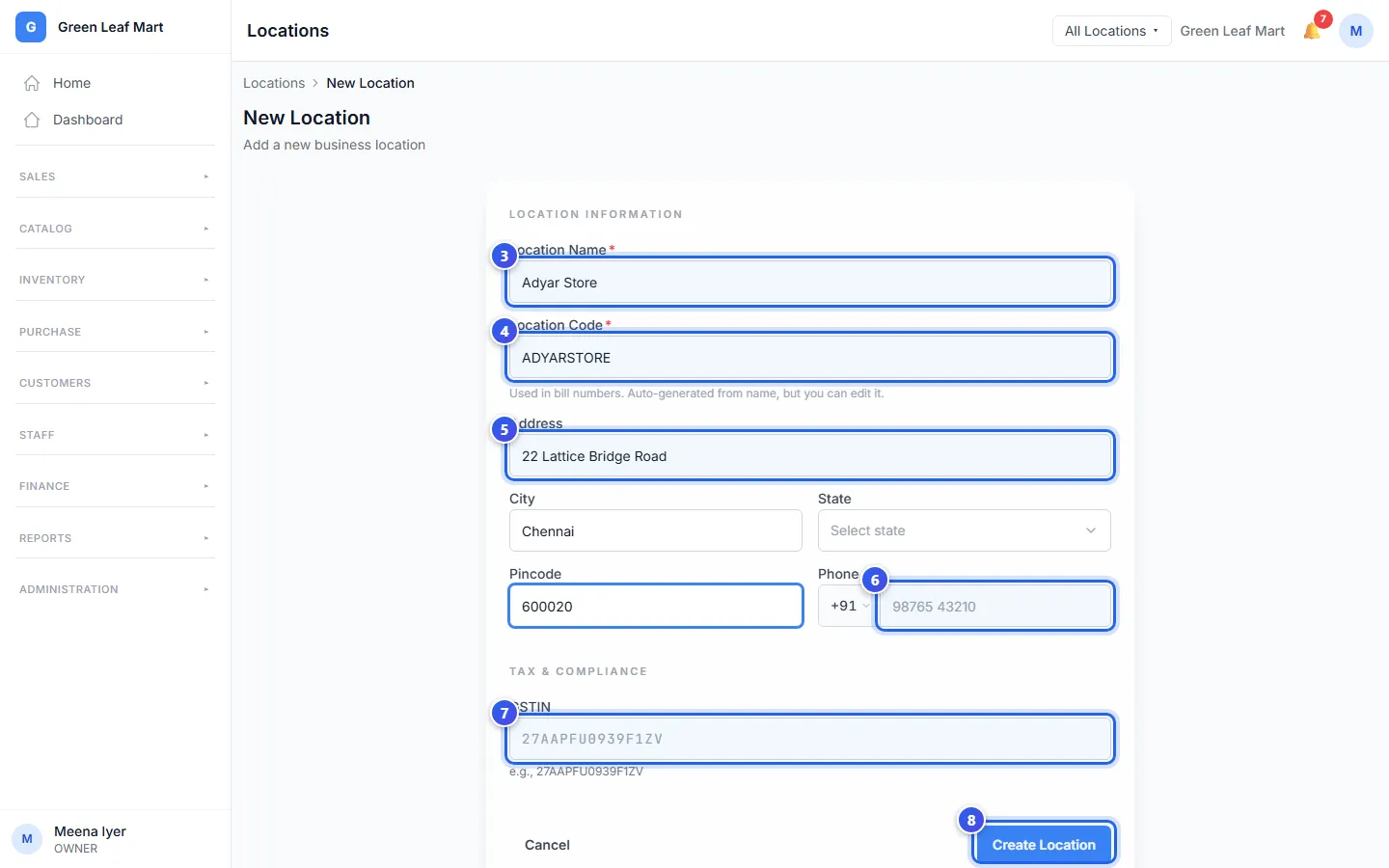
The code goes at the start of each bill number from this location. Use up to 10 letters and digits, with no spaces. You cannot change the code later.
Next, let your staff use the new location. Open each person in Users and tick it. See Change a staff member.
Change a location
- In the list, press View next to the location.
- Press a tab, like Settings. Here you set the receipt width and the printer for this location.
- To stop all billing at this location, press Deactivate.
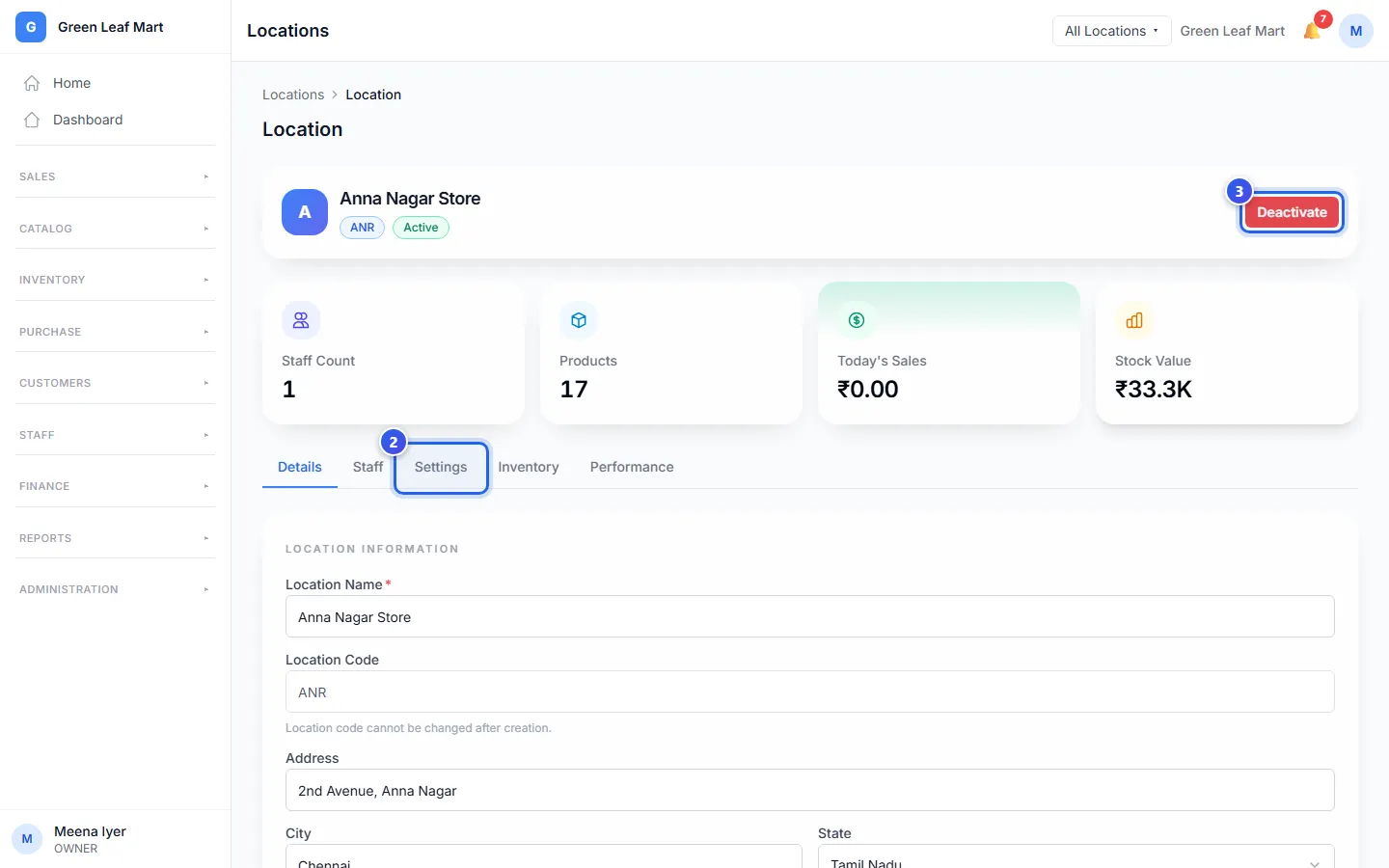
The Details tab has the name, the address and the phone number. To change them, type the new words and press Save Changes.
Related help
Switch to another location
Choose which shop or branch you are working in right now.
Change a staff member's details
Change a staff member's role or locations, or stop them from signing in.
Move stock to another location
Send stock from one location to another and receive it at the other end.
On some plans
My plan and usage
See your plan, what it includes and how much of each limit you have used.
Still need help?