Change a staff member's details
Change a staff member's role or locations, or stop them from signing in.
Who can do this: Owner
Only the Owner can change a staff member. A Manager can see the list of staff on Users, but cannot change it.
Change the role
- In the menu, open Staff and press Users.
- Press View next to the person.
- On the Profile tab, choose the new role: Manager or Cashier.
- Press Save Changes.
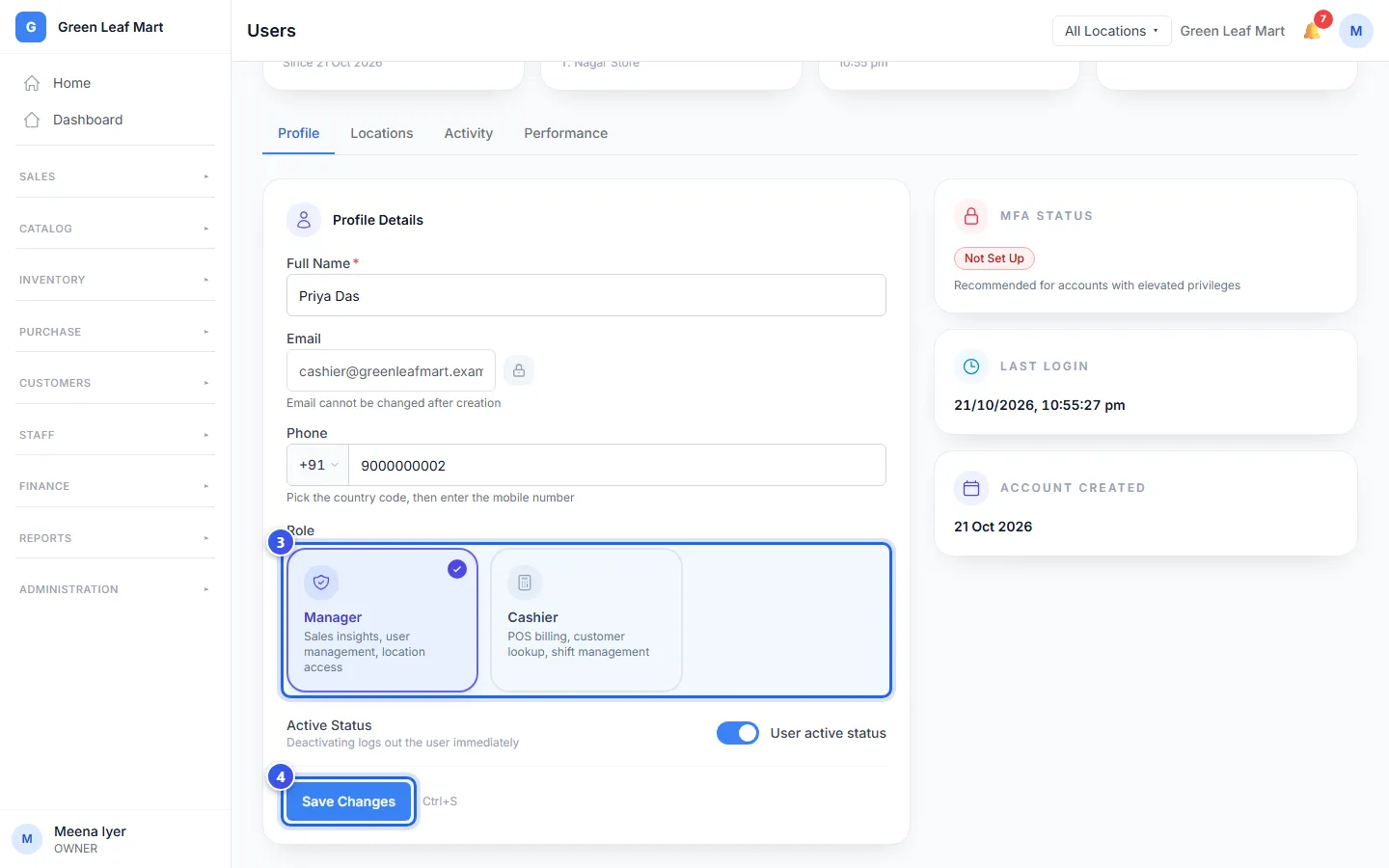
The new role works the next time the person opens a page. You can fix their name or phone number here too. The email cannot change.
Change the locations
- On the person's page, press the Locations tab.
- Tick each location where they work. Untick the ones where they do not.
- Press Save Locations.
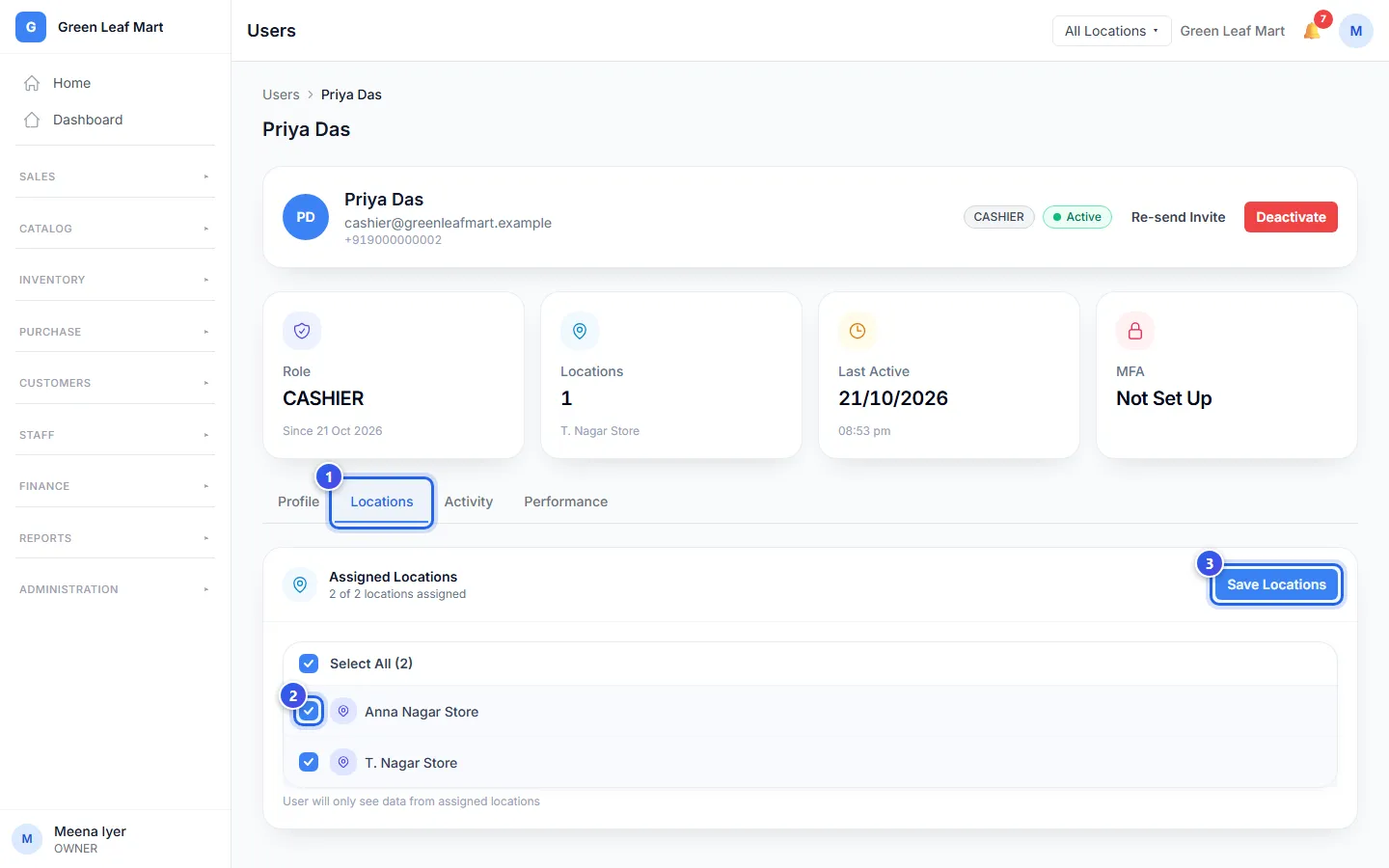
Save Locations shows only after you change a tick. A Manager or a Cashier must have at least one location.
Stop someone from signing in
When a person leaves your business, press Deactivate. You find it next to their name in Users, and at the top of their page. Then press Deactivate again in the box that opens.
Orio360 signs them out at once. Their bills and other records stay safe.
Let them sign in again
- On the person's page, go to the Profile tab.
- Turn on Active Status.
- Press Save Changes.
Related help
Still need help?