Add a staff member
Invite a new person and give them a role, like Manager or Cashier.
Who can do this: Owner
Give each person who works for you their own sign-in. Then Orio360 knows who made each bill. Only the Owner can add staff.
Invite a person
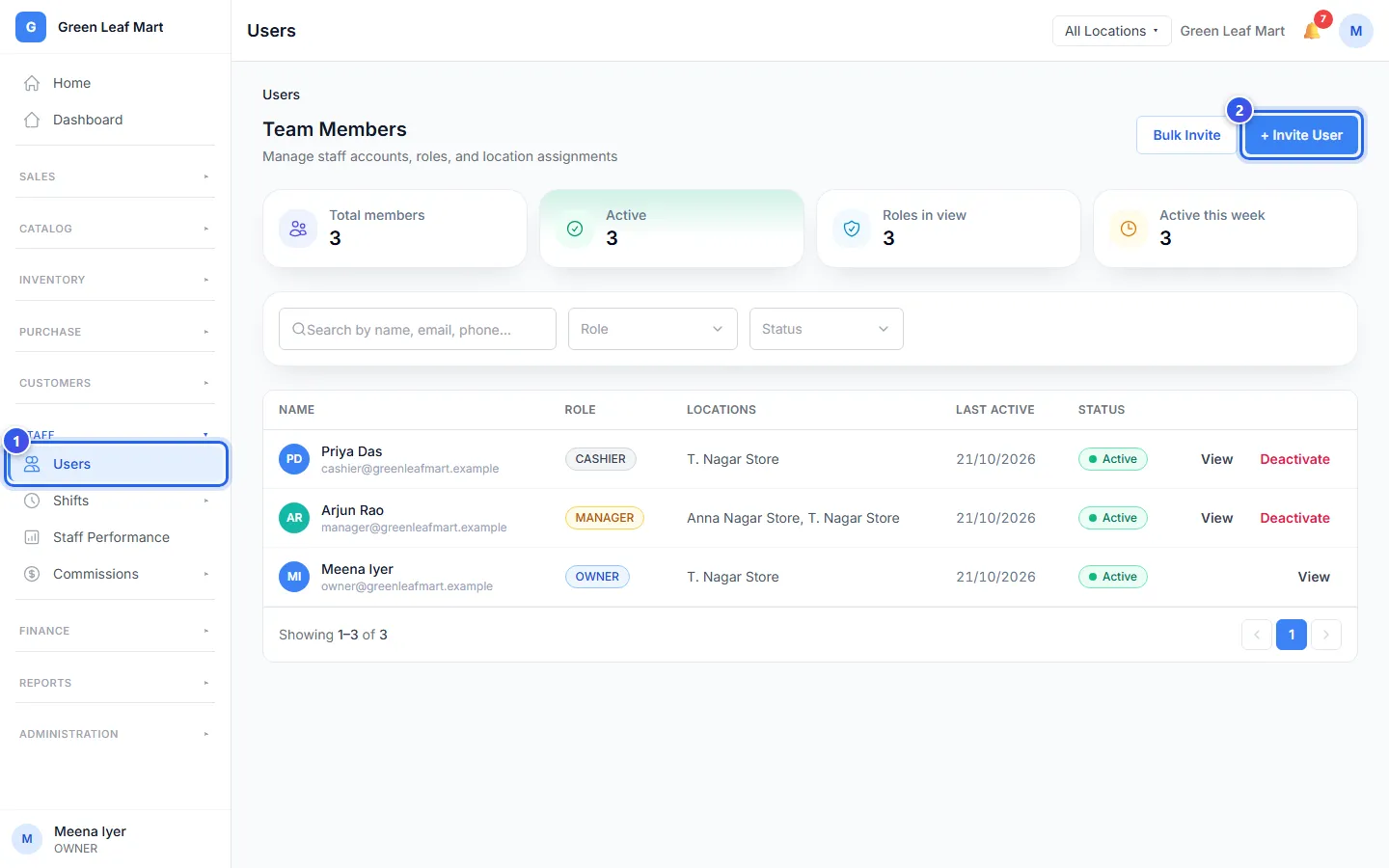
- In the menu, open Staff and press Users.
- Press + Invite User.
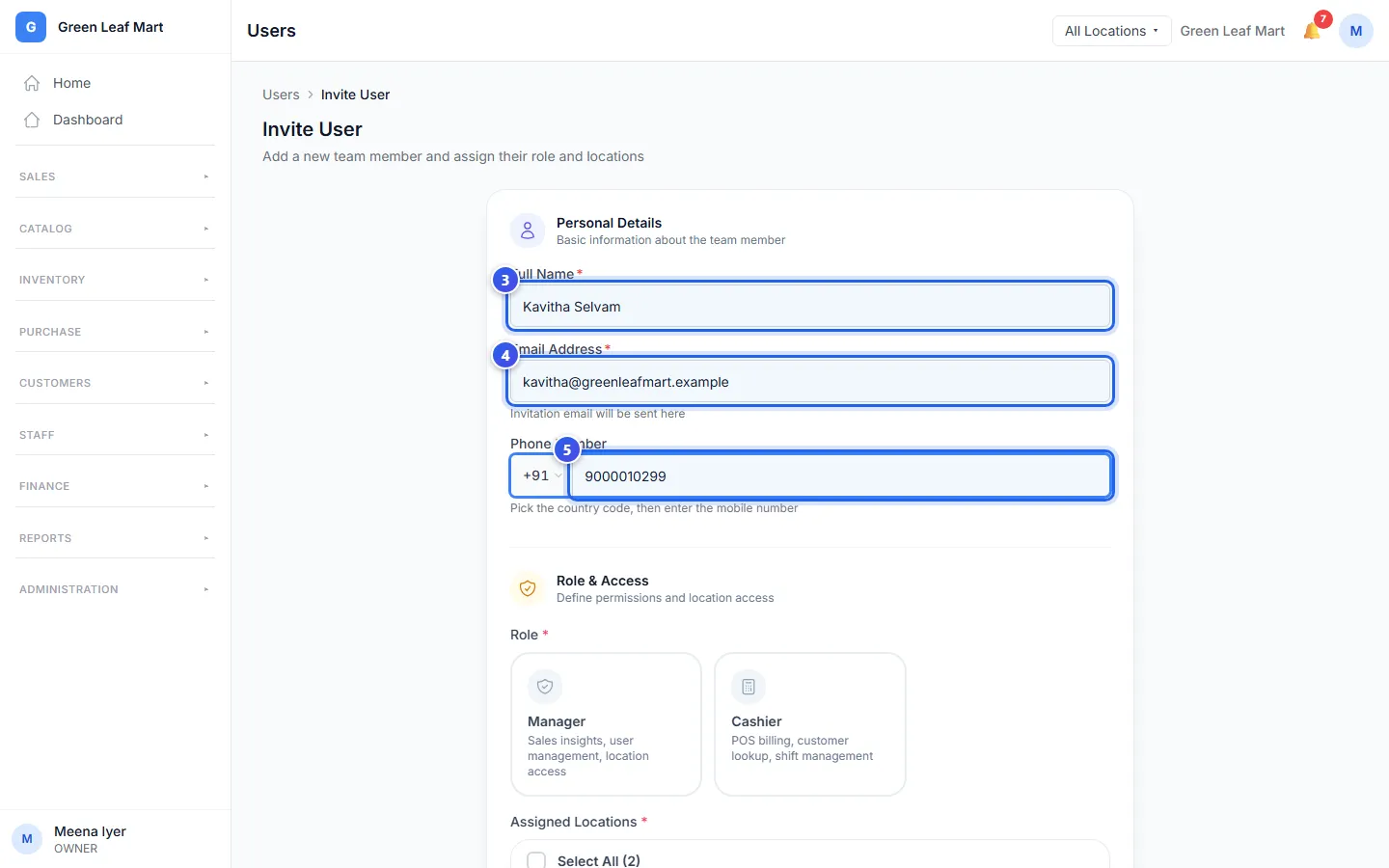
- Type the person's name in Full Name.
- Type their email in Email Address.
- Type their mobile number in Phone Number. You can leave it empty.
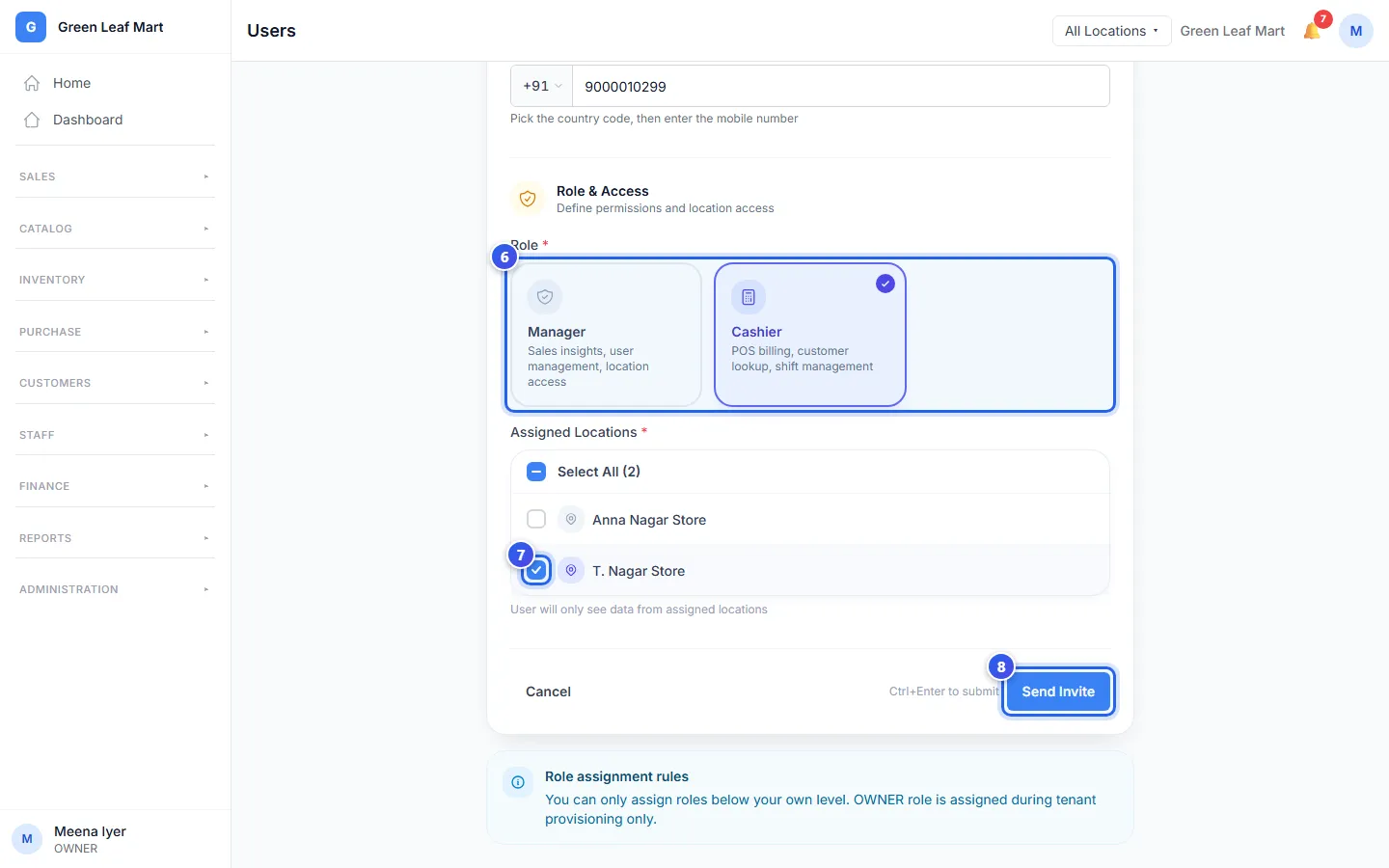
- Under Role, choose Manager or Cashier.
- Under Assigned Locations, tick each location where they work.
- Press Send Invite.
Orio360 sends an email to the new person. It has a 6-digit code. They type the code to sign in for the first time. The code works for 5 minutes.
Choose the right role
The role decides what the person can see and do.
- A Cashier makes bills at the till.
- A Manager also looks after products, stock, shifts and expenses.
You can give only the Manager or the Cashier role. A business has one Owner. We set up the Owner when we make your business.
A person sees only the locations you tick. If they work in every location, tick the box at the top of the list.
If the code does not reach them
- Ask them to look in their spam folder.
- After 5 minutes the code stops working. They can ask for a new code on the sign-in page.
- You can also send a new one. In Users, press View next to them. Then press Re-send Invite.
Related help
Still need help?