Track festival orders
See every festival order and where each one is now.
Who can do this: Owner and Manager
For restaurantsThis is not in every plan. See Pricing.
Each festival booking is also a festival order. The Festive Orders page lists them all. Use it to see what is ready and what the guests have picked up.
Move an order along
- In the menu, open Restaurant, then Bookings and Orders. Press Orders.
- Choose a festival in All Festivals.
- Choose a status in All Statuses, like Confirmed.
- Press Start on a Confirmed order. Its status changes to Ready.
- Press Deliver when the guest has the order. Its status changes to Delivered.
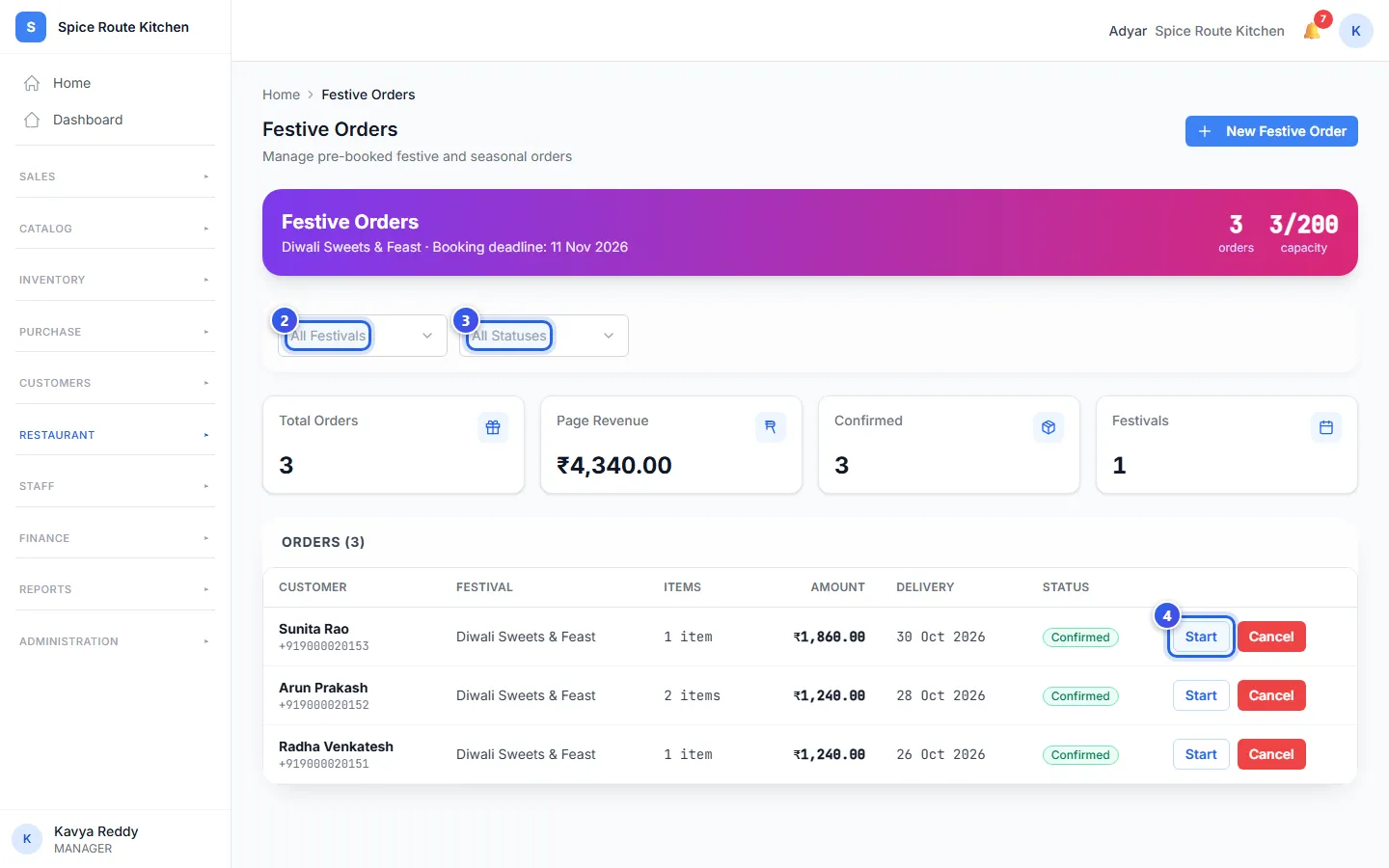
Each row shows the guest under Customer, with their phone number. Items counts the dishes, and Amount is the price of the whole order. Delivery is the day the guest wants it.
The cards show Total Orders and how many are Confirmed. The coloured bar at the top shows the festival's orders and how much of its limit is used.
What each status means
- Booked: the guest has booked the order.
- Confirmed: the order is set and will go ahead.
- In Production: the kitchen is making it.
- Ready: the order is ready for the guest.
- Delivered: the guest has the order.
- Cancelled: the order will not go ahead.
Cancel an order
Press Cancel on the order's row. Choose the reason. Then choose how to give back the money, like Cash or Store Credit. A Manager or an Owner can cancel an order.
Related help
Manage festival bookings
See all festival bookings in a list or a calendar and take deposits.
For restaurantsOn some plans
Plan what to cook
See which ingredients your festival orders need, and which ones you must buy.
For restaurantsOn some plans
See festival orders at the till
Check the festival orders guests booked, with their delivery dates and status.
For restaurantsOn some plans
Still need help?