Put cooks on kitchen stations
Choose which staff work at each kitchen station.
Who can do this: Owner and Manager
For restaurantsThis is not in every plan. See Pricing.
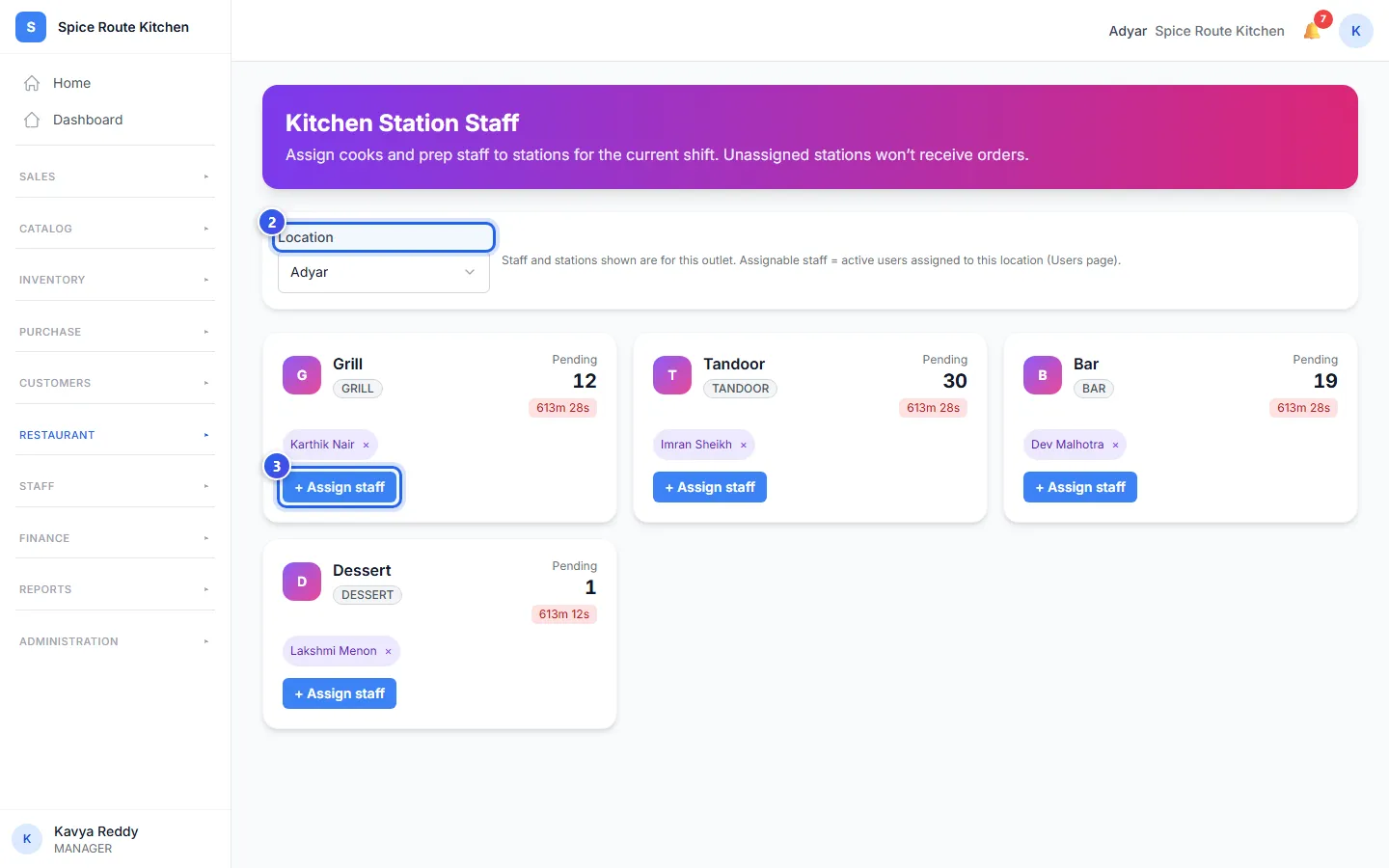
A kitchen station is one part of your kitchen, like the grill or the bar. Each station sees only its own dishes on the kitchen screen. Each day, choose which cooks work at each station.
Put a cook on a station
- In the menu, open Restaurant and press Station Staff.
- Check the Location at the top.
- Find the station. Press + Assign staff on its card.
- Choose the cook in Staff member.
- Press Assign.
The message Staff assigned shows. The cook's name is now on the station's card. A station can have more than one cook.
To take a cook off a station, press the × next to their name.
Before you start
- The cook must clock in for work today first. If not, Orio360 does not add them, and a message says why.
- The Staff member list shows only active staff of this location. Add new staff under Users first.
What the cards show
- Pending is how many dishes wait at the station now.
- The time under it is how long the oldest dish has waited.
- A station with no cook has a red border. Its card says No staff assigned — orders will not be routed here.
At the top, a note counts the stations with no cook. Give each one a cook before the kitchen opens.
Related help
Show one station's orders
Set a kitchen screen to show only the orders for one kitchen station.
For restaurantsOn some plans
Mark food ready on the kitchen screen
See new orders on the kitchen screen and mark each one ready when it is cooked.
For restaurantsOn some plans
Send an order to the kitchen
Add dishes to an order and send a KOT so the kitchen starts cooking.
For restaurants
Still need help?