Show one station's orders
Set a kitchen screen to show only the orders for one kitchen station.
Who can do this: Owner, Manager and Cashier
For restaurantsThis is not in every plan. See Pricing.
A big kitchen has more than one kitchen station, like the grill and the bar. Each station can have its own screen. Then the cooks there see only the dishes they make. Each dish goes to its station when the waiter sends the KOT.
Switch station on the main screen
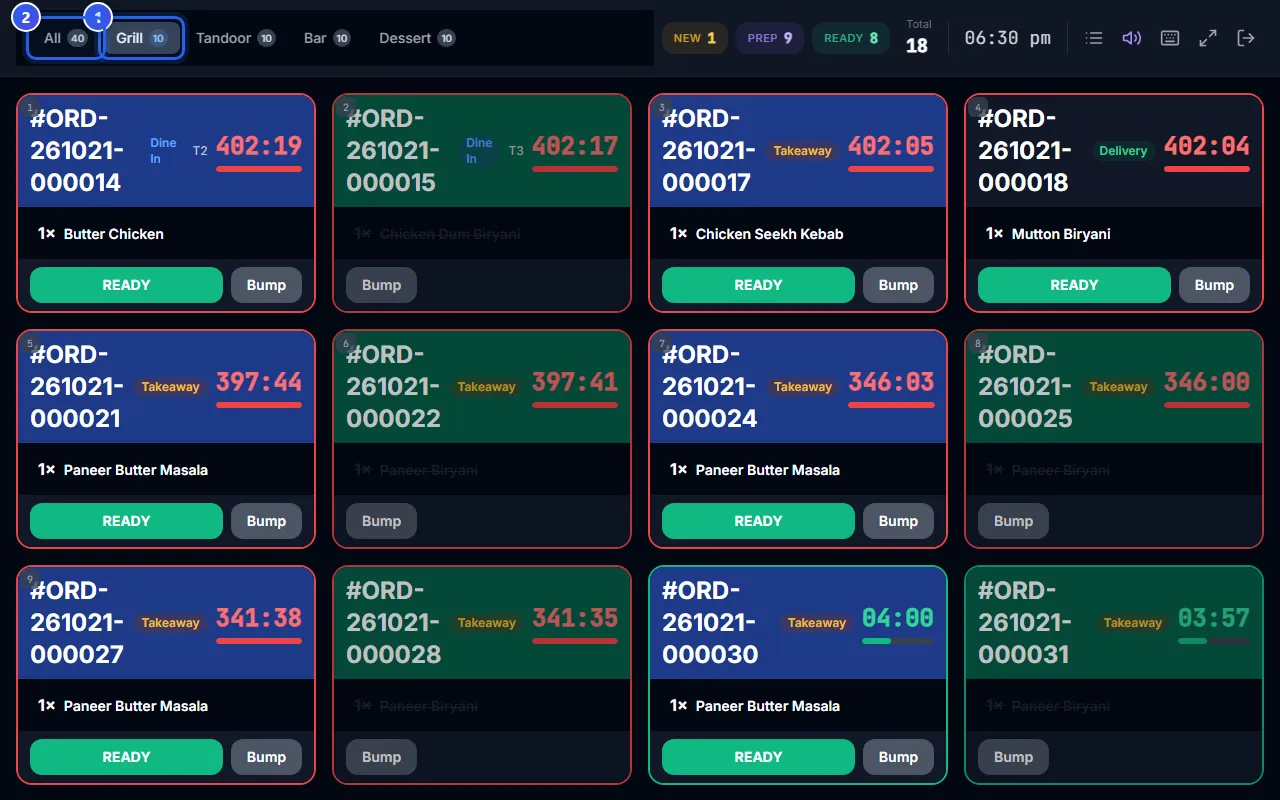
- At the top left, press the name of a station, like Grill. The screen shows only the dishes for that station.
- Press All to see every order again.
Keep a screen on one station
- Sign in and choose the station. See Sign in to the kitchen screen.
- To see one kind of order, choose it in ORDER TYPE: Dine-in, Takeaway or Delivery.
- To change the order of the cards, choose it in SORT BY. Priority (oldest first) puts the oldest order first. Newest first puts the newest first.
- A Manager or an Owner can press Move on a card. Then they choose another station, and the order moves there.
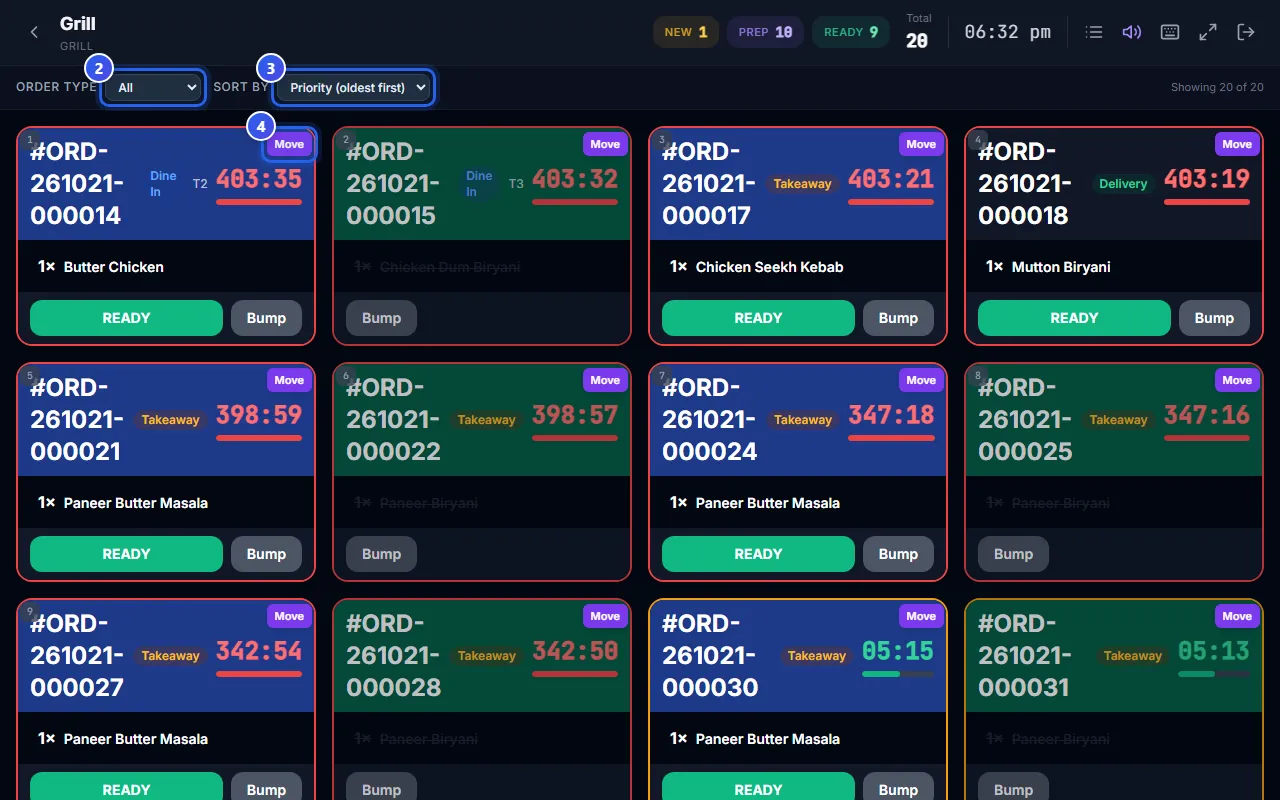
The name of the station is at the top left. At the right, Showing 20 of 20 tells you how many cards you see. To go back to every station, press the arrow next to the station name.
When a station has no cook
A red bar may say that a station has no assigned staff. This means no cook is set for that station right now. Ask a Manager to fix it in the admin app. Press Dismiss to hide the bar.
Related help
Sign in to the kitchen screen
Sign in on the kitchen screen and choose your kitchen station.
For restaurantsOn some plans
Mark food ready on the kitchen screen
See new orders on the kitchen screen and mark each one ready when it is cooked.
For restaurantsOn some plans
Send an order to the kitchen
Add dishes to an order and send a KOT so the kitchen starts cooking.
For restaurants
Still need help?