Mark food ready on the kitchen screen
See new orders on the kitchen screen and mark each one ready when it is cooked.
Who can do this: Owner, Manager and Cashier
For restaurantsThis is not in every plan. See Pricing.
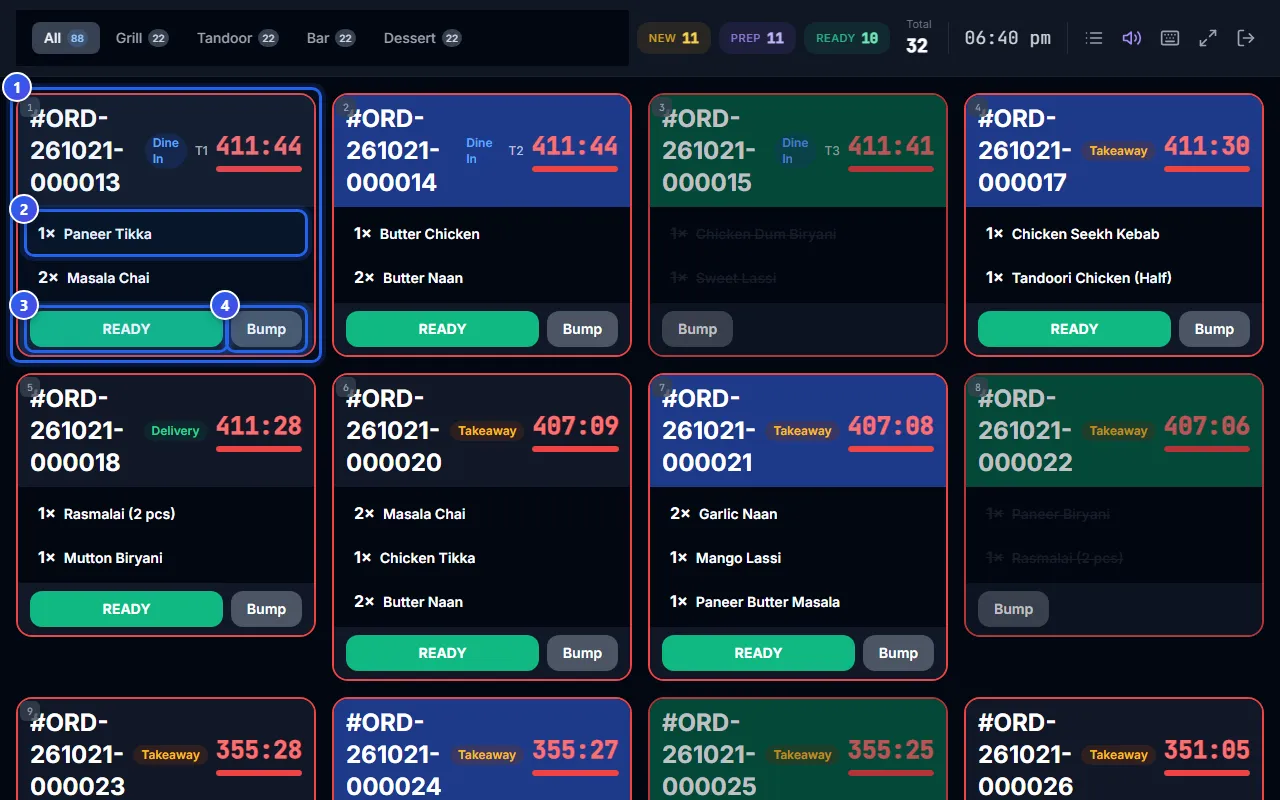
Each order shows on the kitchen screen as a card. The oldest order is first, at the top left, so you cook it first. Mark the food ready when it is cooked. Then the waiter knows it is time to serve it.
Cook an order
- Find the order card. It shows the order number, the dishes and a clock.
- Press a dish when you start to cook it. Press it again when it is cooked. A line goes through the dish.
- Press READY when the whole order is cooked.
- Press Bump when the food leaves the kitchen. The card goes off the screen.
Did you press READY by mistake? On the screen for all stations, a message Order marked READY shows for 10 seconds. Press UNDO in it, and the order goes back.
What the colours mean
- The top of a card is grey for a new order. It turns blue while you cook, and green when the order is ready.
- The edge of a card is green at first. It turns yellow after 5 minutes and red after 10 minutes.
- The clock on a card counts the minutes and seconds since the guest ordered.
At the top, NEW, PREP and READY count the orders in each state. Total counts them all.
New and cancelled orders
The screen checks for new orders every 5 seconds. On the screen for all stations, a new order plays a sound and shows New order. Sometimes a waiter takes a dish off an order. While the sound is on, a box Order Cancellation Alert then shows. Press Acknowledge to close it.
To turn the sound off or on, press the speaker button at the top.
Use the keyboard
Each card has a small number in its top left corner. Press that number on the keyboard to pick the card. Then press Enter for READY, or the Space bar for Bump. Press F to fill the whole screen.
Related help
Send an order to the kitchen
Add dishes to an order and send a KOT so the kitchen starts cooking.
For restaurants
Show one station's orders
Set a kitchen screen to show only the orders for one kitchen station.
For restaurantsOn some plans
See all open orders
Check every order that is cooking, ready or waiting for its bill.
For restaurants
Still need help?