See all open orders
Check every order that is cooking, ready or waiting for its bill.
Who can do this: Owner, Manager and Cashier
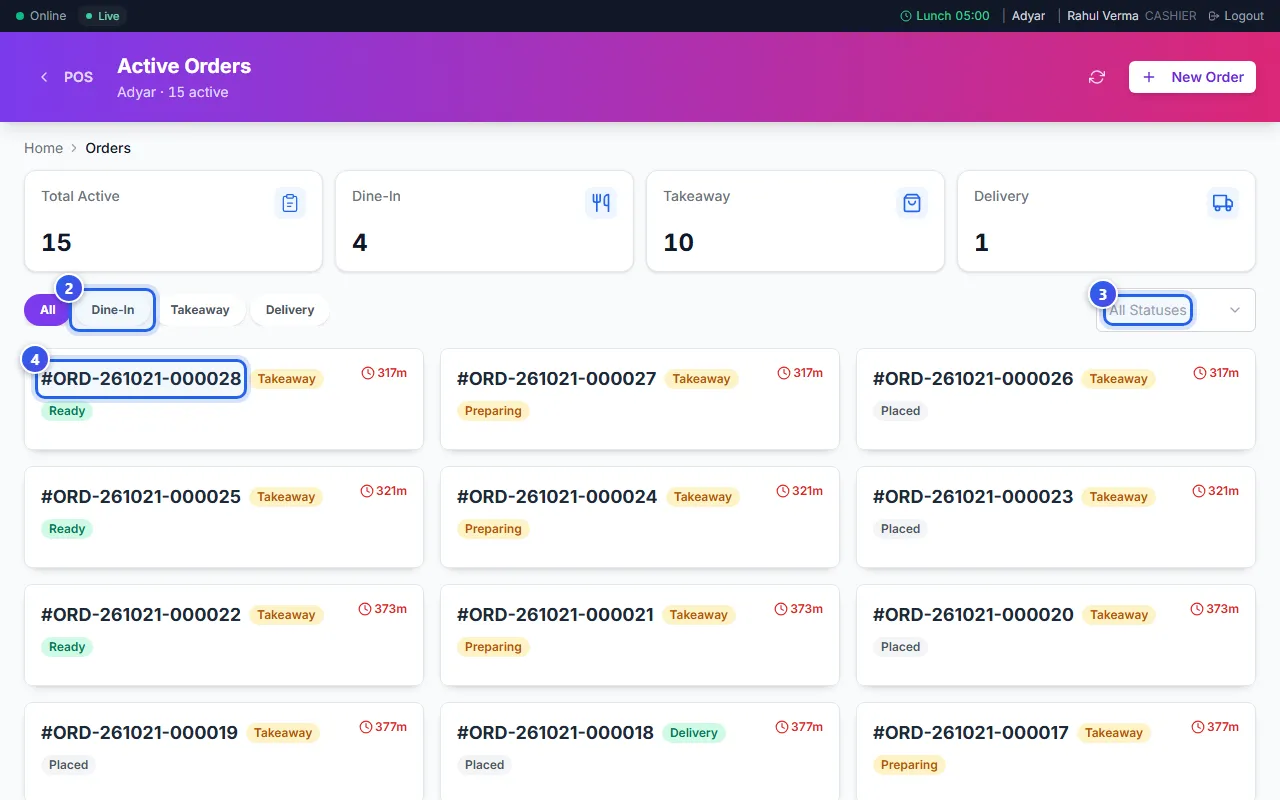
For restaurantsThe Active Orders page shows the orders at your location in one place. Use it to see which orders are ready to serve, and which still wait for the kitchen.
Find an order
- Press Tables, then New Order. Then press Orders at the top left.
- Press a tab to see one kind of order: Dine-In, Takeaway or Delivery.
- Choose a status in All Statuses, like Ready, to see only those orders.
- Press an order to open its page.
What each card shows
- The order number, like #ORD-261021-000028.
- The kind of order: Takeaway, Delivery or dine-in.
- Its status, like Placed, Preparing or Ready.
- A clock that shows how many minutes ago the guest ordered.
The four cards at the top count the open orders. Total Active counts every order that is not billed or cancelled.
Keep the list fresh
The page checks for new orders every 15 seconds. To check at once, press the round arrows at the top, or press the R key. To start an order from here, press New Order, or press the N key.
Related help
Send an order to the kitchen
Add dishes to an order and send a KOT so the kitchen starts cooking.
For restaurants
Turn an order into a bill
Make the bill when the guests finish, then take their payment.
For restaurants
Use the table screen
See which tables are free or busy, and move or join tables.
For restaurants
Still need help?