Use the table screen
See which tables are free or busy, and move or join tables.
Who can do this: Owner, Manager and Cashier
For restaurantsThe Floor Plan shows every table in your restaurant. Each table shows its name, its seats and if it is free or busy. The page checks for changes every 15 seconds.
Look at your tables
- On the billing screen, press Tables at the top.
- Press a tab to see some tables only, like Available or Occupied.
- Press a table to see its details on the right.
- On a busy table, press Add Item to add dishes to its order.
- Press Close Bill when the guests want to pay.
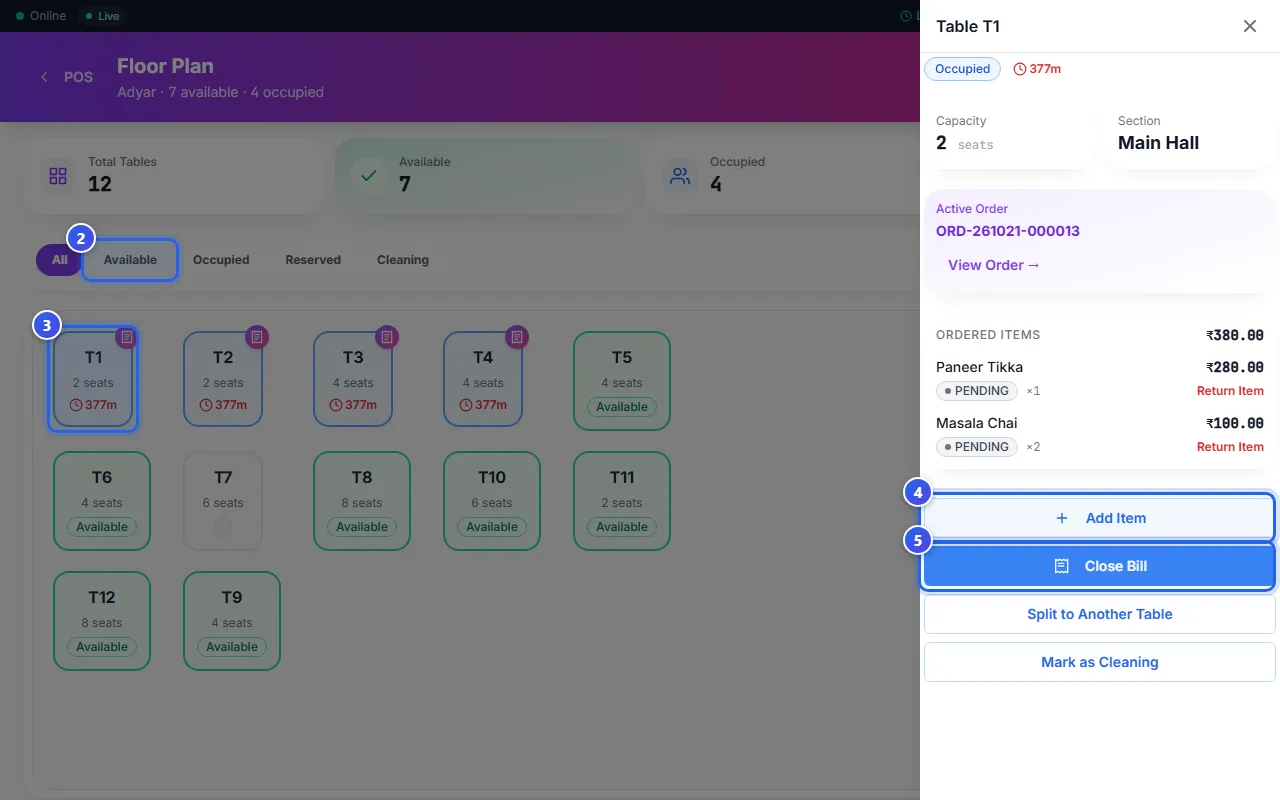
The cards at the top count your tables. A busy table shows how long the guests have sat there. Its details list each dish that is on the order. A dish that is still PENDING has not gone to the kitchen yet. You can take it off with Return Item.
What the colours mean
- Available: the table is free. Press it, then press New Order.
- Occupied: guests sit there, and the table has an order.
- Reserved: the table is kept for a guest who booked it.
- Cleaning: the guests have paid and left. Clean the table first.
To change this, press the table. Then press a button like Mark as Available or Mark as Cleaning.
Join or move tables
A Manager or an Owner can join tables for a big group.
- Press Merge at the top.
- Press each table you want to join. Pick at least 2.
- Press Merge (2). The number is how many tables you picked.
- Type the name of the other table, like T2. Then press Merge Tables.
To move a running order to a free table, press the busy table. Then press Split to Another Table. Choose the table in Move to table, and press Move Order.
Related help
Still need help?