Take a new order
Start a dine-in, takeaway or delivery order and add dishes to it.
Who can do this: Owner, Manager and Cashier
For restaurantsTake an order when guests tell you what they want to eat. The order can be dine-in, takeaway or delivery. When you finish, the KOT goes to the kitchen.
Make the order
- Press Tables on the billing screen. Then press New Order at the top.
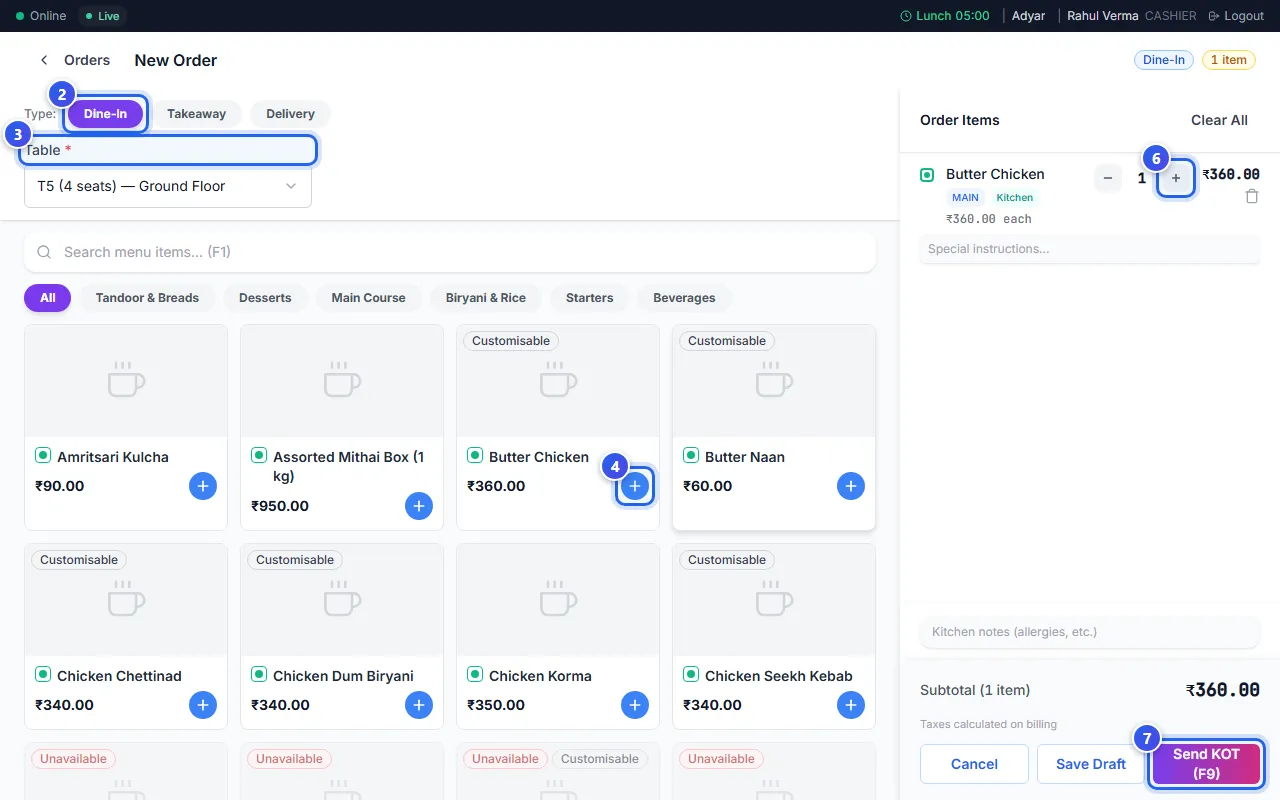
- Choose Dine-In, Takeaway or Delivery.
- For dine-in, choose the table in Table. For takeaway or delivery, find the customer.
- Press + on a dish to add it. You can also type its name in the search box first.
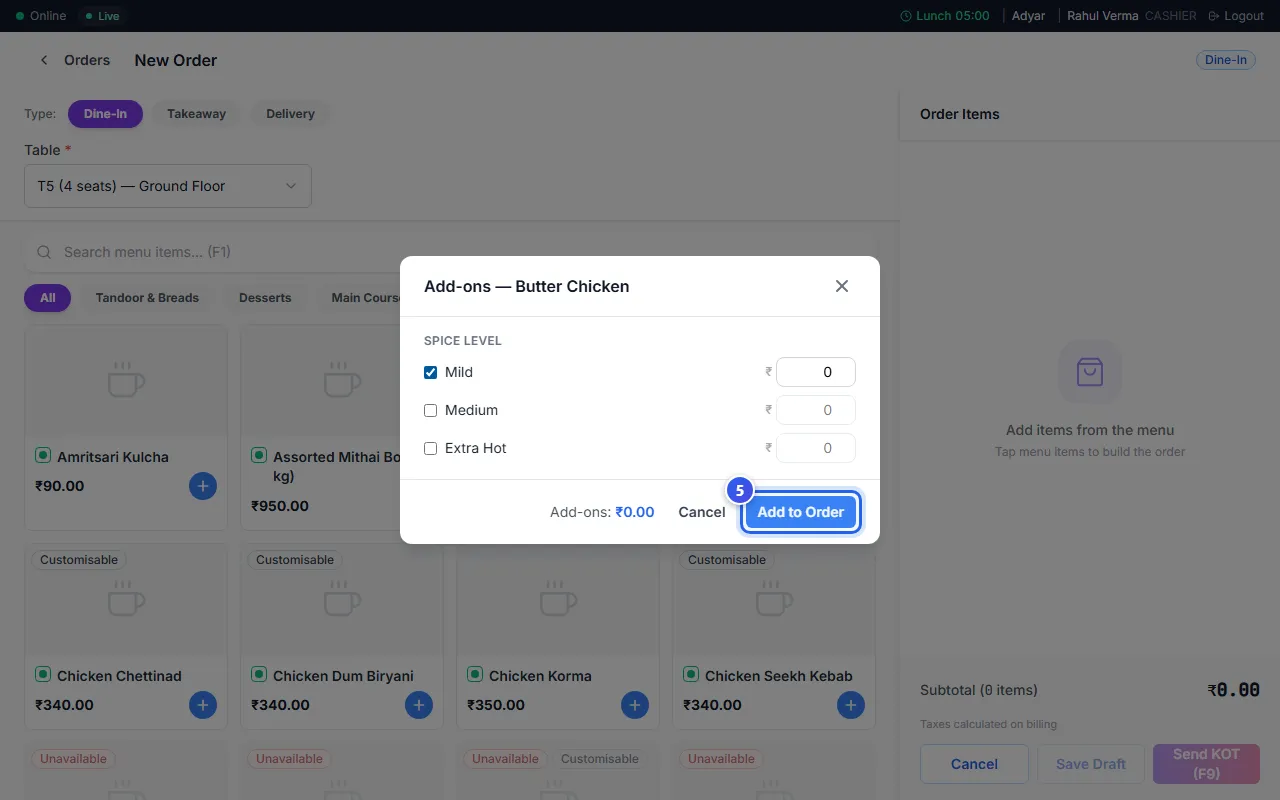
- A small box with add-ons opens. Tick what the guest wants, then press Add to Order.
- Press + or − next to a dish on the right to change how many.
- Press Send KOT (F9). Then press Send KOT to say yes.
The order opens on its own page. The kitchen screen shows the dishes at once.
Notes for the kitchen
- Type a note for one dish under it, like "no onions".
- Type a note for the whole order in the box at the bottom, like an allergy.
- An add-on is a modifier. It can add to the price of the dish.
Other buttons
- Save Draft keeps the order but does not send it to the kitchen. Send it later from the order page.
- Clear All takes every dish off the order.
- Cancel leaves the page without making an order.
Related help
Use the table screen
See which tables are free or busy, and move or join tables.
For restaurants
Send an order to the kitchen
Add dishes to an order and send a KOT so the kitchen starts cooking.
For restaurants
See all open orders
Check every order that is cooking, ready or waiting for its bill.
For restaurants
Still need help?