Send an order to the kitchen
Add dishes to an order and send a KOT so the kitchen starts cooking.
Who can do this: Owner, Manager and Cashier
For restaurantsThe kitchen cooks a dish only after it gets a KOT. Send one when you save an order as a draft, or when guests ask for more food.
Send the KOT
- Open the order. On the Floor Plan, press the table, then press View Order →.
- Look at KDS Status. A dish that says PENDING has not gone to the kitchen.
- Press Send KOT at the bottom. The message KOT sent to kitchen. shows.
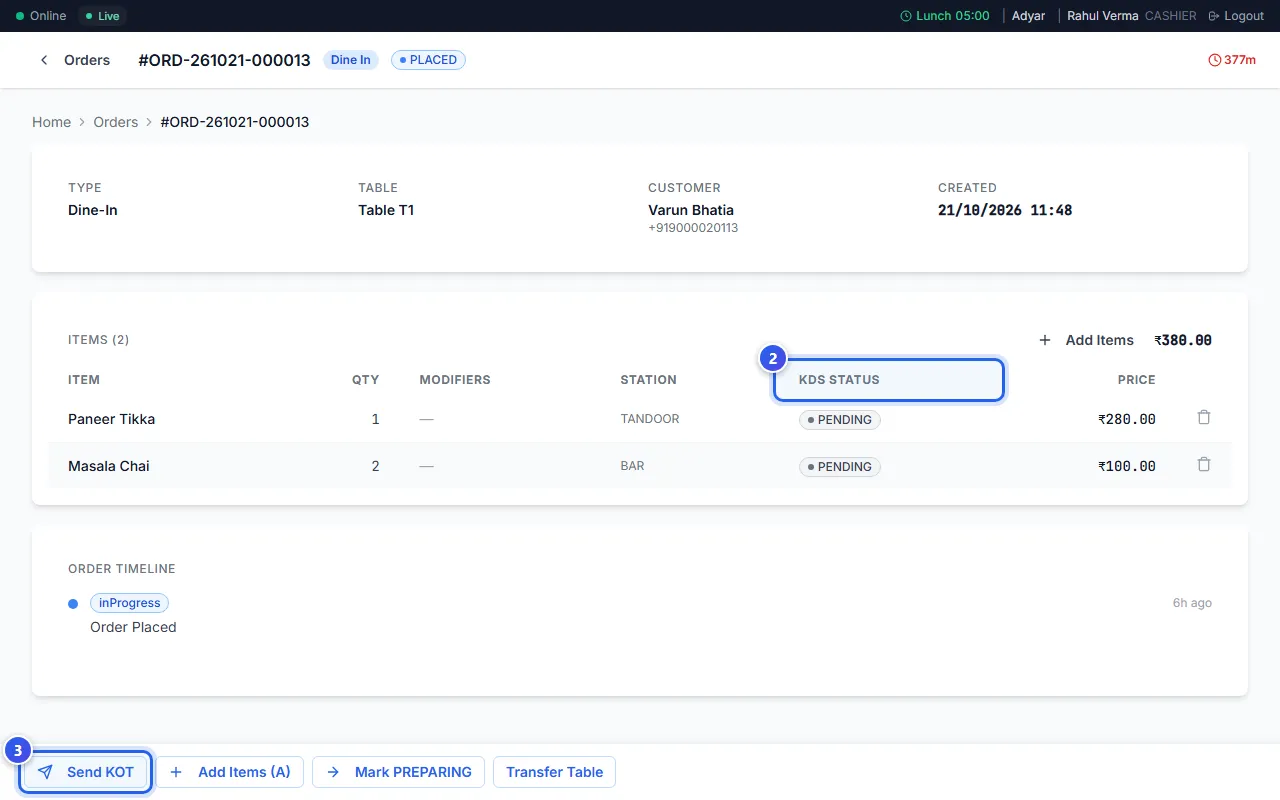
The dishes show on the kitchen screen. Each one goes to its kitchen station, like TANDOOR or BAR.
Add more dishes
- On the order page, press Add Items (A). You can also press the A key.
- Press each dish the guests want. Press it again to add one more.
- Press Add at the bottom of the box. The button shows how many dishes you picked.
- Press Send KOT to send the new dishes to the kitchen.
Follow the order
The order moves through these steps: PLACED, PREPARING, READY and SERVED. The kitchen screen moves most orders along. You can also press Mark PREPARING, Mark READY or Mark SERVED on the order page.
- To take a dish off, press the bin next to it. You can do this only while it is PENDING.
- To move a dine-in order, press Transfer Table. Choose a free table and press Transfer.
- A Manager or an Owner can press Cancel Order. You cannot undo it.
Related help
Still need help?