Sign in to the kitchen screen
Sign in on the kitchen screen and choose your kitchen station.
Who can do this: Owner, Manager and Cashier
For restaurantsThis is not in every plan. See Pricing.
The kitchen screen shows your cooks each new order. Sign in on the screen in your kitchen at the start of the day. Then choose the part of the kitchen it is for.
Sign in
- Open the kitchen screen in your web browser.
- Type your email in Email Address.
- Press Send OTP.
- Look in your email for the 6-digit code. This code is your OTP. Type it in the 6 boxes.
- Press Verify & Continue.
- On Select Station, press your kitchen station, like Grill.
- Press Enter Kitchen.
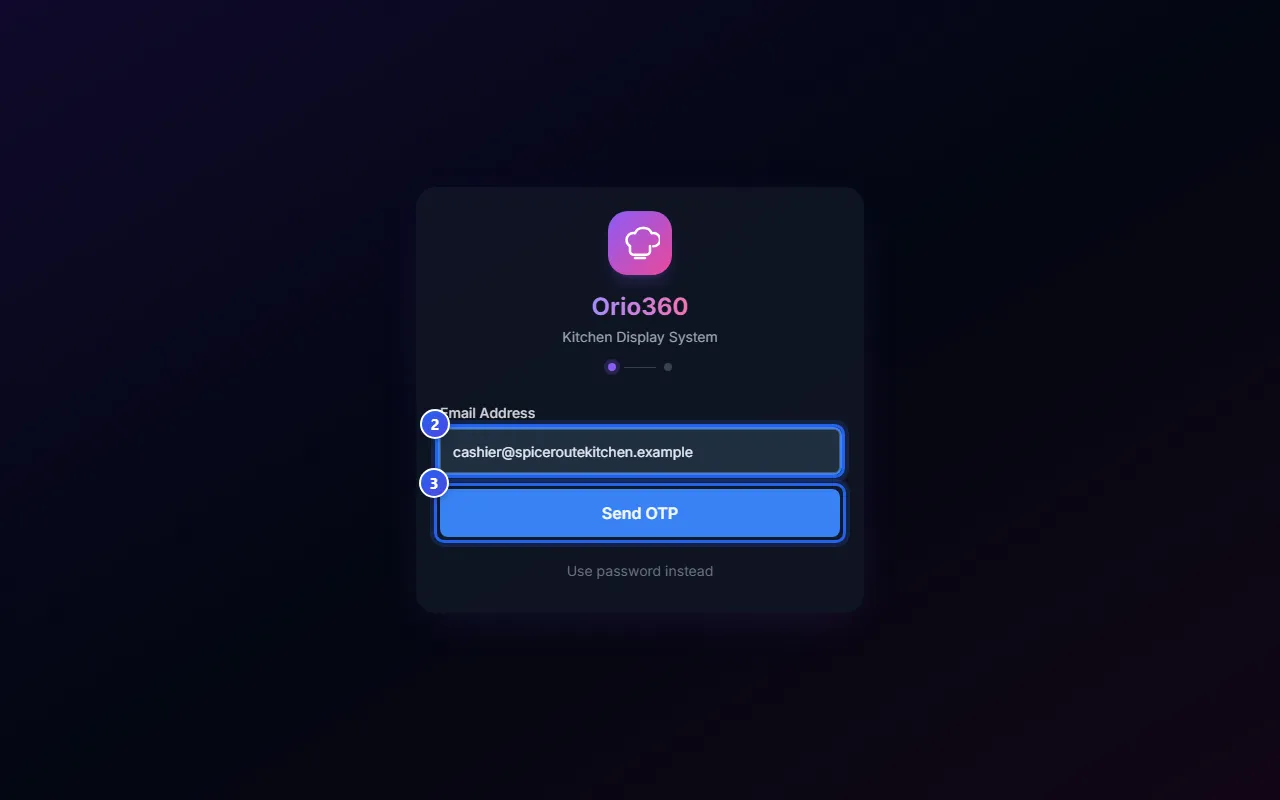
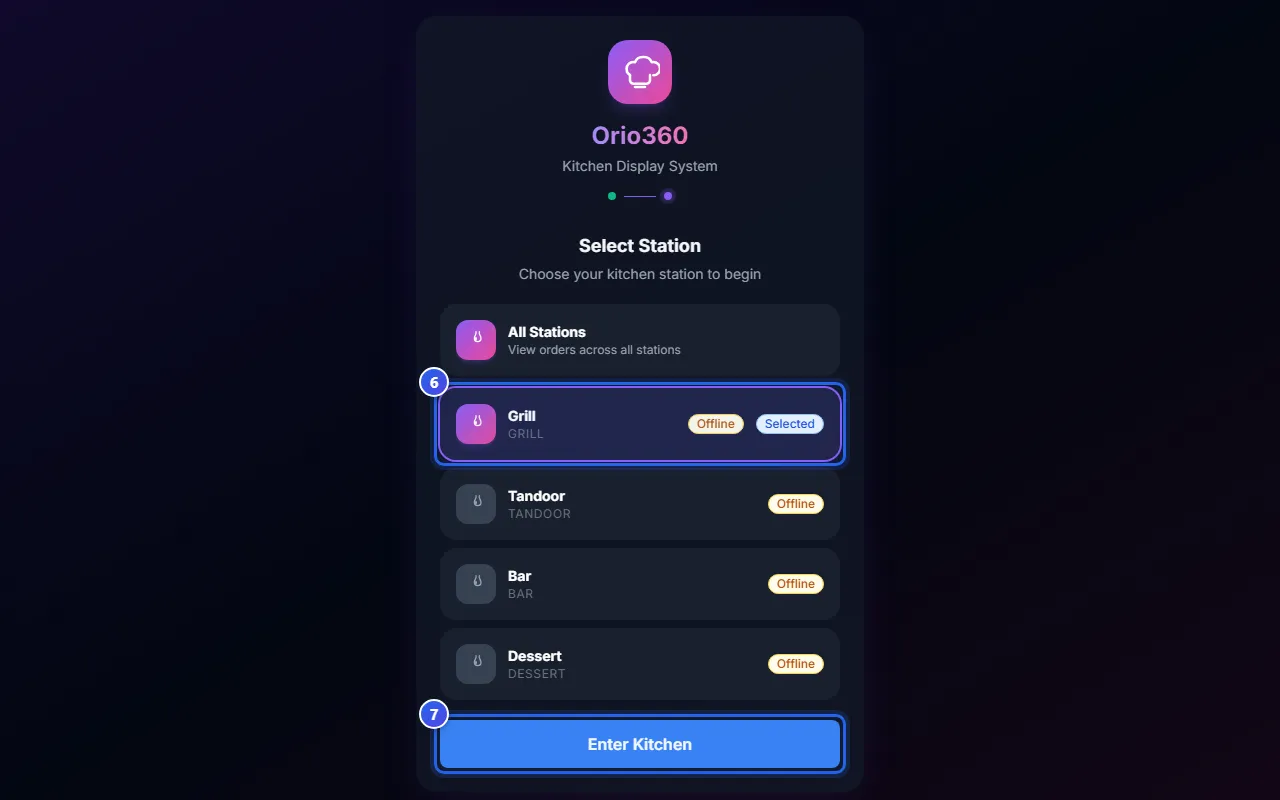
The screen opens with the orders for your station. Is this screen for the whole kitchen? Then press All Stations in step 6. The screen shows every order.
If the code does not come
- Wait for 1 minute. Then press Resend OTP to get a new code.
- Look in the spam folder of your email.
- Check the email you typed. Press ← Change email to type it again.
You can also sign in with a password. Press Use password instead. See Sign in with a password.
Who can sign in
An Owner, a Manager or a Cashier can sign in. There is no special role for cooks. Give each cook a Cashier sign-in.
If the list says No active stations found., your kitchen has no stations yet. Ask a Manager to add them.
To sign out, press the last button at the top right of the kitchen screen.
Related help
Mark food ready on the kitchen screen
See new orders on the kitchen screen and mark each one ready when it is cooked.
For restaurantsOn some plans
Show one station's orders
Set a kitchen screen to show only the orders for one kitchen station.
For restaurantsOn some plans
Sign in with a password
Use your email and a password to sign in on the kitchen screen.
For restaurantsOn some plans
Still need help?