Draw your floor plan
Place your tables on a map that looks like your dining room.
Who can do this: Owner and Manager
For restaurantsYour floor plan is a map of your dining room. Put each table where it really stands. Then the map looks like your restaurant, and staff find tables fast.
Place your tables
- In the menu, open Restaurant and press Floor Plan.
- Choose a section in the box at the top, like Main Hall.
- Drag a table to its place on the map.
- Press a table to see its seats and its section on the right.
- Press Save Layout.
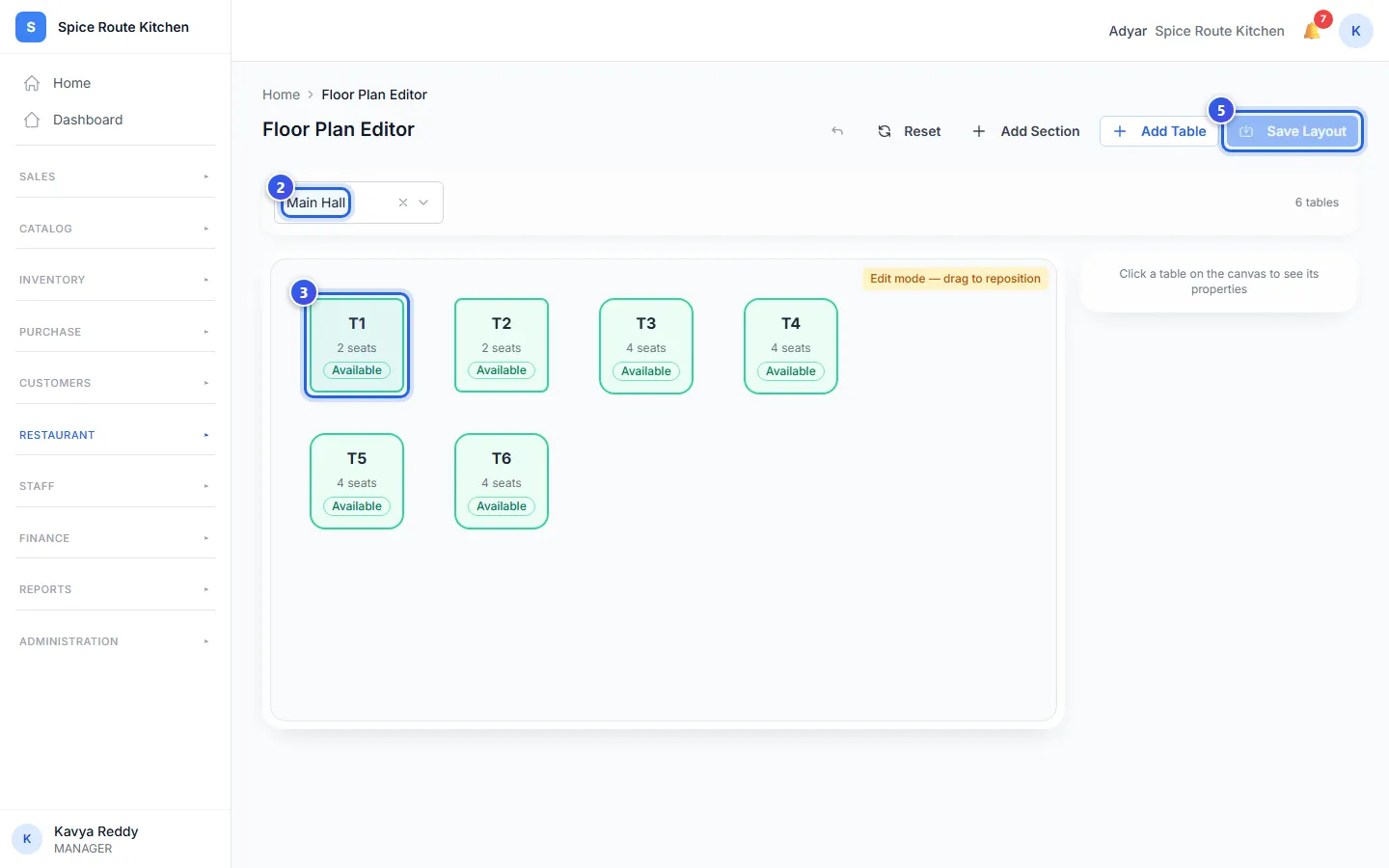
The message Floor plan saved shows. Until you save, a bar at the bottom says Unsaved changes. You can press Save Now on that bar too.
Moved a table to the wrong place? Press the curved arrow at the top to undo your last move. Reset puts every table back where it started. You cannot undo a reset.
Tables that are not on the map
A new table is not on the map yet. It shows in the Unplaced Tables list on the right. Press it there, and it goes on the map. Then drag it to its place.
Add a table or a section here
- Press Add Table to add a table from this page. It goes into the section you chose.
- Press Add Section to start a new part of the room, like Rooftop.
For a new section, type the Section Name and press Add First Table. A section needs at least one table. So Orio360 asks you for its first table next.
Related help
Still need help?