Book a table for a guest
Save a table booking with the guest's name, the time and the number of people.
Who can do this: Owner, Manager and Cashier
For restaurantsA guest calls to book a table for tonight. Save a reservation, so the table is kept for them. A Manager or an Owner can do this in the admin app. Everyone can do it at the till.
Book the table
- In the admin app, go to Restaurant, then Reservations.
- Press New Reservation.
- Type the guest's name in Customer Name. Type their number in Phone.
- Choose the Party Size, the Date and the Time.
- Choose a free table in Table. Add any wishes in Special Requests.
- Press Create Reservation.
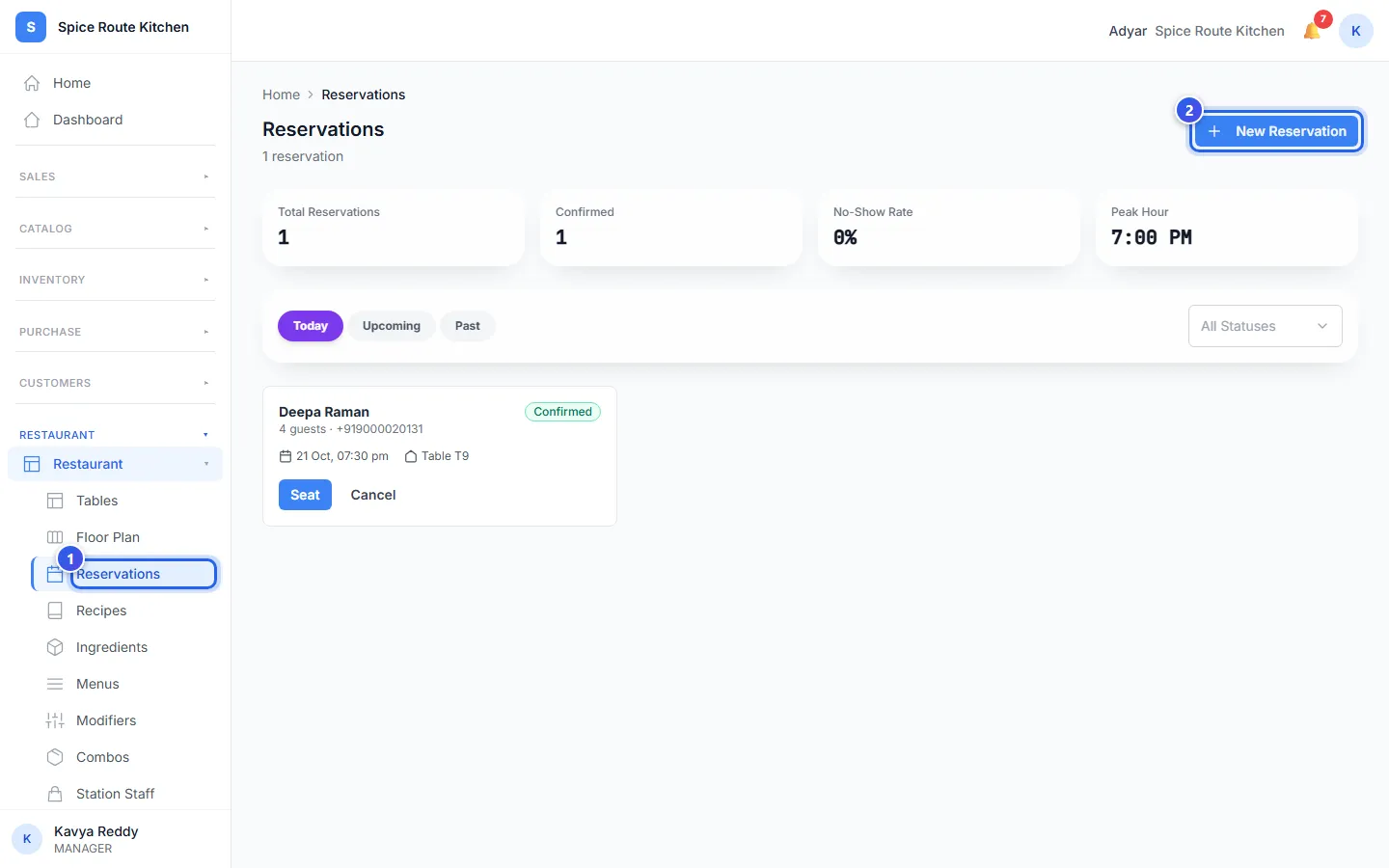
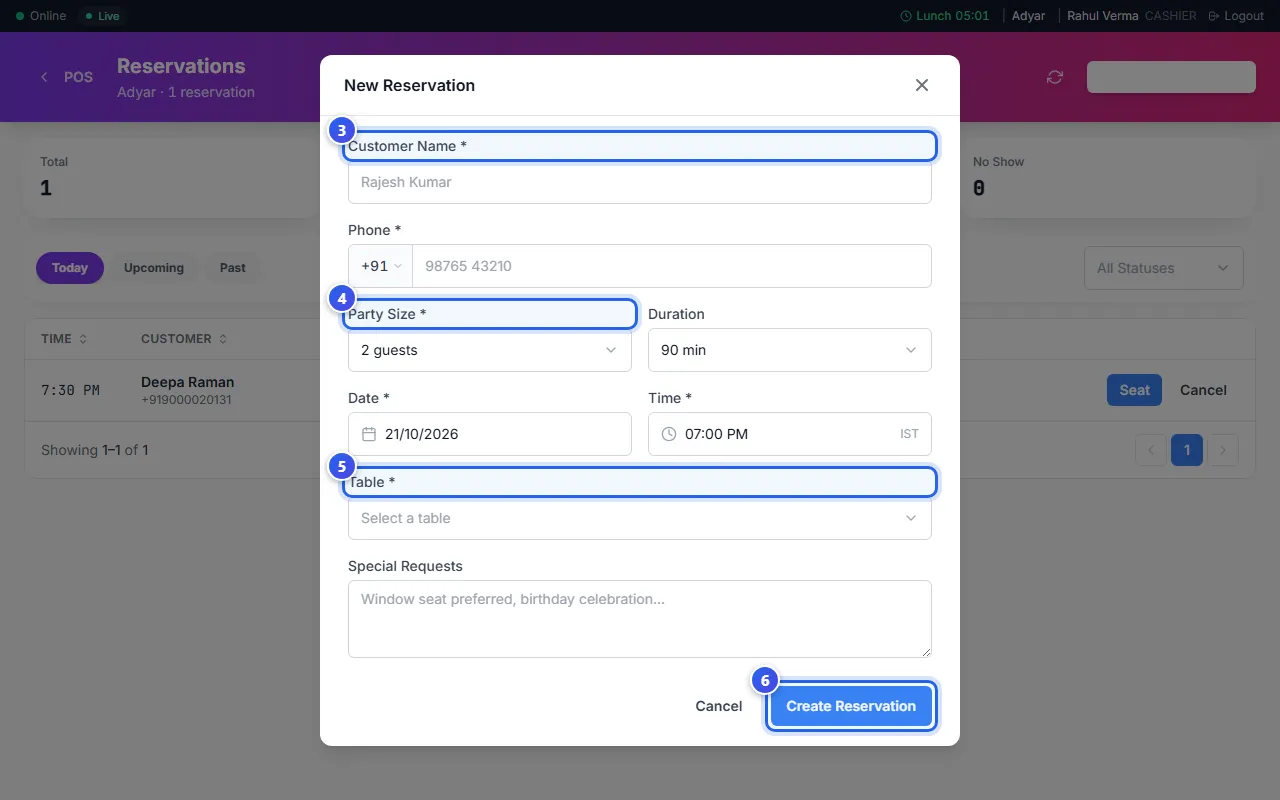
The booking shows in the list as Confirmed. If the table is busy at that time, the form says Selected table is not available at that time. Choose another table or time.
When the guest comes
Find the booking under Today. Press Seat, then press Seated to say yes. If the guest cancels, press Cancel, then Cancelled.
Use the tabs Today, Upcoming and Past to see other days. Duration is how long the table stays booked, like 90 minutes.
Book at the till
The till has the same Reservations page and form. No button opens it. In the address bar of the browser, change the end of the address from /pos/billing to /pos/reservations. Then press Enter.
Related help
Add guests to the waitlist
When every table is full, add guests to the waitlist and seat them in turn.
For restaurants
Use the table screen
See which tables are free or busy, and move or join tables.
For restaurants
Find your way in the admin app
Use the menu on the left to reach every part of the admin app.
Still need help?