Add guests to the waitlist
When every table is full, add guests to the waitlist and seat them in turn.
Who can do this: Owner, Manager and Cashier
For restaurantsWhen every table is full, put new guests on the waitlist. The list keeps them in order, so the first to come is the first to sit.
Add a guest
- Open the Waitlist page at the till. See the tip below for how.
- Press Add to Waitlist at the top right.
- Type the guest's name in Customer Name and their number in Phone. Choose the Party Size.
- Press Add to Waitlist at the bottom of the box.
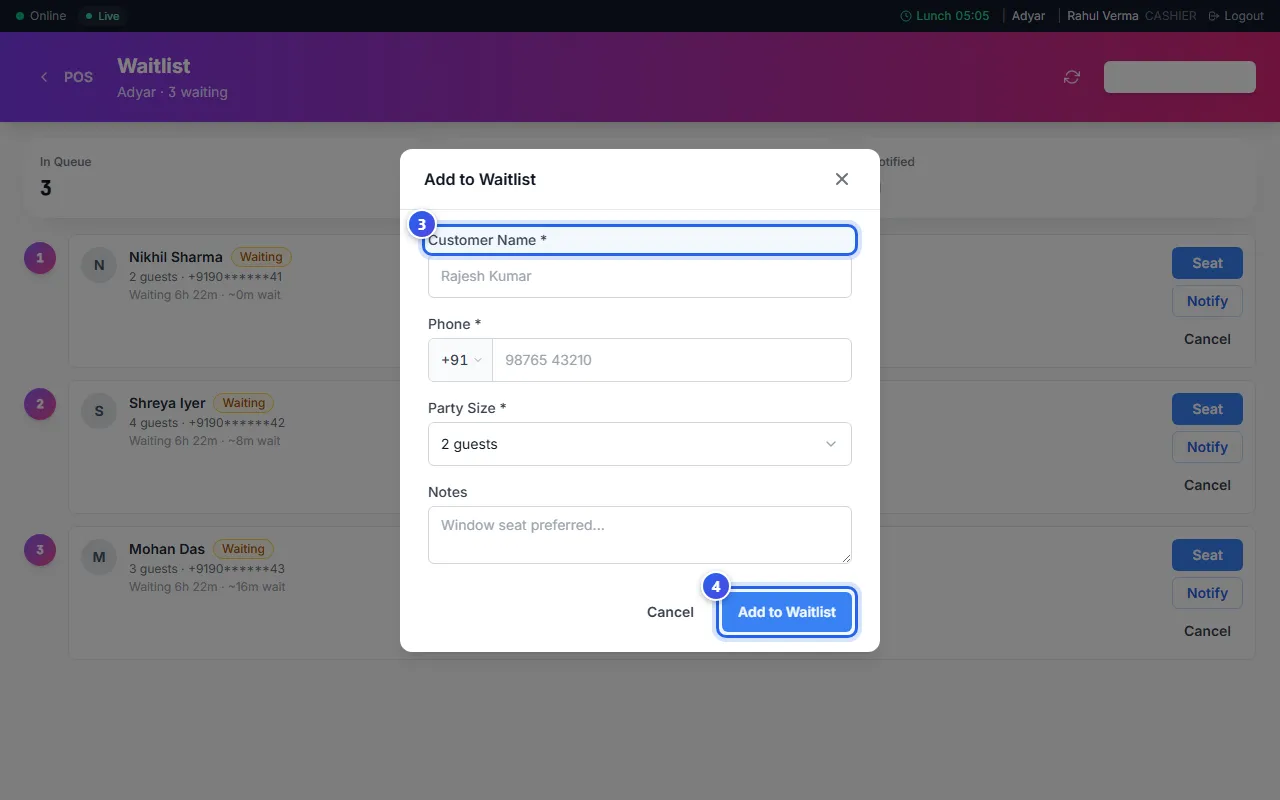
The guest joins the end of the list. Each guest shows how long they have waited.
Seat a guest
- When a table is free, press Notify next to the guest. Choose SMS or WhatsApp, then press Send Notification.
- When the guest comes back, press Seat.
- Choose a free table. The tables that fit the group best are at the top.
- Press Seat Guest.
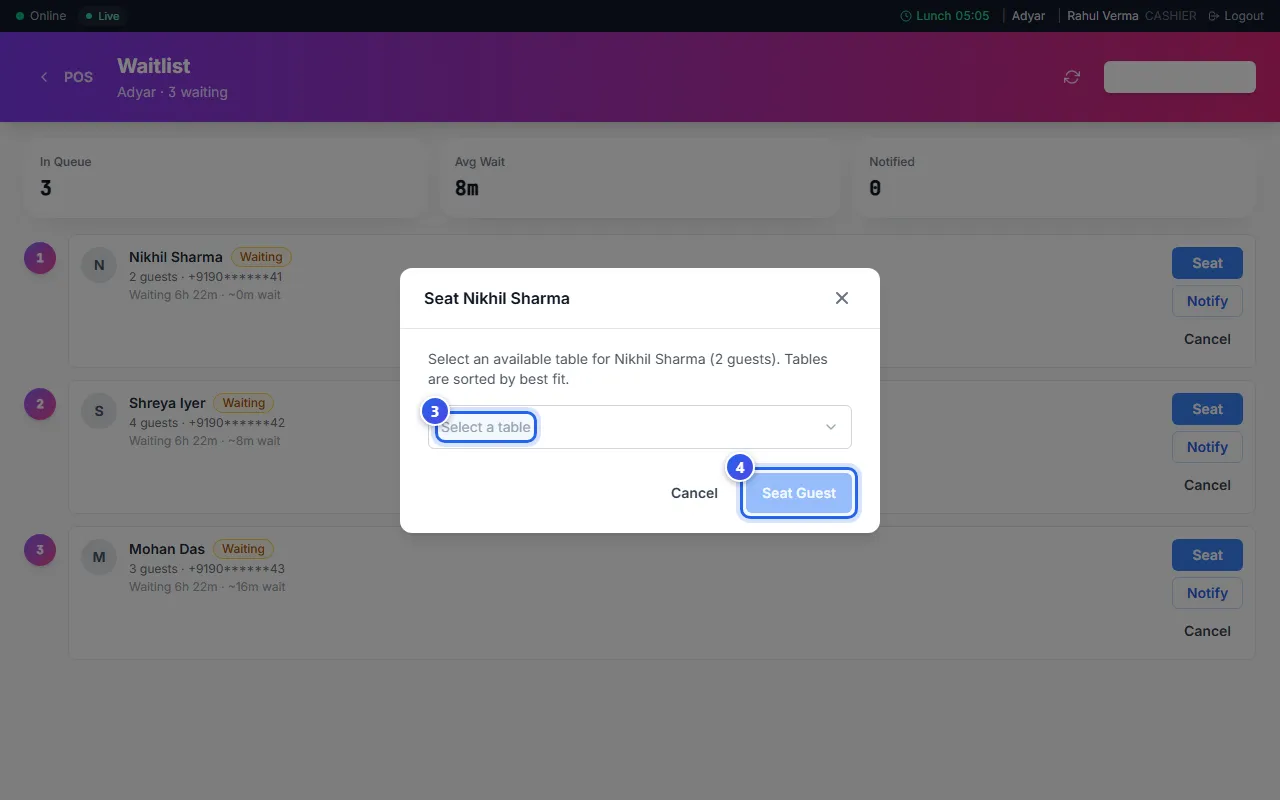
The guest leaves the waitlist. Now take their order at the table.
Read the numbers
- In Queue is how many guests are waiting.
- Avg Wait is how long they may wait, in minutes.
- Notified is how many guests you told that a table is ready.
If a guest leaves, press Cancel next to them. Then press Remove.
Related help
Book a table for a guest
Save a table booking with the guest's name, the time and the number of people.
For restaurants
Use the table screen
See which tables are free or busy, and move or join tables.
For restaurants
Take a new order
Start a dine-in, takeaway or delivery order and add dishes to it.
For restaurants
Still need help?