Add your tables
Add each table with its name and its number of seats.
Who can do this: Owner and Manager
For restaurantsAdd each table in your restaurant to Orio360. Then your staff can seat guests and take orders at that table. An Owner or a Manager can add tables in the admin app.
Add a table
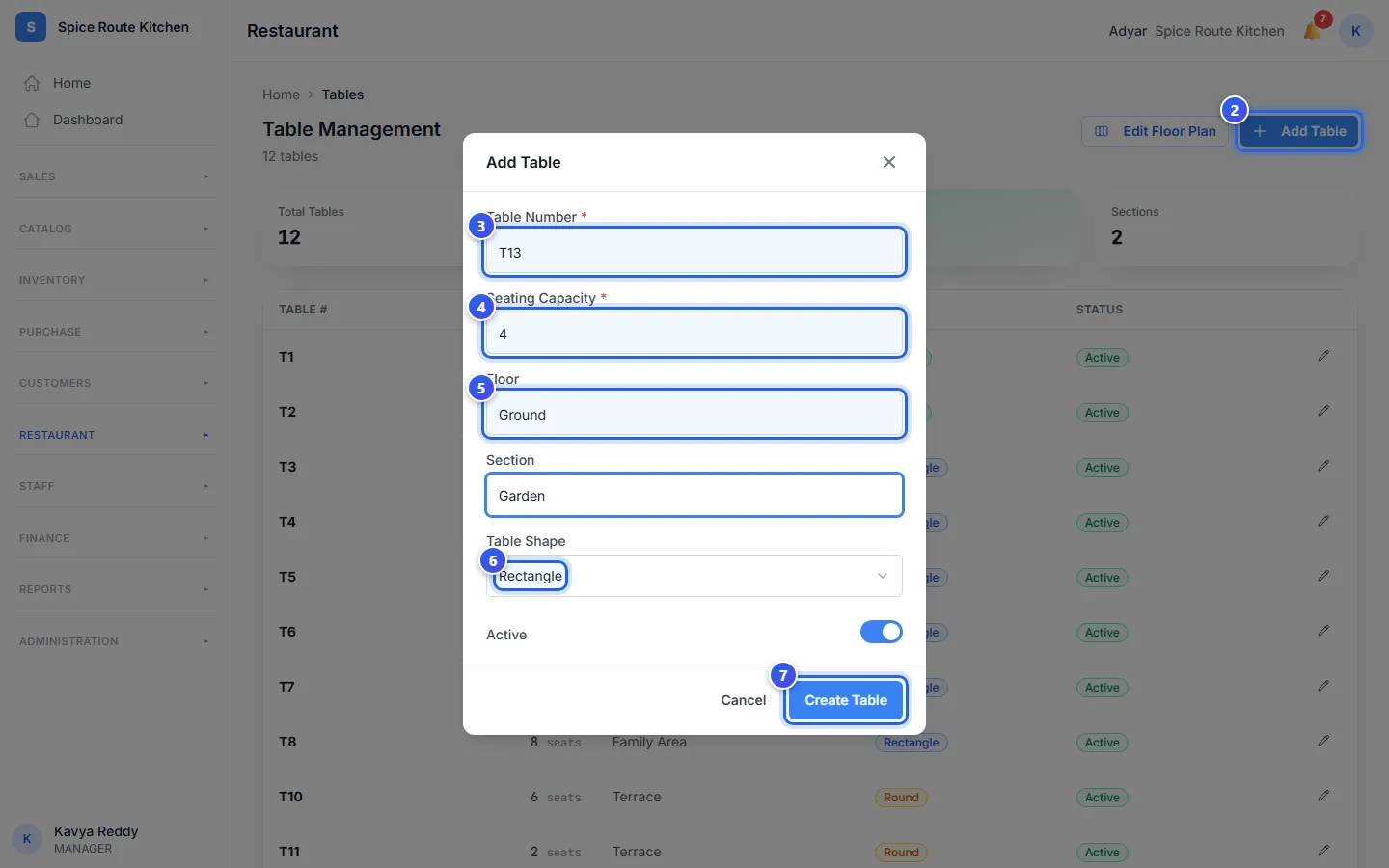
- In the menu, open Restaurant and press Tables.
- Press Add Table.
- Type a short name in Table Number, like T13.
- Type how many guests can sit there in Seating Capacity.
- Type the Floor and the Section, like Ground and Garden.
- Choose the Table Shape: Rectangle, Round or Square.
- Press Create Table.
The message Table T13 created shows, and the table is in your list. Each table needs its own name. If the name is taken, the form says Table number already exists.
The Floor Plan page puts your tables in groups by section. So give tables in the same part of the room the same section name.
Change a table
Press the pencil at the end of a row to change that table. Then press Save Changes.
Is a table out of use for a while? Open it and turn off Active. The list then shows it as Inactive.
An Owner also sees a bin at the end of each row. Press it, then press Delete. This takes the table away for good.
Related help
Draw your floor plan
Place your tables on a map that looks like your dining room.
For restaurants
Use the table screen
See which tables are free or busy, and move or join tables.
For restaurants
Book a table for a guest
Save a table booking with the guest's name, the time and the number of people.
For restaurants
Still need help?