Check and restock ingredients
See how much of each ingredient you have, and add stock when you buy more.
Who can do this: Owner and Manager
For restaurantsAn ingredient is one thing that goes into a dish, like rice or butter. When you sell a dish, Orio360 takes its ingredients out of stock. The Ingredients page shows how much of each one you have left.
Find what is running low
- In the menu, open Restaurant and press Ingredients.
- Type a name in the search box to find one ingredient.
- Choose Low & Out of Stock in the box next to it. Now you see only what is running low.
- Press Restock on a row to add stock.
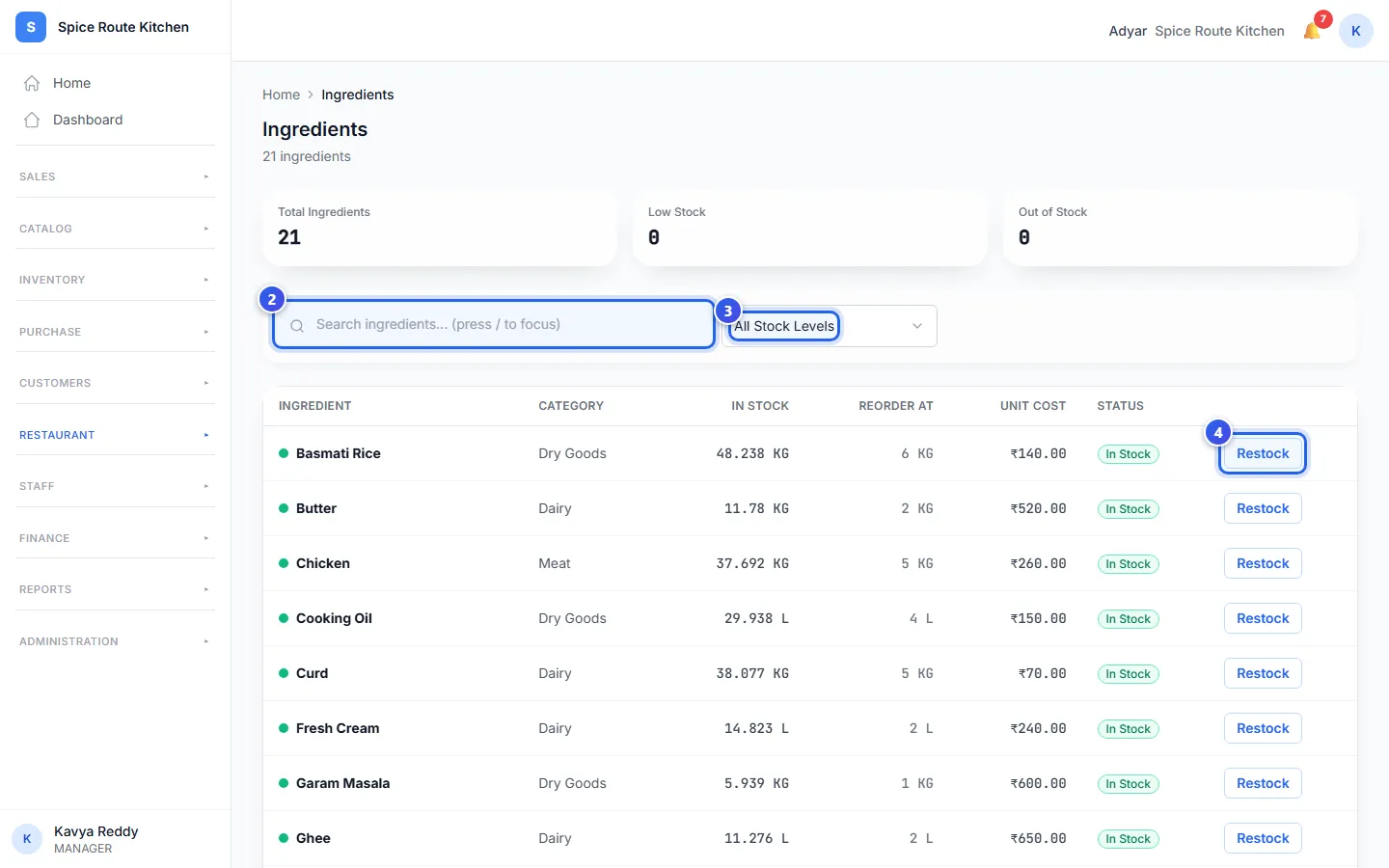
Each row shows In Stock and Reorder At. When the stock falls to the Reorder At number, the row shows Low Stock. At zero, it shows Out of Stock. The cards at the top count both.
Add stock
- Press Restock on the ingredient's row.
- Choose the Type. Choose Purchase for stock you bought.
- Type how much you got in Quantity to add.
- For a purchase, type the price of one unit in Unit cost.
- Press Add stock.
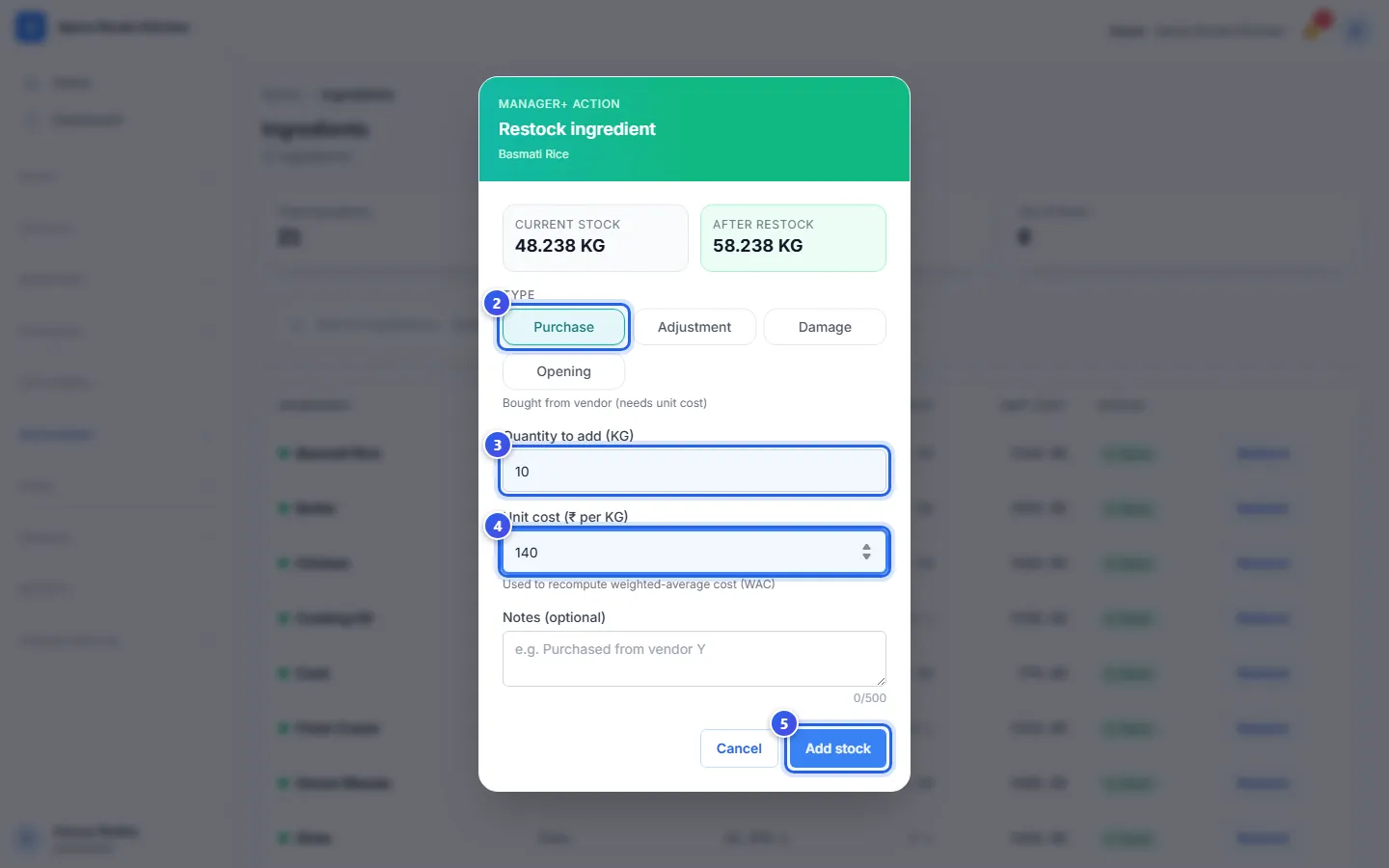
Before you save, After restock shows what the new stock will be. When you save, the message Stock updated shows.
The other types
- Adjustment: fix a count that is wrong.
- Damage: food that went bad or was thrown away.
- Opening: the stock you had when you started to use Orio360.
For Adjustment and Damage, type a minus sign to take stock away, like -2.
You can add a short note in Notes (optional), like the name of the shop you bought from.
Related help
Make a recipe for a dish
Say which ingredients a dish uses, so selling it takes them out of stock.
For restaurants
Plan what to cook
See which ingredients your festival orders need, and which ones you must buy.
For restaurantsOn some plans
Make a purchase order
Tell a supplier what you want to buy, how many and at what price.
On some plans
Still need help?