See your profit and loss
See what you earned, what you spent and what is left.
Who can do this: Owner
The Profit & Loss report shows what you earned, what you spent, and what is left. Only the Owner can open it.
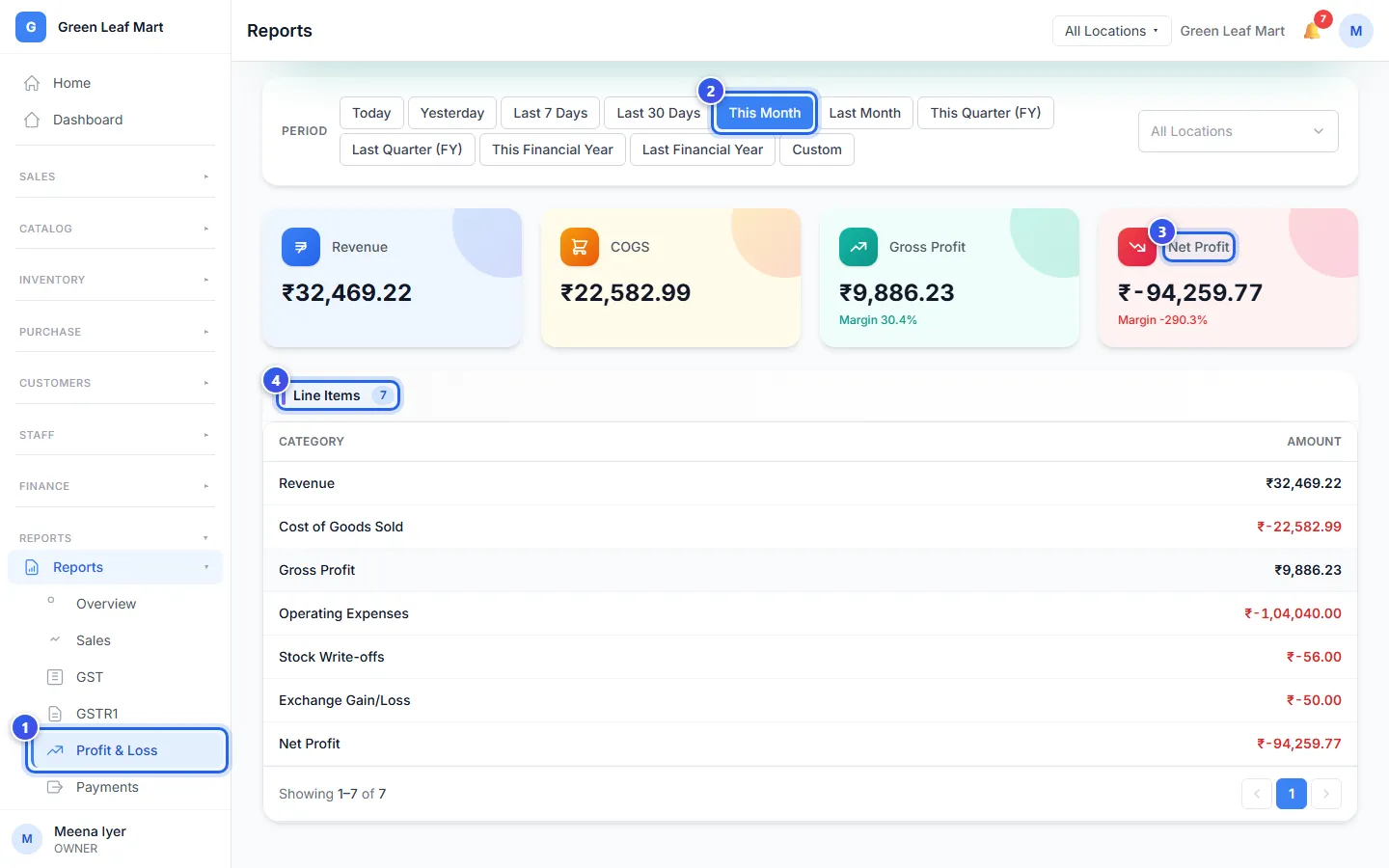
- In the menu, open Reports and press Profit & Loss.
- Under Period, choose the dates.
- Read Net Profit. It is the money left after all your costs.
- Look at Line Items to see each amount.
What the numbers mean
- Revenue is the money from your sales.
- COGS means cost of goods sold. It is what you paid for the items you sold.
- Gross Profit is Revenue minus COGS. Margin shows it as a part of your sales.
- Net Profit is Gross Profit minus your expenses and your lost stock. An exchange gain or loss changes it too.
The Line Items table shows two more rows:
- Operating Expenses are the expenses that were approved, like rent or power.
- Stock Write-offs is the stock you lost, like broken or wasted items.
When Net Profit is red with a minus sign, you spent more than you earned in those dates.
Bills you paid in other money
Do you buy from a supplier in other money, like US dollars? Then Line Items can show one more row: Exchange Gain/Loss. It shows only when you paid such a bill in the dates you chose.
When you pay, your bank's rate may not match the order's rate. Did you pay fewer rupees than the order's rate says? That is a gain. Paying more rupees is a loss. This is your exchange gain or loss.
- A gain adds to Net Profit.
- A loss takes away from Net Profit. It shows in red, with a minus sign.
- Gross Profit stays the same.
Each payment counts on the day you paid it. See Record a supplier bill.
Related help
See your sales
See how much you sold on each day, and how your customers paid.
Add an expense
Record money you spent, with a photo of the receipt.
Record wasted stock
Take broken or spoiled items out of stock and note why.
Record a supplier's bill
Save the bill a supplier sends you so you know what you owe.
On some plans
Still need help?