Add an expense
Record money you spent, with a photo of the receipt.
Who can do this: Owner and Manager
An expense is money your business spends, like rent, power or a repair. Add each one with a photo of its receipt. Then the Owner checks it and approves it.
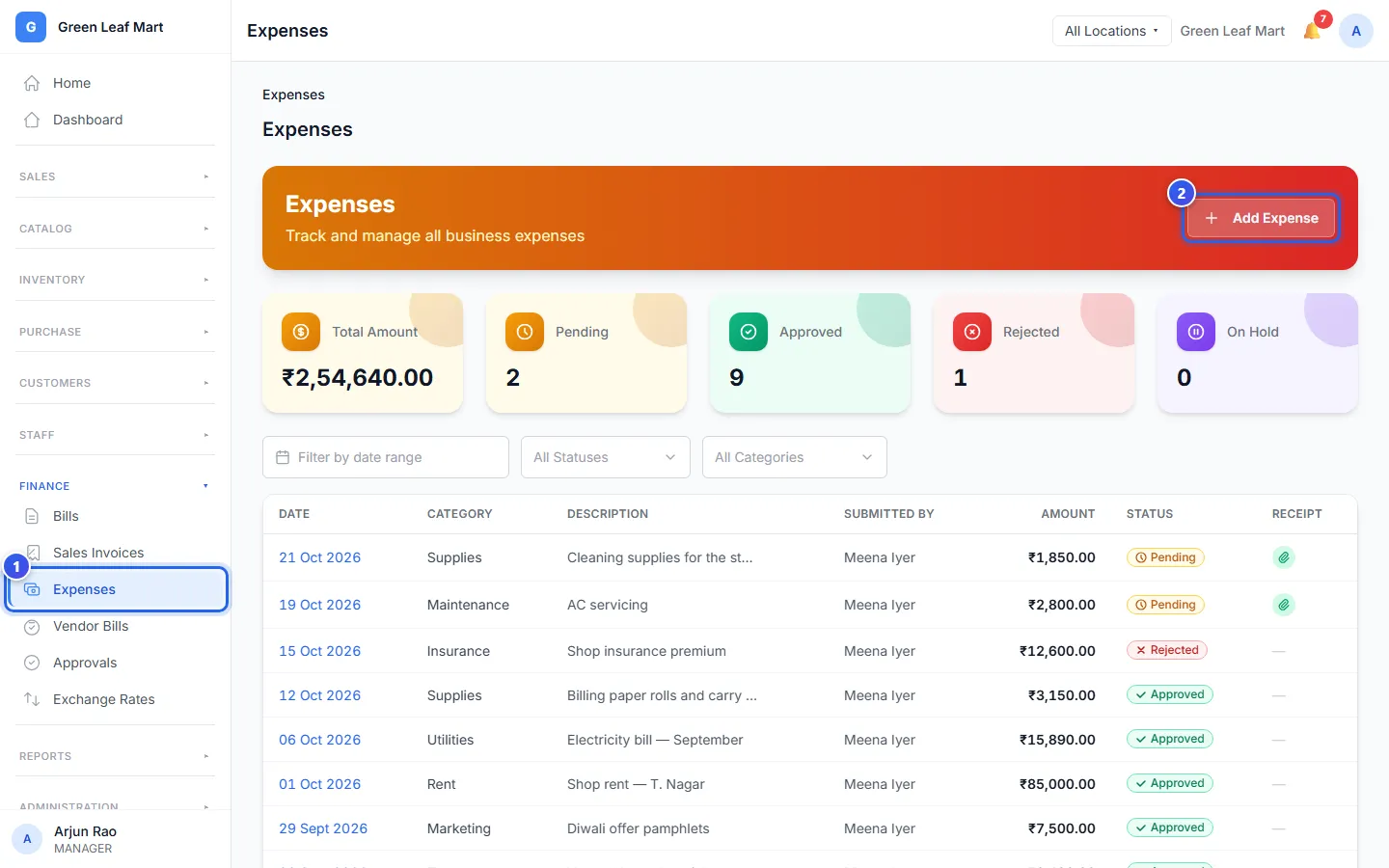
- In the menu, open Finance and press Expenses.
- Press Add Expense.
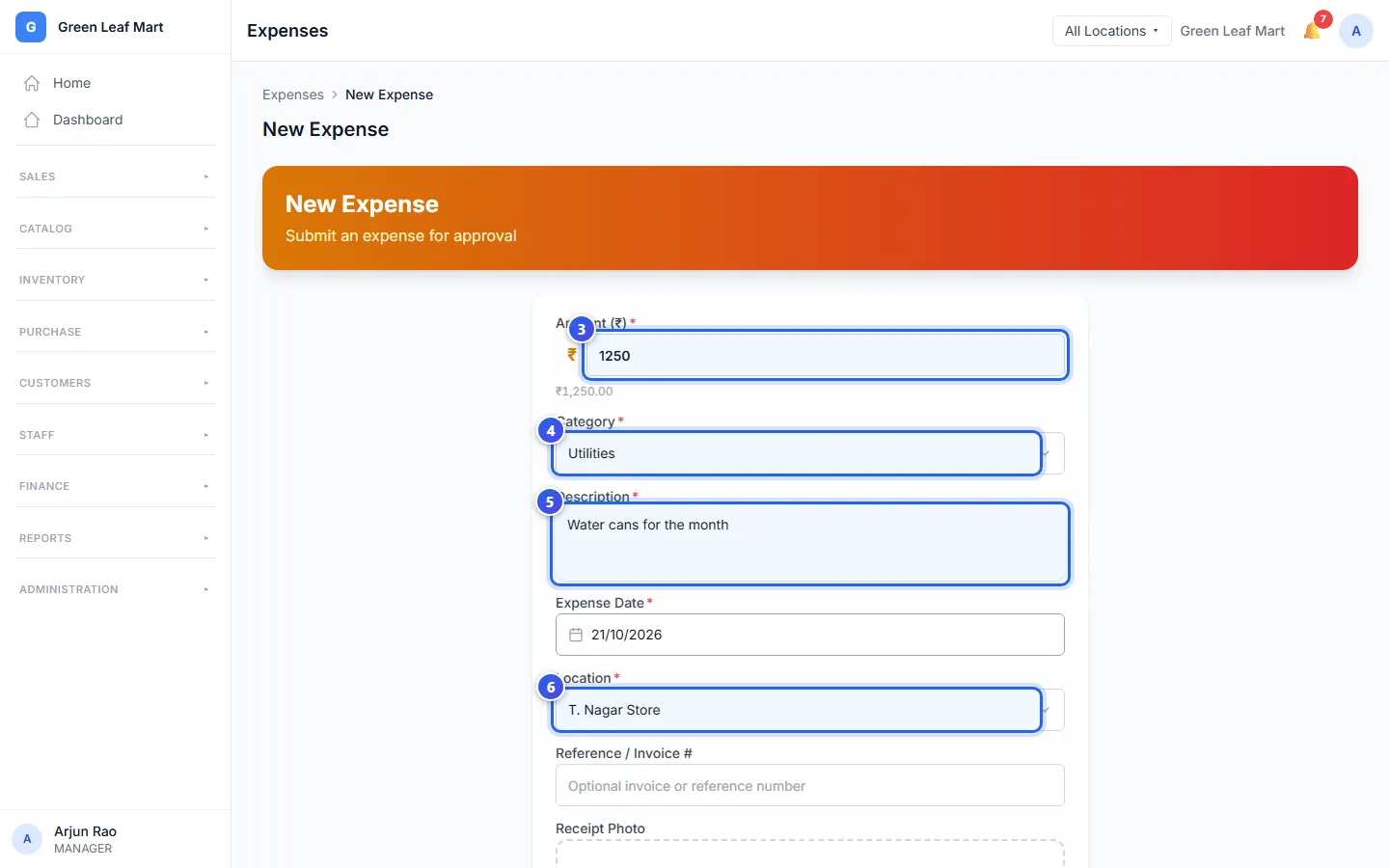
- Type the amount in Amount (₹).
- Choose a Category, like Utilities.
- Type a Description of what you paid for.
- Check the Expense Date, and choose the Location.
- Under Receipt Photo, press Click to upload and choose the photo.
- Press Submit Expense.
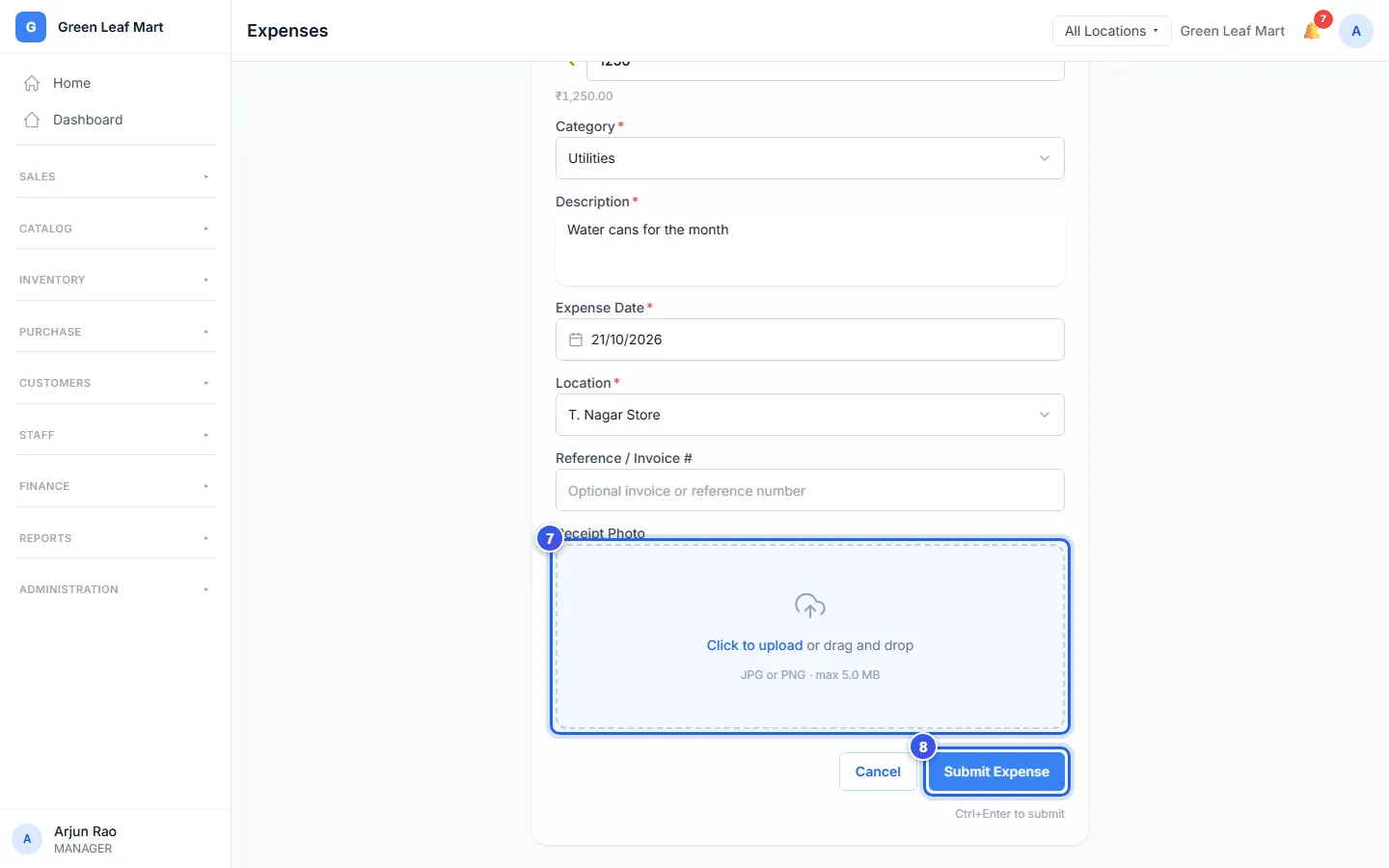
The photo must be a JPG or PNG file of up to 5 MB. You can also type the number on the supplier's bill in Reference / Invoice #.
Your expense starts as Pending. It counts as money spent only after the Owner approves it.
Look at an expense later
Press the date of an expense in the list. Its page shows the details and the status. Press View Full Size to see the receipt photo.
To find an expense, use the choices above the list. Choose a date range, a status like Pending, or a category.
Related help
Approve expenses and other requests
Say yes or no to expenses and other requests that your staff send.
Review expenses on your phone
Check your staff's expenses and receipts in the Manager app, and approve them if you are the Owner.
Check each day's cash count
See the cash counts from every till and any money that is short or extra.
Still need help?