See your sales
See how much you sold on each day, and how your customers paid.
Who can do this: Owner and Manager
The Sales Report shows how much you sold, day by day. The Payment Breakdown report shows how your customers paid: cash, UPI, card and more.
See your sales by day
- In the menu, open Reports and press Sales.
- Under Period, choose the dates, like This Month.
- Read the cards at the top.
- Scroll down to Daily Breakdown. It has a row for each day.
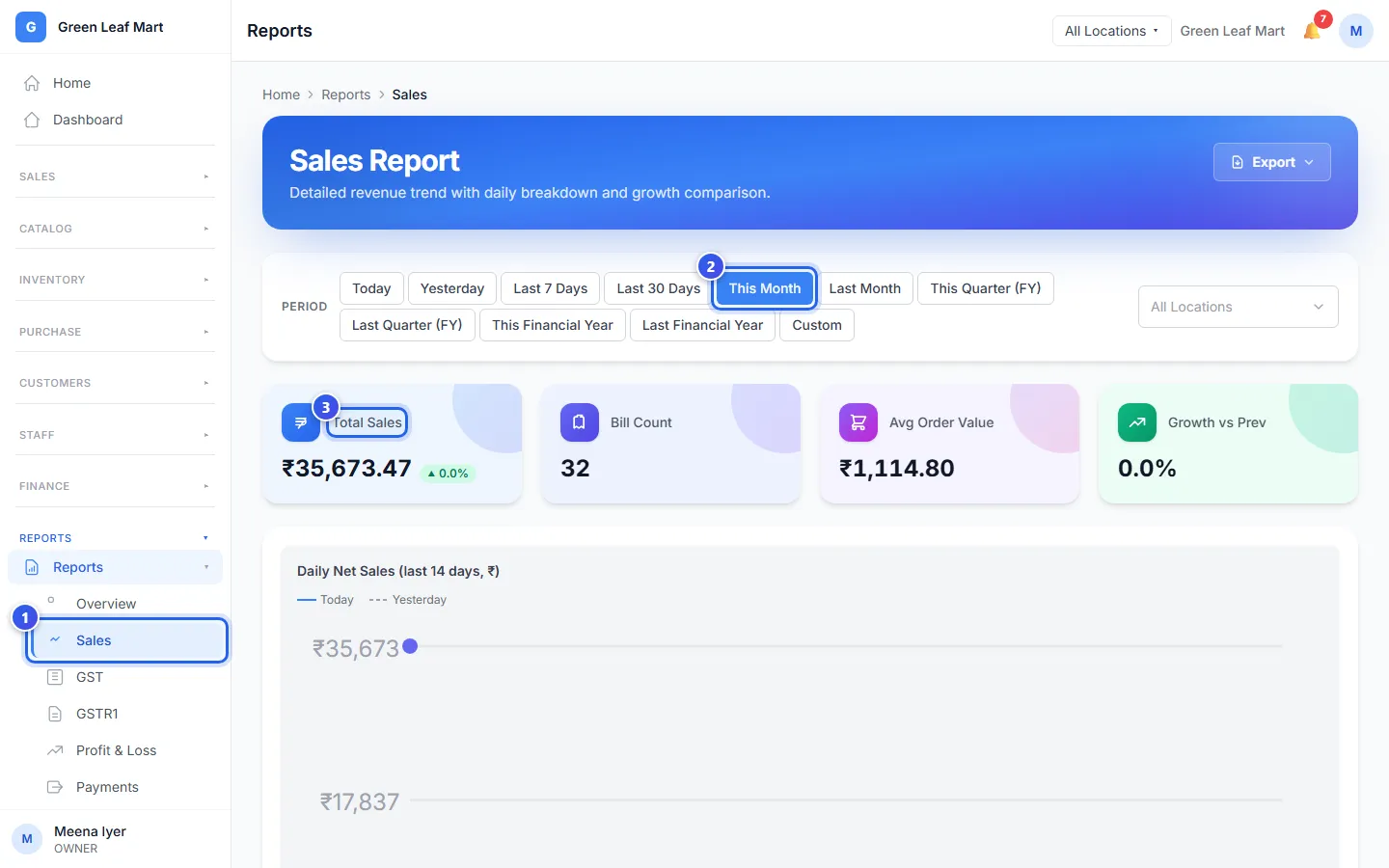
The cards show:
- Total Sales is the money from all your bills in those dates.
- Bill Count is how many bills you made.
- Avg Order Value is the average money in one bill.
- Growth vs Prev compares the last day with the day before it.
The chart shows your sales on each of the last 14 days in your dates. In Daily Breakdown, Growth compares each day with the day before.
See how customers paid
- In the menu, under Reports, press Payments.
- Under Period, choose the dates.
- Read Total Collected. It is all the money you took in.
- Look at Payment Mode Distribution. It shows the share of each way to pay.
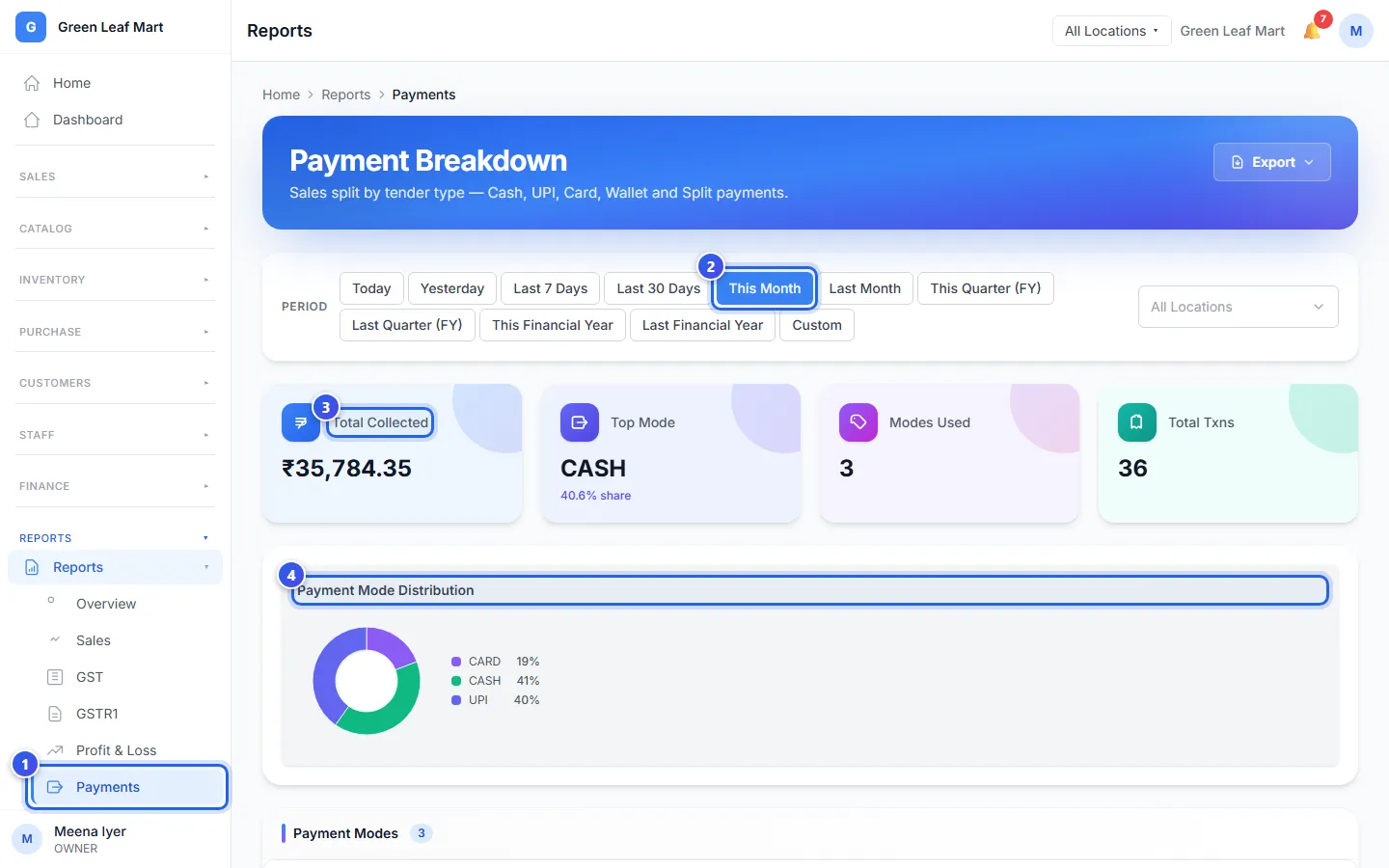
Top Mode is the way most customers paid. Total Txns counts every payment. The Payment Modes table lower down lists each way to pay with its total.
Related help
Open, download and share a report
Find a report, pick the dates, then save it or share it on WhatsApp or by email.
Read your dashboard
See today's sales next to yesterday's, and other key numbers, on one page.
Check each day's cash count
See the cash counts from every till and any money that is short or extra.
Still need help?