Set up a daily purchase order
Keep one list of the items you buy every day and order them in one go.
Who can do this: Owner
This is not in every plan. See Pricing.
Some things you buy every day, like milk, bread or vegetables. Save them once as your daily list. Then one press makes the whole purchase order each day.
Make the list
Only an Owner can set up the list.
- In the menu, open Purchase and press Purchase Order.
- Press Edit DAILY PO.
- Choose where the goods go in Receiving Location.
- Type the Supplier Name. Add the Supplier Phone and Supplier Email if you have them.
- Choose a product. Type the Quantity and the Unit Cost (₹).
- Press + Add product for each more item.
- Press Save DAILY PO list.
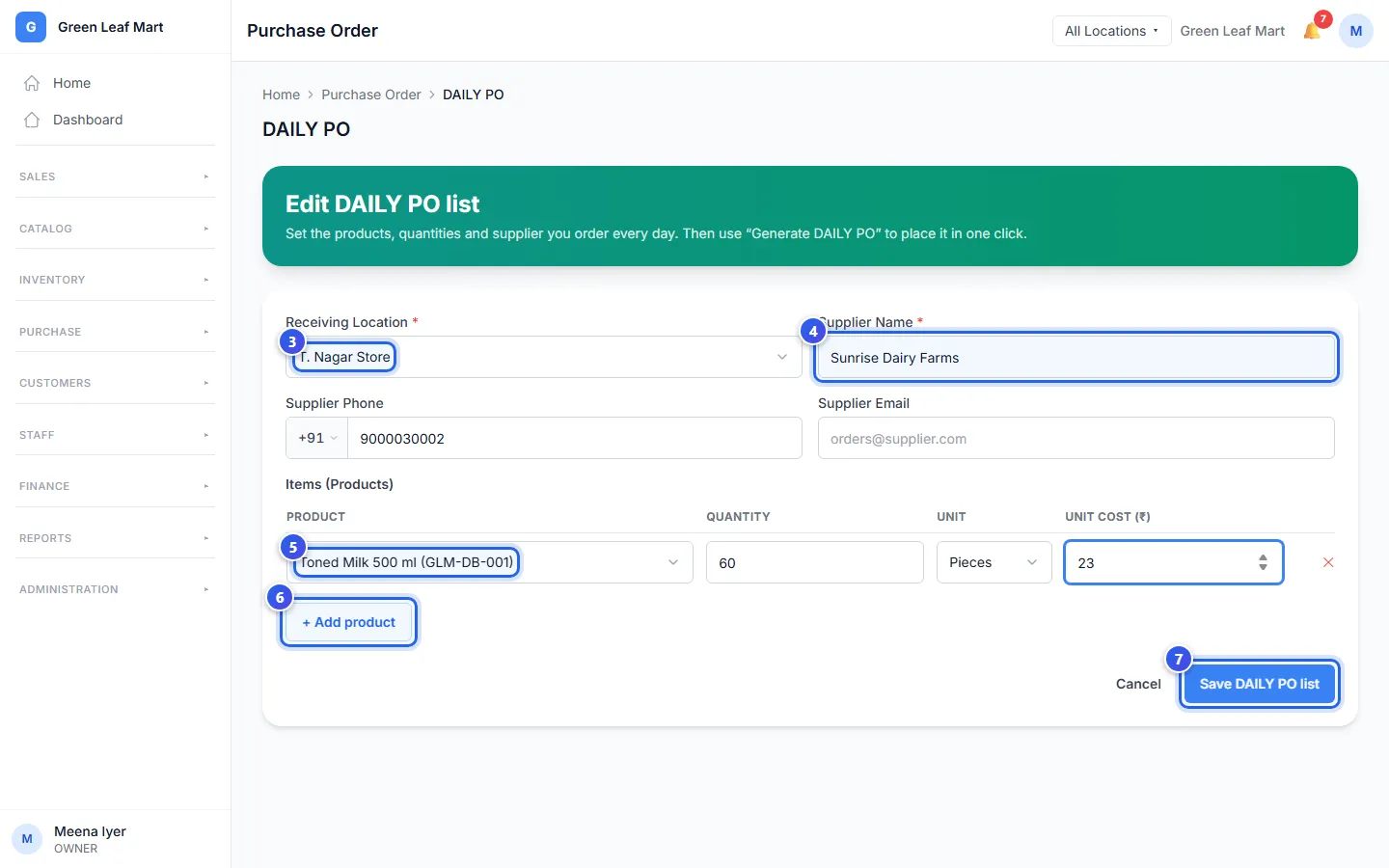
You keep one daily list. Open it again with Edit DAILY PO to change it.
Order from the list each day
Go to Purchase Order, and press Generate DAILY PO. Orio360 makes a new order from your list.
- An Owner presses it: the order is placed at once. It says Ordered.
- A Manager presses it: the order waits as Draft. An Owner then opens it and presses Approve.
Does an item on your list have no Unit Cost (₹)? Then the new order stays a Draft, even when an Owner presses it. The message says how many lines need a cost. Add the costs with Edit PO, then approve the order. See Change a purchase order.
Orio360 does not send the order to the supplier by itself. Open the new order and press Notify Supplier, or call them. See Make a purchase order.
Related help
Still need help?