Plan shifts
Set the work hours for each location, and see who is on shift now.
Who can do this: Owner and Manager
A shift is a block of work time, like 8 am to 3 pm. Make one shift for each block of time at each location. Staff choose their shift when they open the till in the POS app.
Add a shift
- In the menu, open Staff, then Shifts. Press Shifts.
- Press + Create Shift.
- Type a Shift Name, like Evening.
- Choose the Location.
- Type the Start Time (HH:mm) and the End Time (HH:mm).
- Under Working Days, press a day to turn it on or off.
- Press Create Shift.
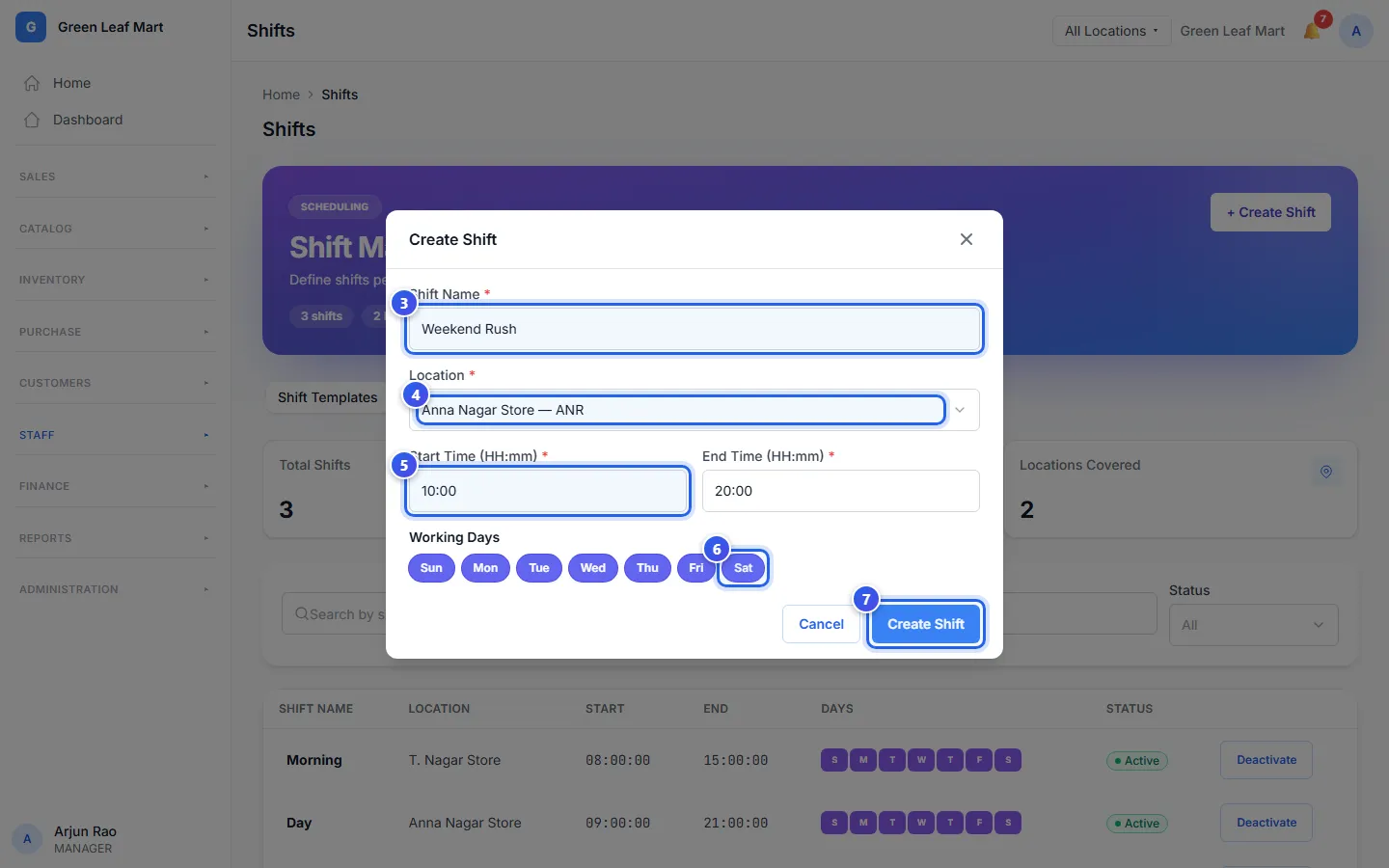
Type the times on the 24-hour clock. For 2 pm, type 14:00. A shift can end after midnight, like 22:00 to 06:00. Monday to Friday are on when the box opens.
To change a shift, press its name in the list. You can change its name, times and days, but not its location. To stop using a shift, press Deactivate, then Confirm.
See who is on shift now
- On the Shifts page, press the Reports tab.
- Keep Today, or press another time.
- Look for On shift. It shows who is at work now.
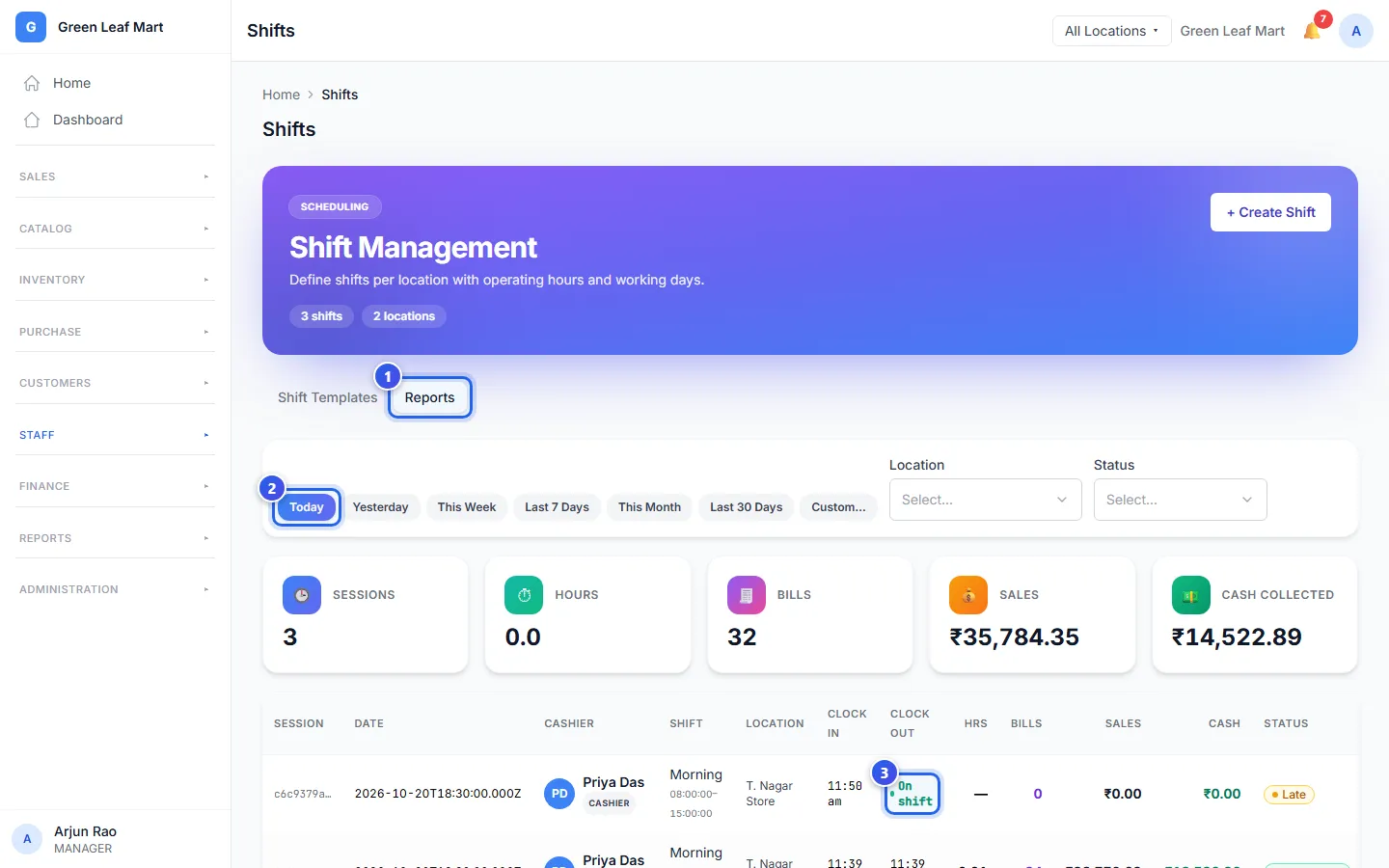
Each row is one person's shift, with their bills, their sales and the cash they took. Press View bills → to see the bills from that shift.
Related help
Still need help?