Set up your business details
Add your business name, address, logo and colours.
Who can do this: Owner
Your business name, logo and address show on every bill. Set them up before your first sale. Only the Owner can change them.
Change your name, logo and address
- In the Administration group, press Settings, then Business.
- Under Business Logo, press Click to upload and choose your logo.
- Check your name in Business Name.
- Type your phone number in Phone.
- Type your full address in Address.
- Press Save Settings.
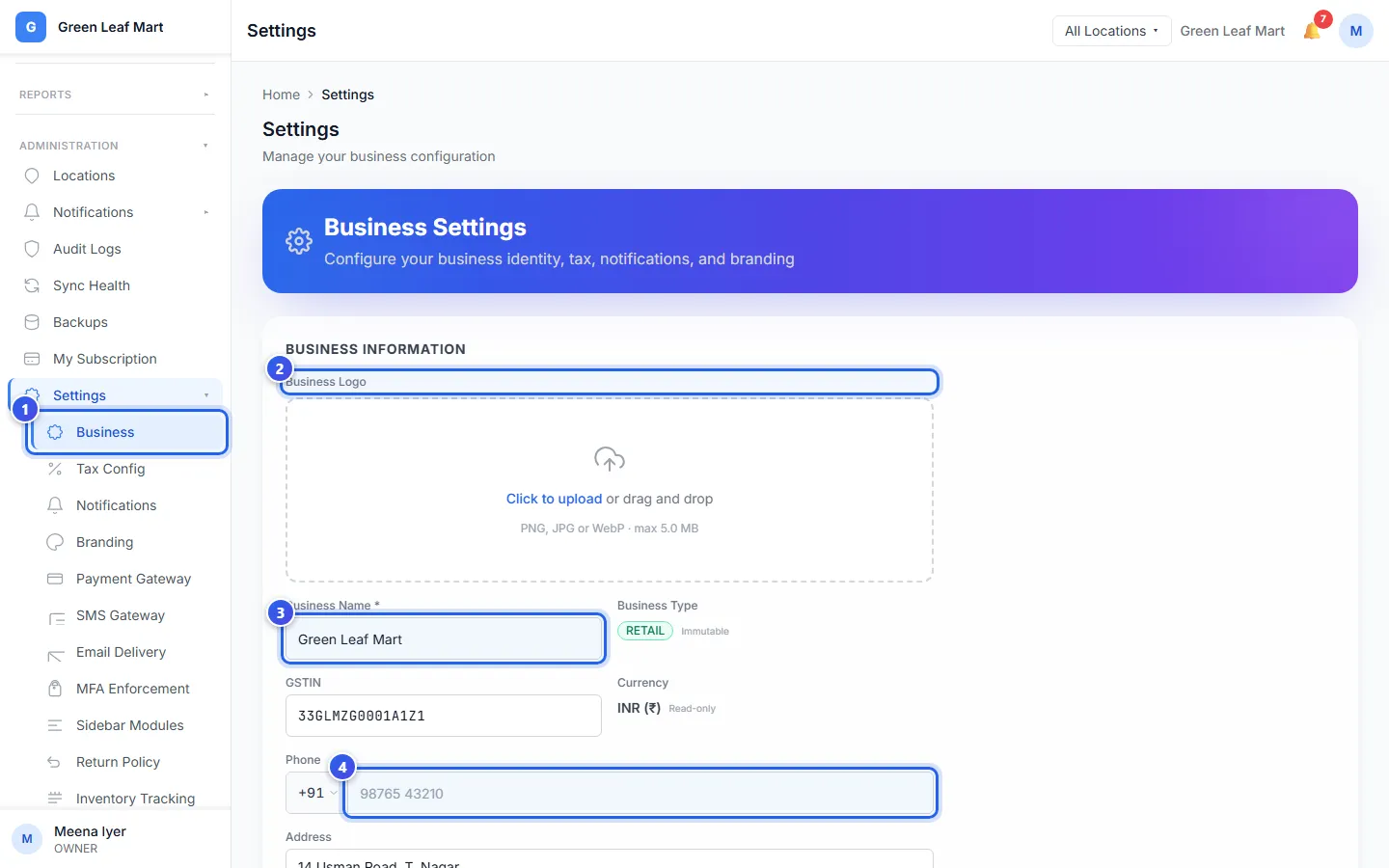
The logo can be a PNG, JPG or WebP file. It can be up to 5 MB.
You cannot change the Business Type or the Currency. We set them when we make your business.
A restaurant also types its 14-digit FSSAI License Number on this page. Your GSTIN goes here too. See Set up GST.
Choose your colour and your receipt words
- Under Settings, press Branding.
- Type the code of your colour in Brand Color, like #16A34A.
- Type the words for the top of each receipt in Receipt Header Text.
- Type a short thank-you line in Receipt Footer Text.
- Choose an Invoice Template: Default, Compact or Detailed.
- Turn on Show Logo on Receipt to print your logo at the top.
- Press Save Branding.
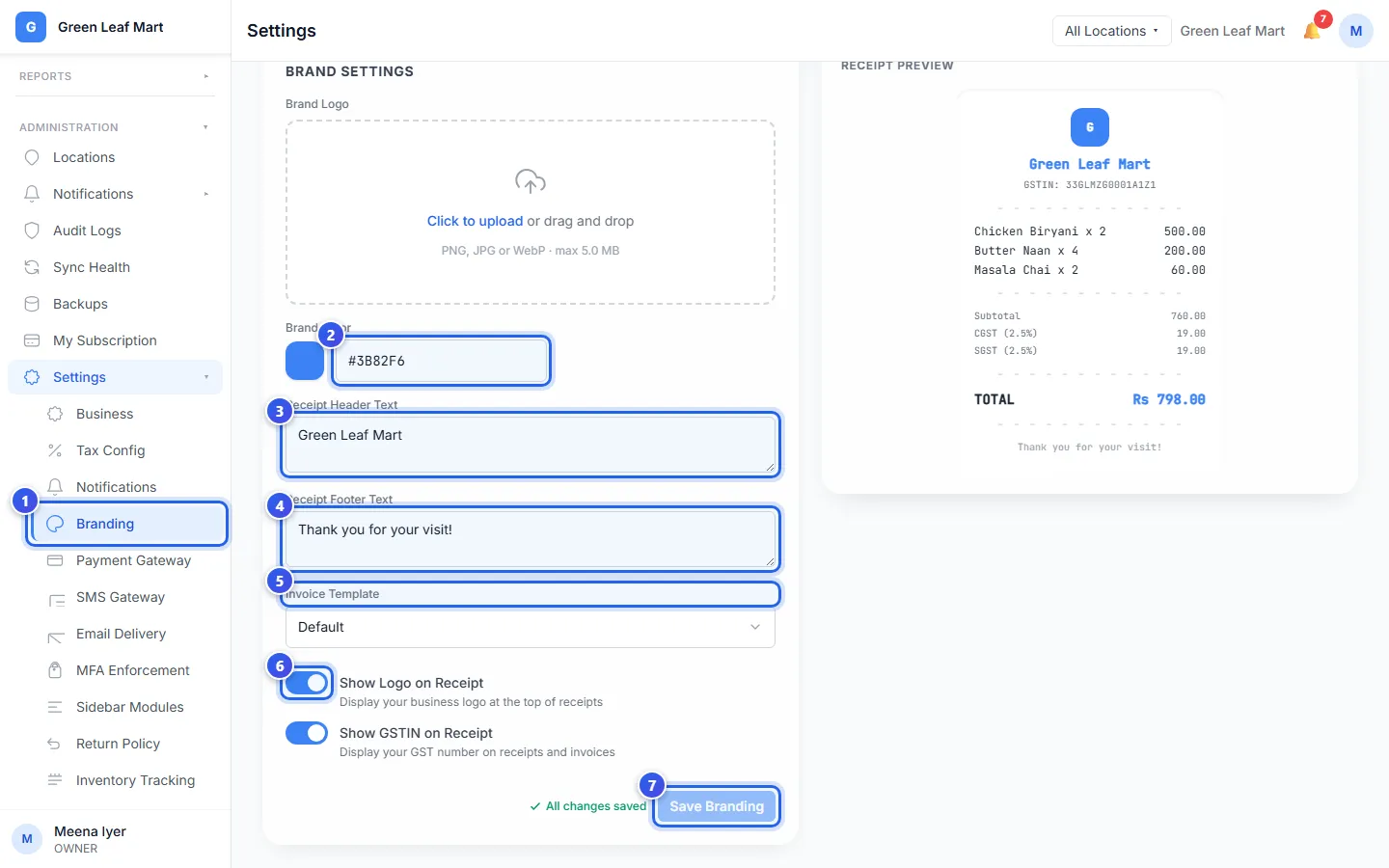
The Receipt Preview on the right changes as you type. Check it before you save.
Save Settings and Save Branding turn on when you change something. Next to the button, Unsaved changes turns into All changes saved once you save.
If you leave a page before you save, Orio360 asks first. Press Stay to go back to your changes. Press Discard and leave to drop them. Your browser asks too if you close the tab.
Related help
Still need help?