Set up GST
Add your GSTIN and choose the GST rate that new products get.
Who can do this: Owner
Orio360 adds GST to each bill for you. First, add your GSTIN. Then choose the rate that most of your products use. Only the Owner can do this.
Add your GSTIN
- In the Administration group, press Settings, then Business.
- Type your 15-character GSTIN in GSTIN.
- Press Save Settings.
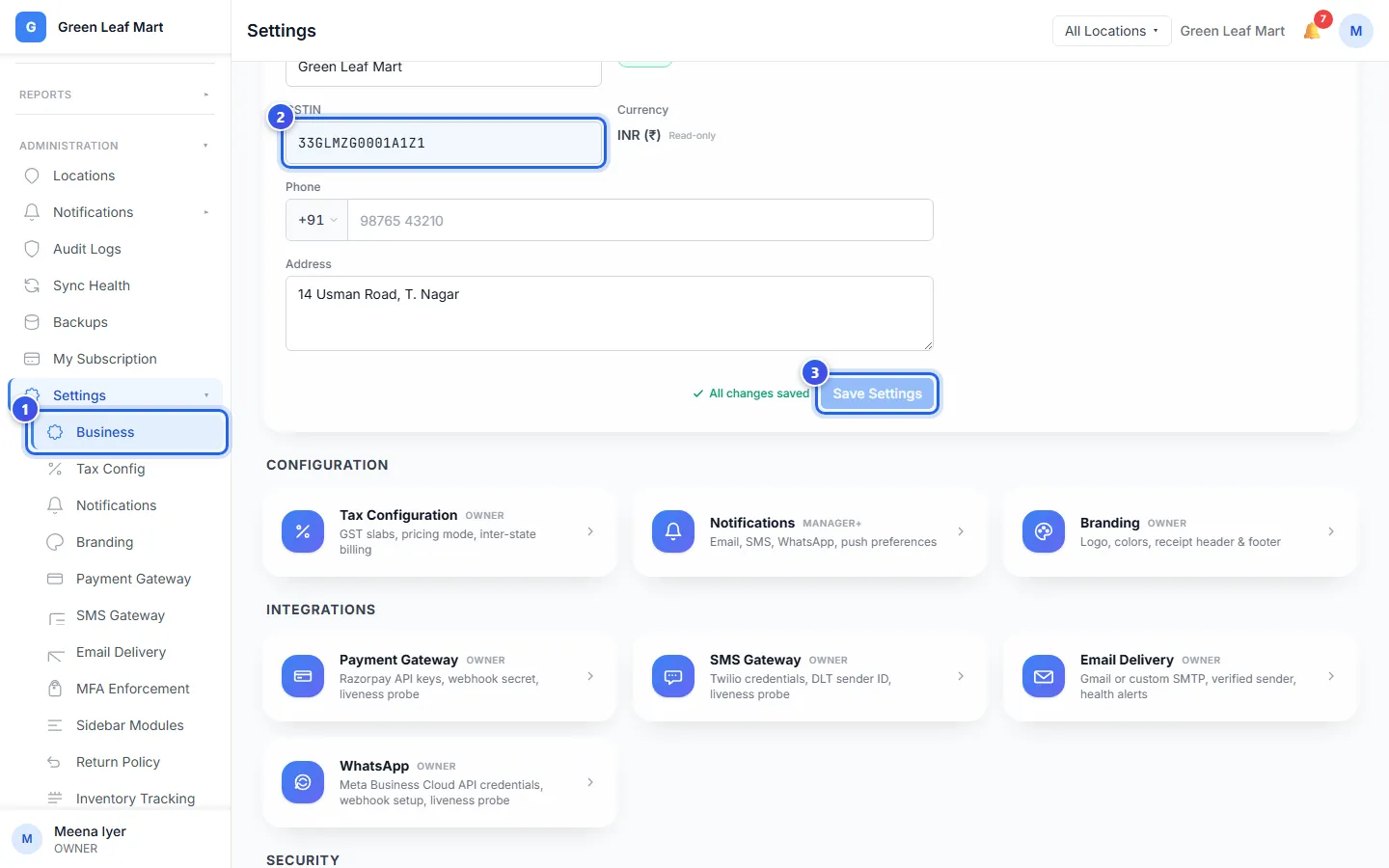
If a letter or digit is wrong, Orio360 shows Invalid GSTIN format. Check the number and try again.
Choose your GST rate
- Under Settings, press Tax Config.
- Under Default GST Slab (%), choose the rate that most of your products use.
- Under Default Transaction Type, choose Intra-State or Inter-State.
- Turn on Display Tax-Inclusive Prices to show prices with GST in them.
- Type the HSN code that most of your items use in Default HSN Code. You can leave it empty.
- Press Save Tax Settings.
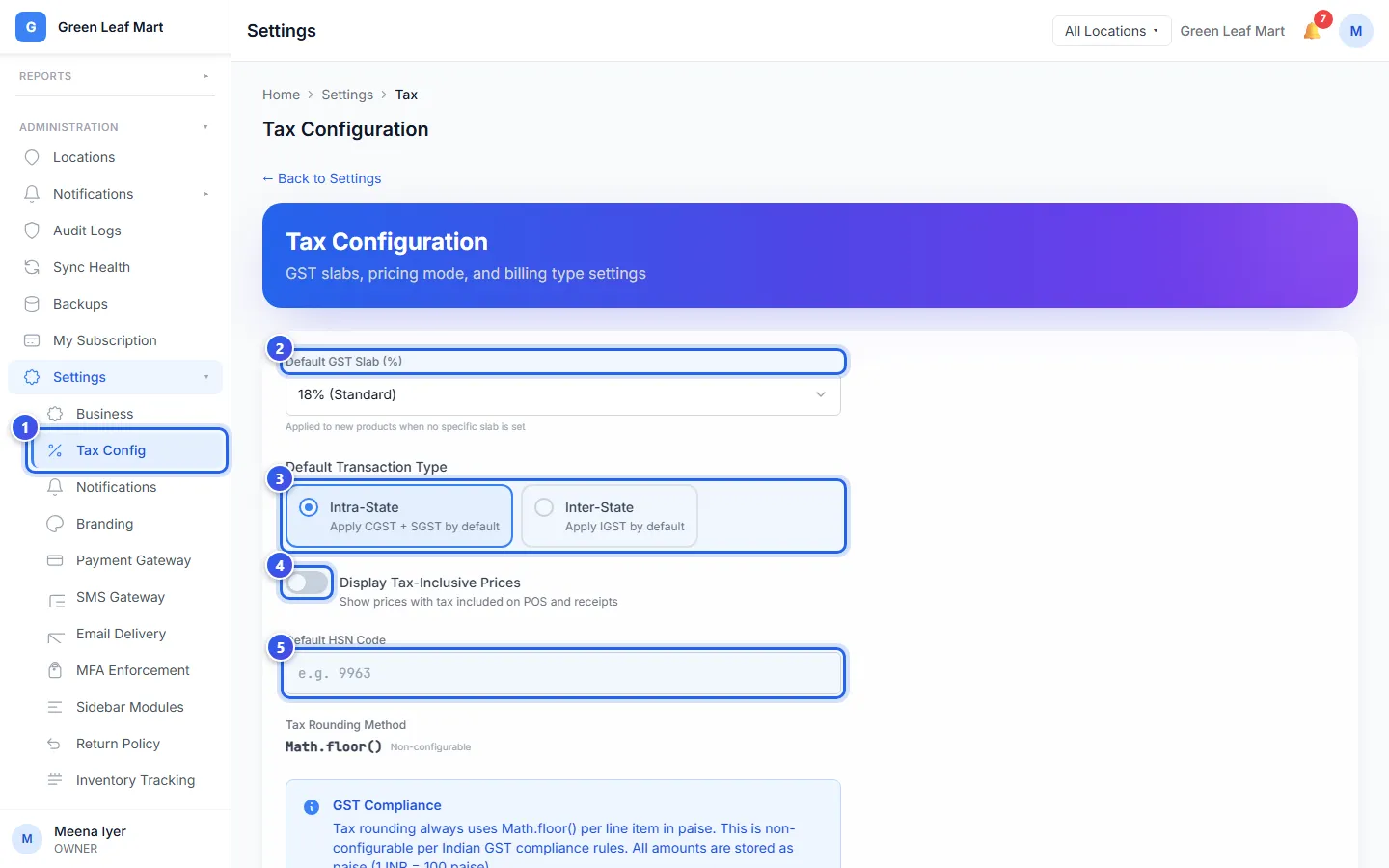
You can press Save Tax Settings only after you change something. After you save, All changes saved shows next to it. Before you save a rate for the first time, you can press it right away. That saves the rate shown.
Orio360 uses this rate for a new product when you do not choose one. You can still give any product its own rate when you add it.
Choose Intra-State when most of your buyers are in your own state. Bills then show CGST and SGST. Choose Inter-State when most of them are in other states. Bills then show IGST.
Display Tax-Inclusive Prices changes how prices look on the till and on receipts.
Related help
Still need help?