Get your GST reports
See the GST on your sales, and save a GSTR-1 summary for your return.
Who can do this: Owner and Manager
The GST Report shows the GST you collected on your sales. The GSTR1 page gets your sales ready for your GSTR-1 return.
See the GST you collected
- In the menu, open Reports and press GST.
- Under Period, choose the dates of your return, like Last Month.
- Read Total Tax Collected and the cards next to it.
- Look at GST Breakdown by Slab to see each tax rate.
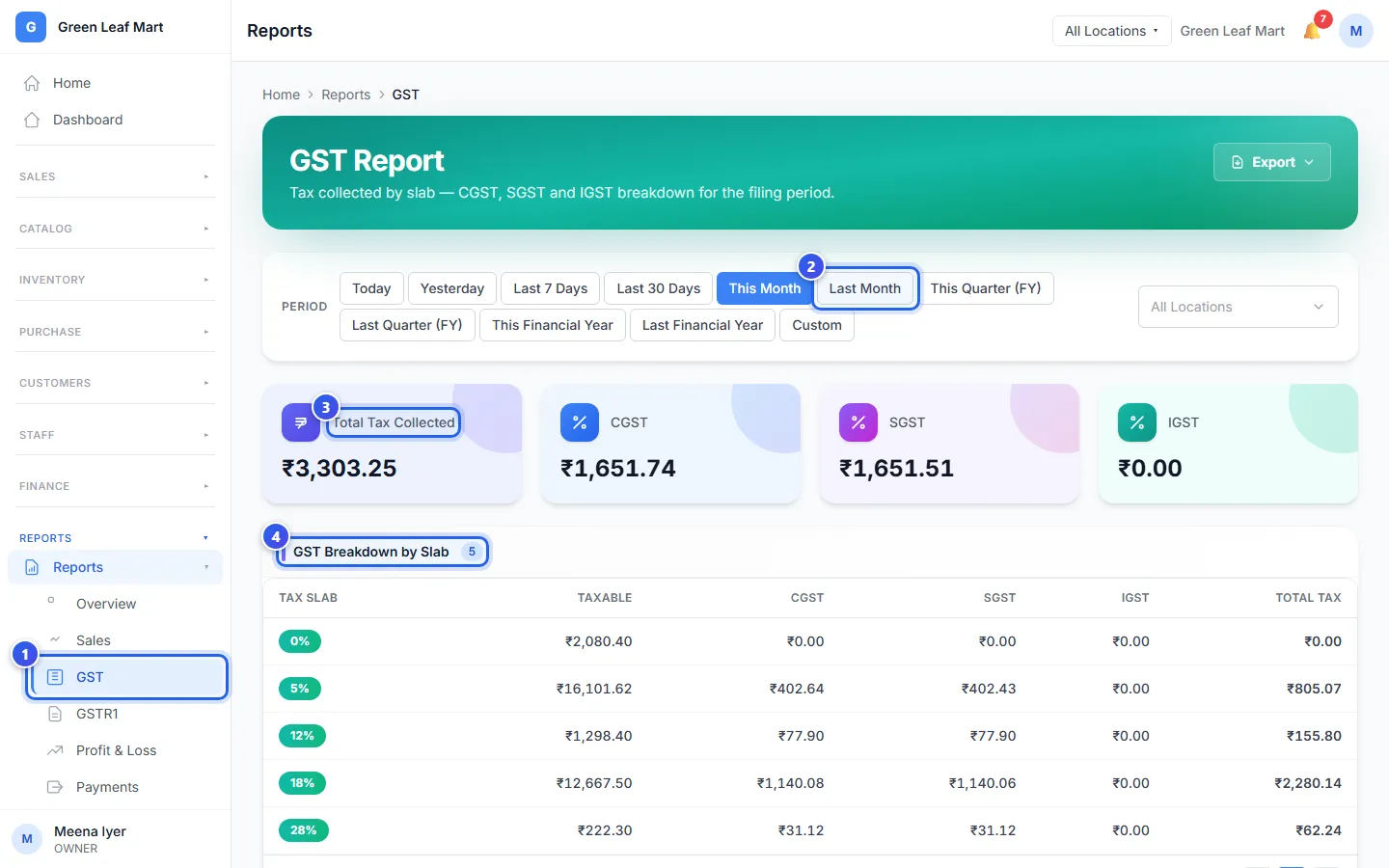
Each row of the table is one GST rate, like 5% or 18%. Taxable is the price of the items before tax. CGST and SGST are the tax on sales in your own state. IGST is the tax on sales to another state.
Save your GSTR-1 summary
- In the menu, under Reports, press GSTR1.
- In Filing Period, choose the month.
- Under Period Type, choose Monthly or Quarterly.
- Press Generate GSTR1.
- Press Export, then press Export CSV.
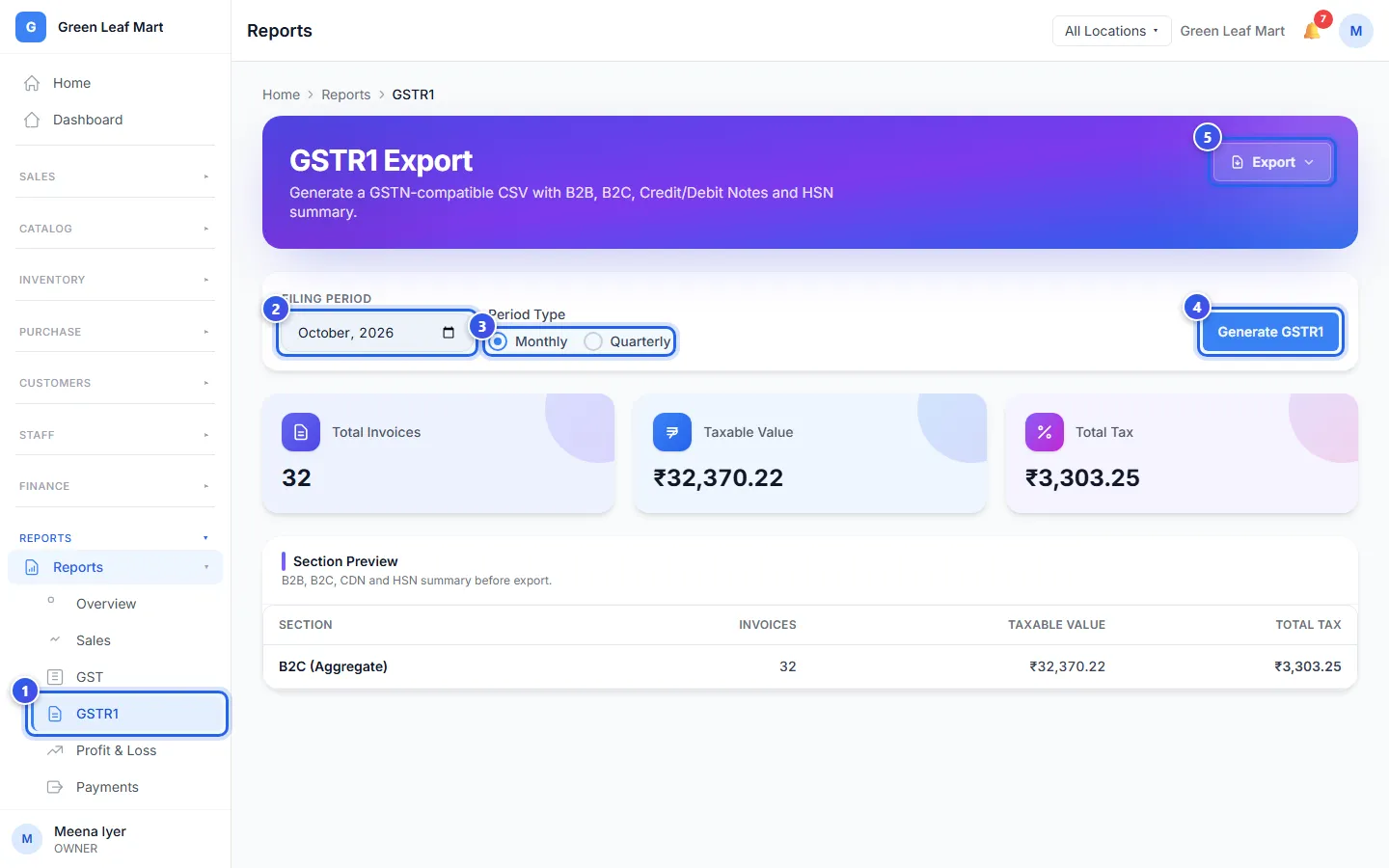
Quarterly puts the 3 months of that quarter together. The cards show Total Invoices, Taxable Value and Total Tax. The Section Preview table lists each part with its totals.
The file has these totals. Use it when you file, or give it to your accountant.
Related help
Open, download and share a report
Find a report, pick the dates, then save it or share it on WhatsApp or by email.
Send your data to Tally
Make a file of your sales, purchases and expenses that you can import into Tally.
On some plans
See your profit and loss
See what you earned, what you spent and what is left.
Still need help?