Send your data to Tally
Make a file of your sales, purchases and expenses that you can import into Tally.
Who can do this: Owner
This is not in every plan. See Pricing.
Many accountants keep the books in Tally Prime. The Tally Export page makes a file of your sales, purchases and expenses. You or your accountant can import it into Tally.
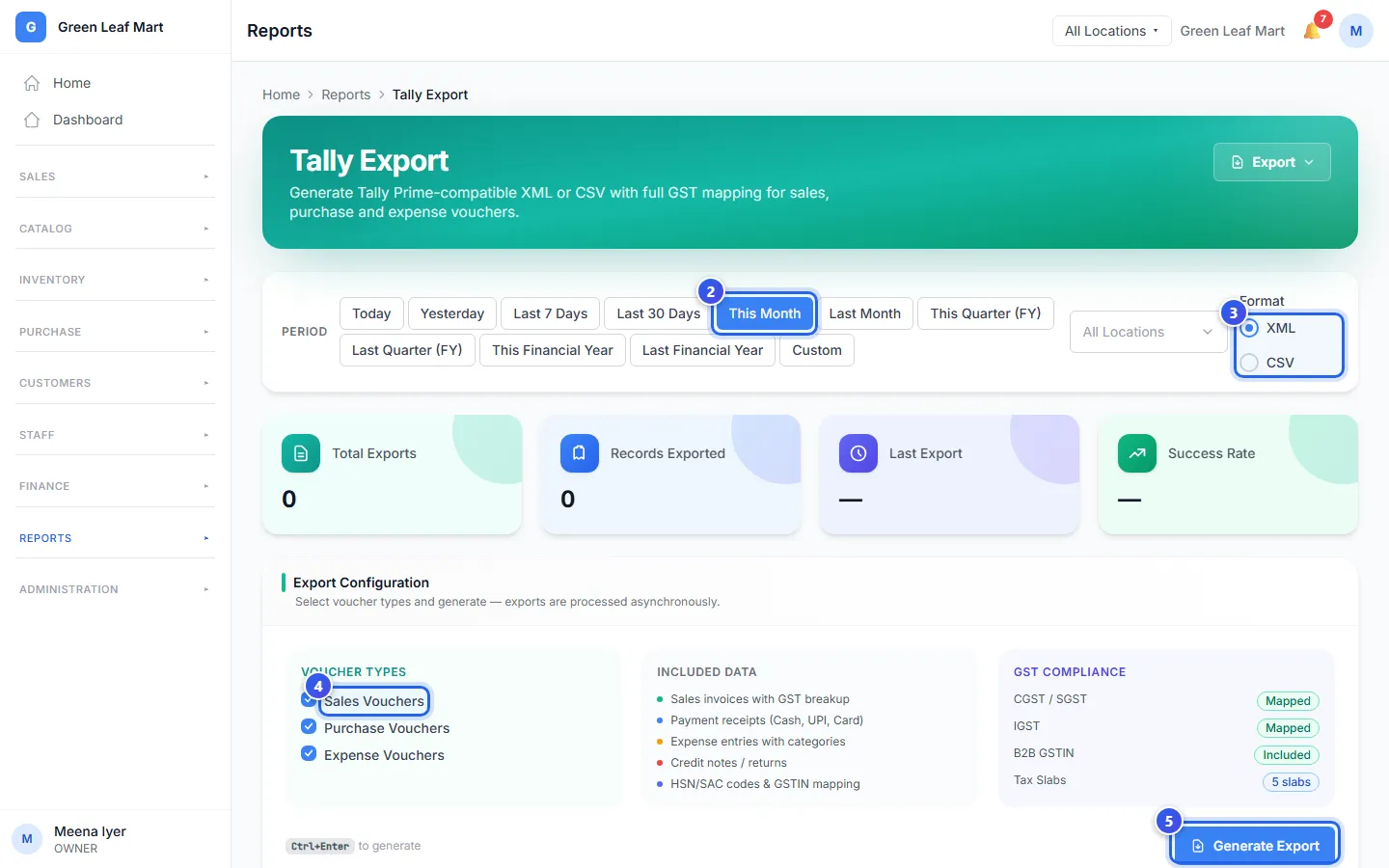
- In the menu, open Reports and press Tally Export.
- Under Period, choose the dates. You can pick up to 365 days.
- Under Format, choose XML or CSV.
- Under Voucher Types, tick what you want: sales, purchases or expenses.
- Press Generate Export.
- Wait until Export History says Completed.
- Press Download to save the file.
What the file has
The file has your sales invoices with their GST, and your payments. It also has your expenses, your returns and your HSN codes. A purchase order in other money goes to Tally in rupees, at the order's exchange rate. Both XML and CSV work with Tally Prime. A CSV file also opens in Excel.
A new export shows in Export History. Its status goes from Queued to Processing, then to Completed. If it says Failed, check the dates and the voucher types. Then try again.
The Export button at the top of the page saves the Export History list. It does not save the Tally file.
Related help
Still need help?