Make staff use 2-step sign-in
Ask your staff to type a second code from their phone when they sign in.
Who can do this: Owner
2-step sign-in keeps your business safe. Each person also types a code from an app on their phone when they sign in. You can make your staff use it. Only the Owner can do this.
Make one person use it
- In the Administration group, press Settings, then MFA Enforcement.
- Type the person's name in the search box.
- Under Actions, turn on the switch in their row.
- Press Require MFA.
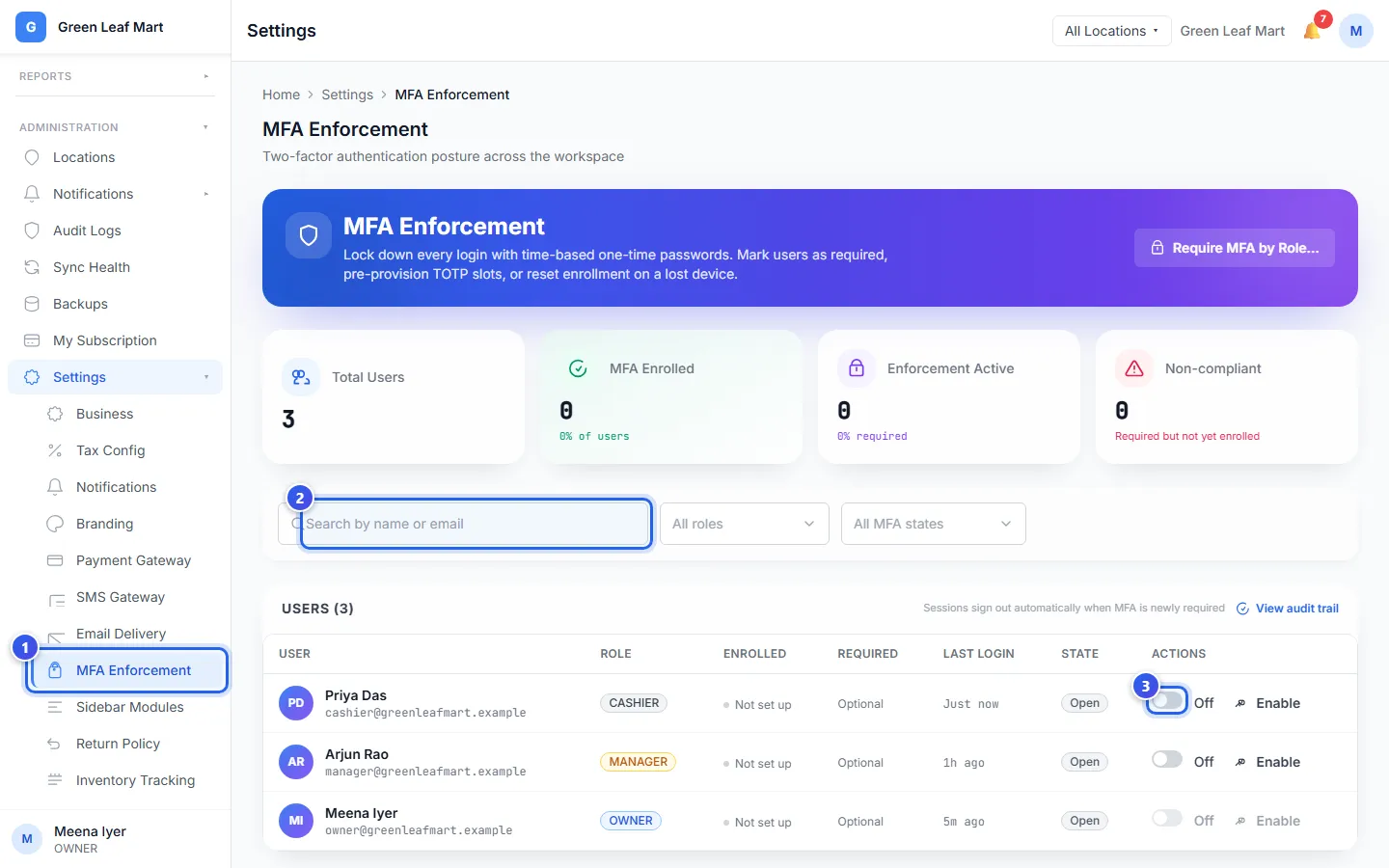
Orio360 signs the person out at once. The next time they sign in, it asks them to set up 2-step sign-in.
Make a whole role use it
- Press Require MFA by Role….
- Choose the role in Role to enforce, like Cashier.
- Press the Require MFA for button. It shows how many people it covers.
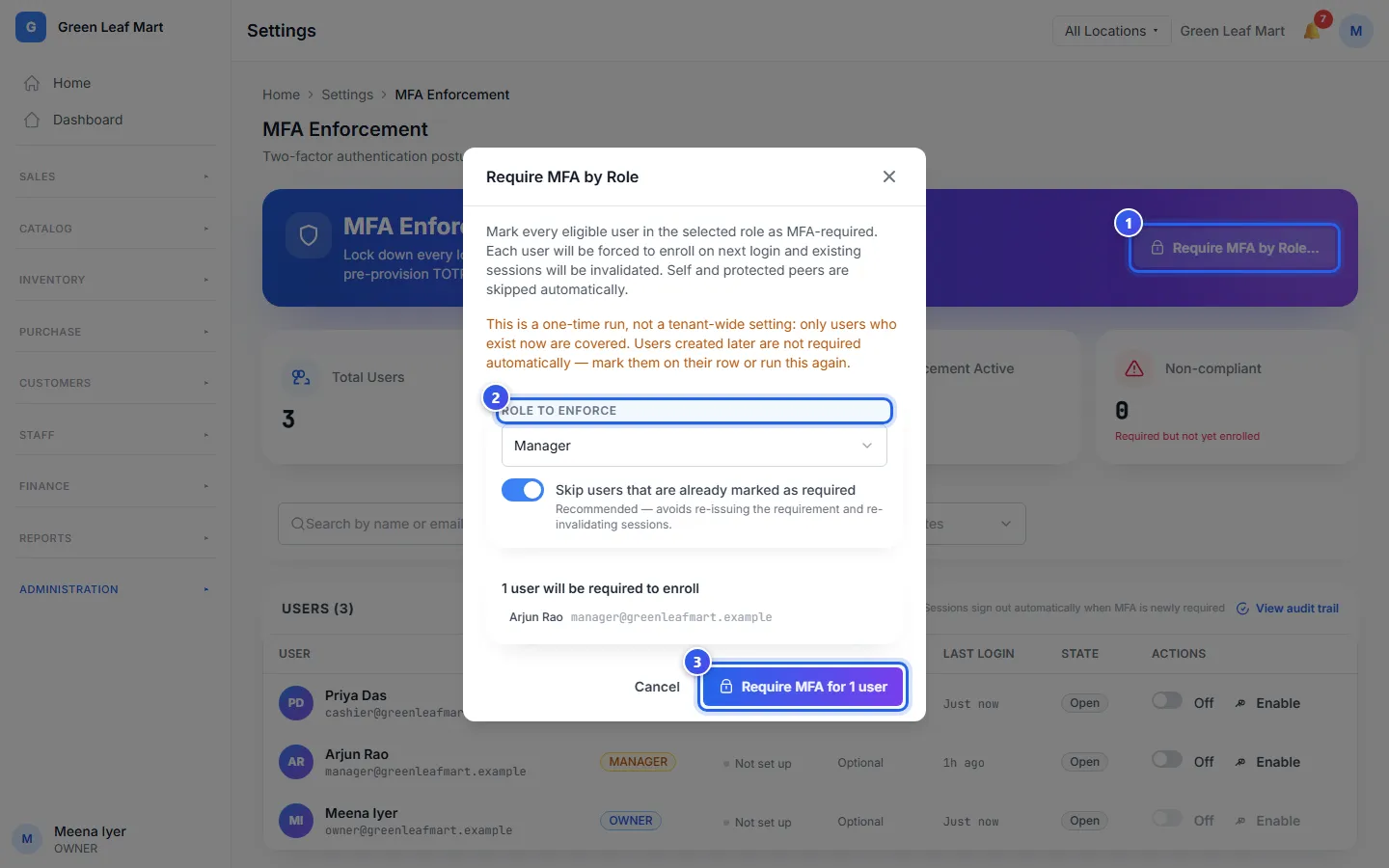
This covers only the people you have today. When you add a new staff member later, turn on the switch in their row.
Read the list
The State column shows where each person is:
- Open: they do not use 2-step sign-in.
- Voluntary: they use it, but you did not ask them to.
- Hardened: you asked them, and they use it.
- Non-compliant: you asked them, but they have not set it up yet.
Has a person lost their phone? Press Reset in their row, then Reset enrollment. They set it up again the next time they sign in.
Related help
Still need help?