Use 2-step sign-in
Add a code from an app on your phone to keep your account safe.
Who can do this: Owner, Manager and Cashier
Keep your account safe with 2-step sign-in. When you sign in, you type a code from an app on your phone. Then a person who knows your email still cannot sign in as you.
You turn it on in the POS app. After that, the POS app and the admin app both ask for the code.
Turn it on
- In the POS app, press Settings at the right end of the top bar.
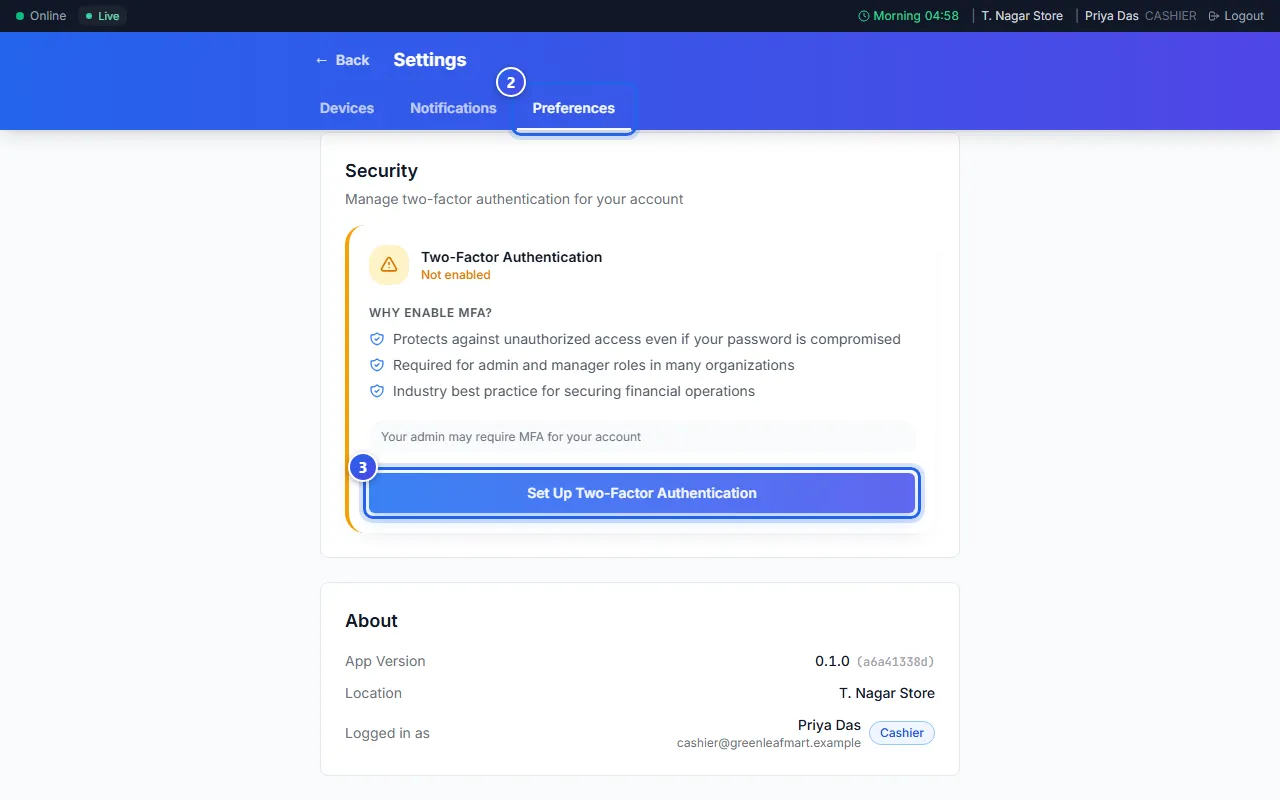
- Press Preferences.
- Under Security, press Set Up Two-Factor Authentication.
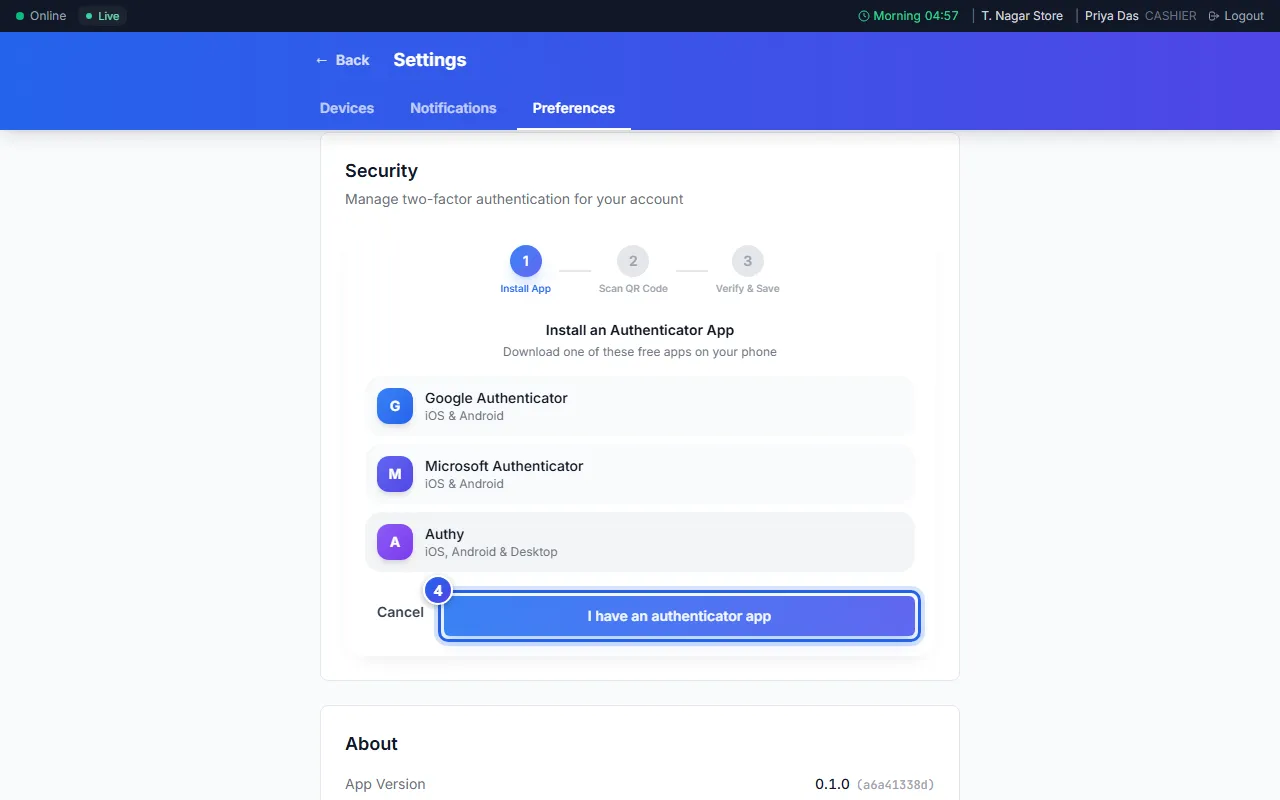
- Put an authenticator app on your phone, like Google Authenticator. Then press I have an authenticator app.
- Scan the QR code with the app, and press Next.
- Type the 6-digit code from the app, and press Verify.
- Save your recovery codes, and tick I've saved my recovery codes.
- Press Done.
You get 10 recovery codes. Each one works once. Use one when you do not have your phone. Keep them in a safe place, away from your phone.
Sign in with the code
- Type your email, and press Continue.
- Open the authenticator app on your phone.
- Type the 6-digit code that the app shows for Orio360.
- Press Verify & Sign In.
The app does not send a code to your email any more.
Related help
Still need help?