What customers see on a quote
See the quote page your customer opens to say yes or ask for changes.
Who can do this: Owner, Manager and Cashier
This is not in every plan. See Pricing.
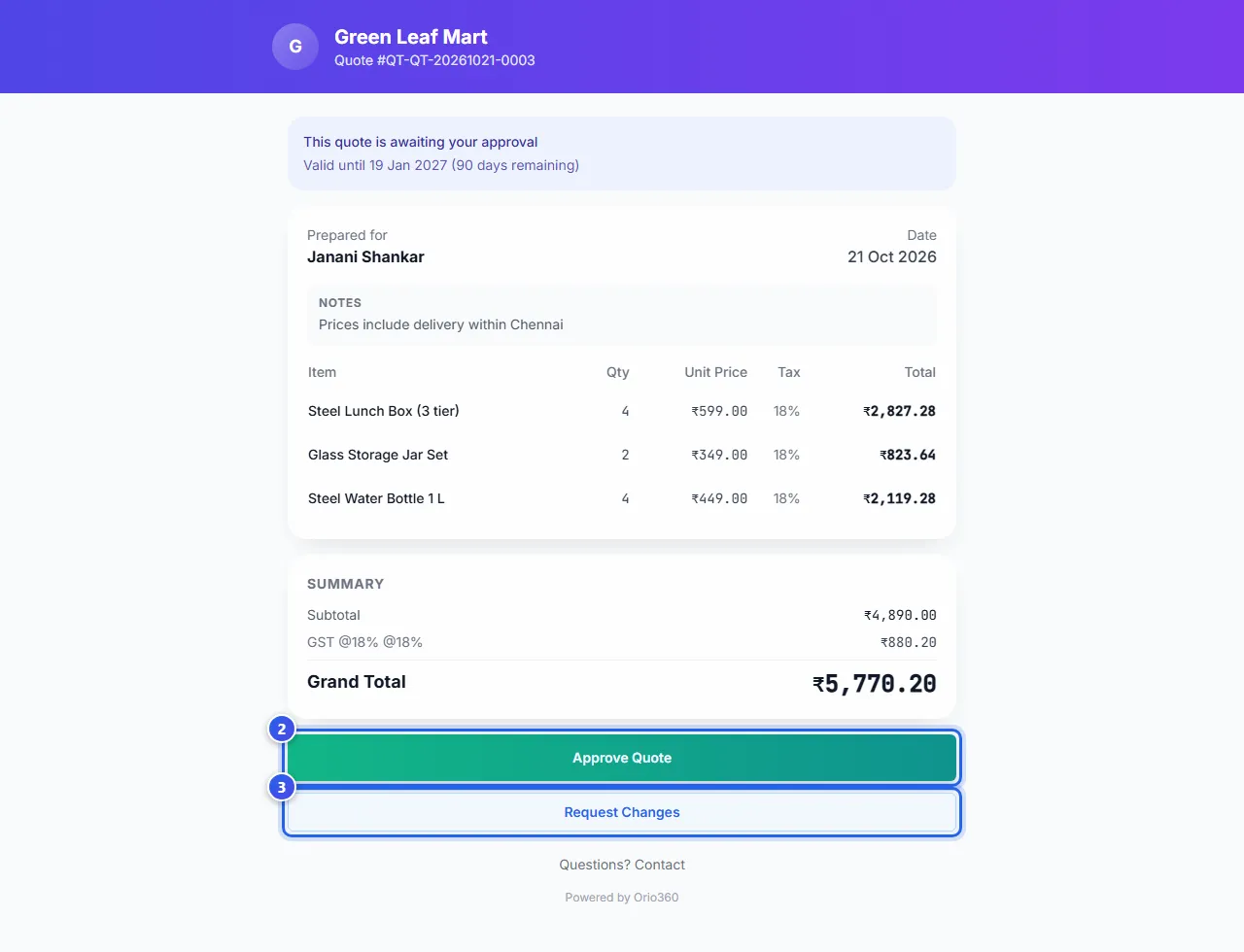
When you send a quote link, your customer opens this page. It works on a phone or a computer. The customer does not need to sign in.
The page shows your business name and the quote number. A note at the top says the quote waits for an answer. It also says the last day of the quote.
What the customer can do
- Read the items, the prices and the GST. The total is at the bottom.
- Press Approve Quote to say yes.
- Or press Request Changes. Type what they want to change, and press Send Request.
What happens next
- Approve Quote shows the customer a Quote Approved! page. In Orio360, the quote now says Approved.
- Request Changes sends you the customer's note. It shows under Customer Feedback on the quote. The quote stays Active, so the customer can still say yes later.
Do you have the quote open in the admin app? A message shows there when the customer answers.
When the link does not work
- After the last day, the page says the quote has expired. It asks the customer to contact you.
- When you make a sales order from the quote, the page says it is now an order.
- If you cancel the quote, or make a new link, the old link stops working.
Related help
Still need help?