Make a sales order
Turn a quote into a sales order when the customer sends their purchase order.
Who can do this: Owner, Manager and Cashier
This is not in every plan. See Pricing.
A sales order is an order from a customer that you deliver later. In Orio360, it always starts as a quote. Often the customer sends you their own purchase order, or PO. Then you turn the quote into a sales order.
Turn a quote into a sales order
- In the menu, open Sales and press Quotations. Then press All Quotes.
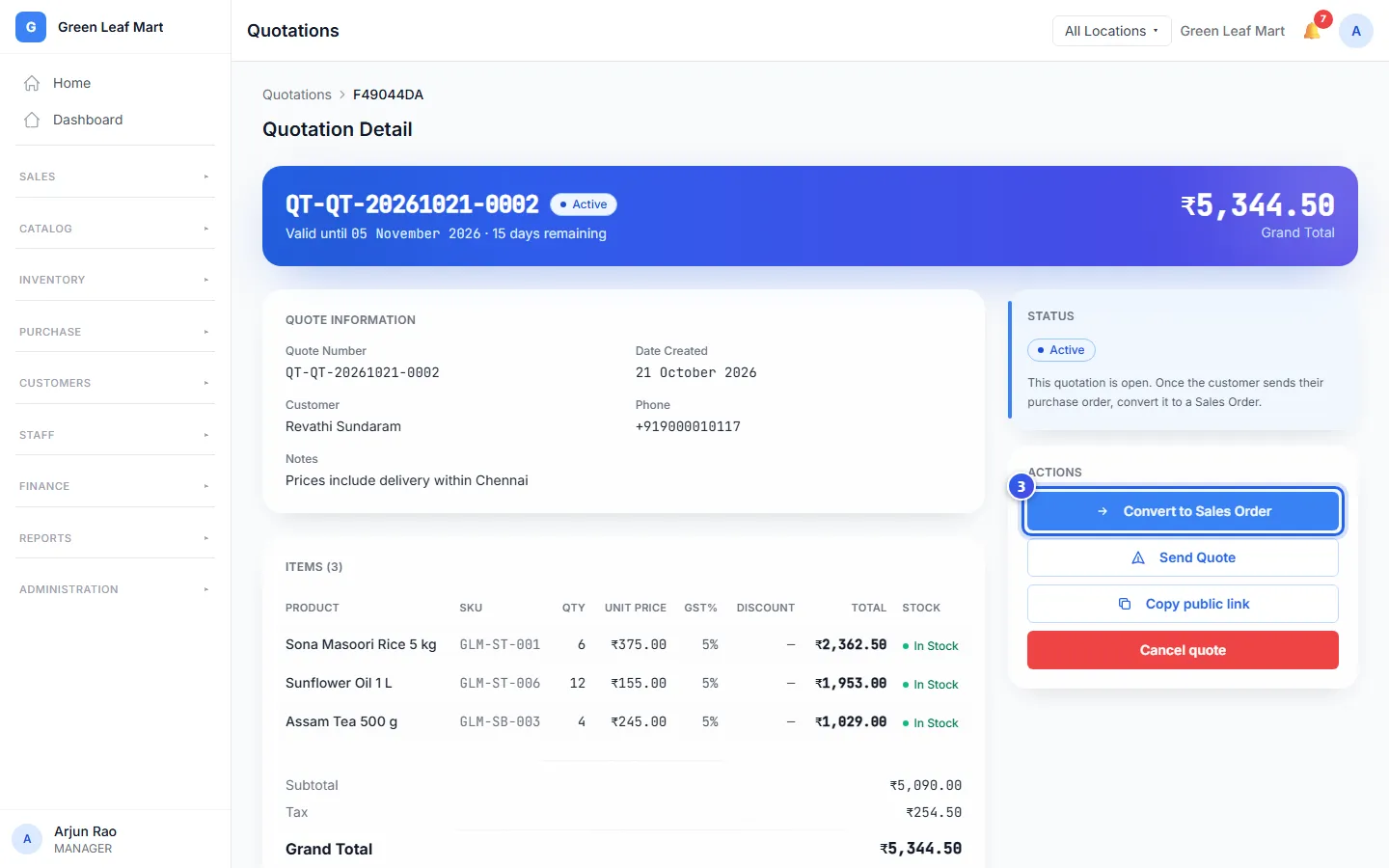
- Press the number of the quote. It must say Active or Approved.
- Press Convert to Sales Order.
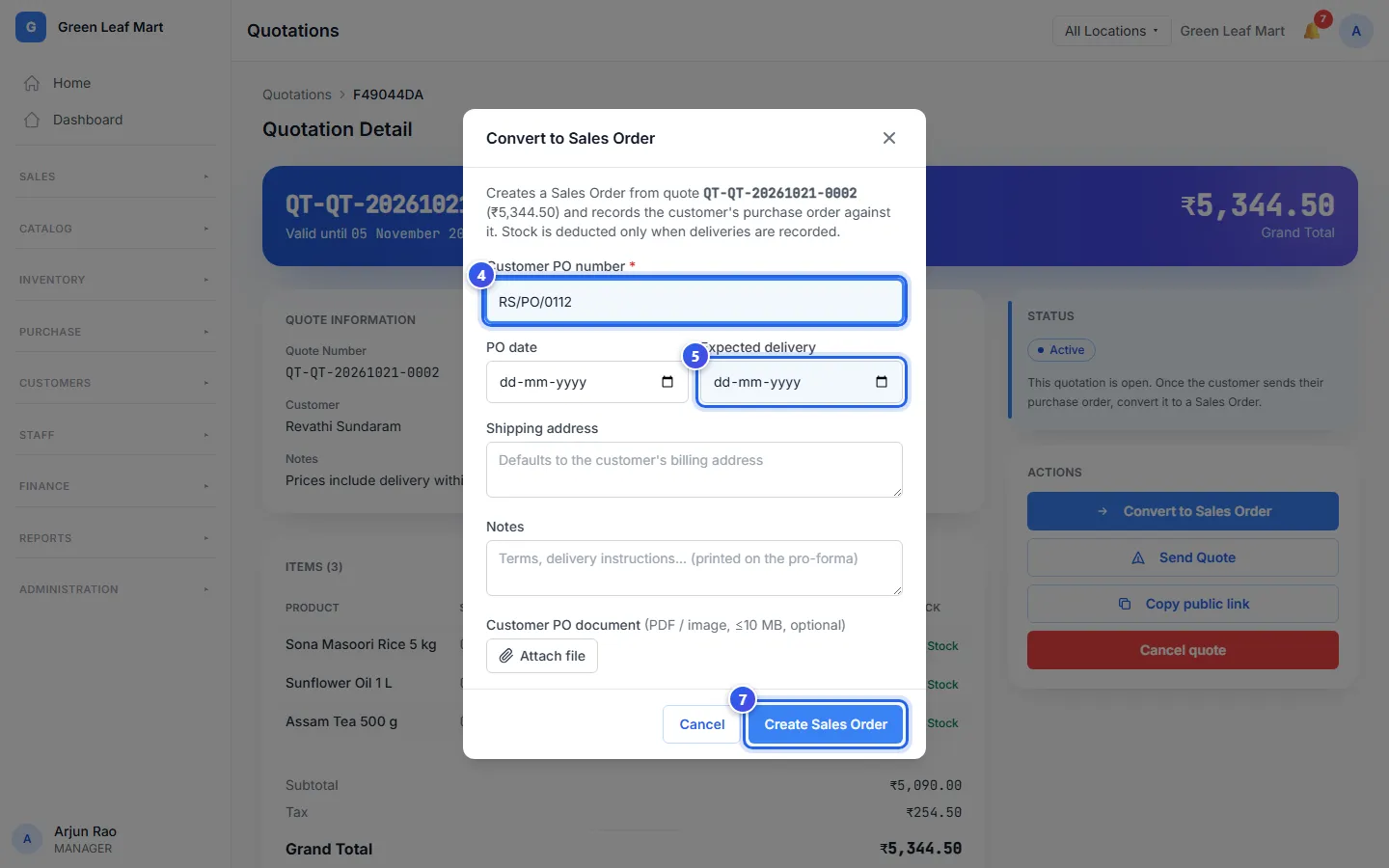
- Type the number of the customer's PO in Customer PO number.
- Choose the PO date and the Expected delivery date.
- Check the Shipping address. Add Notes if you like.
- Press Create Sales Order.
Orio360 opens the new sales order. Its status is Confirmed. The quote now says Converted.
Do you have the customer's PO as a file? Press Attach file under Customer PO document before step 7.
Good to know
- Your stock does not change yet. Orio360 takes the items out of stock when you deliver them.
- You find all orders in the menu under Sales, in Sales Orders.
- Press Download pro-forma on the order to get a PDF. You can send it to the customer before you deliver.
- A Manager or an Owner can press Cancel order before anything is delivered, billed or paid.
Related help
Make a price quote
Write a quote with prices for a customer before they decide to buy.
On some plans
Deliver a sales order
Record the goods you send to the customer for a sales order.
On some plans
Make an invoice for a sales order
Raise an invoice for a sales order and record the money the customer pays.
On some plans
Still need help?