Record a credit payment
Write down the money a credit customer pays you, so what they owe goes down.
Who can do this: Owner
This is not in every plan. See Pricing.
A customer with a credit account has invoices for what they owe. When they pay you, record the payment on the invoice. Then their balance goes down, and the account shows the right amount. Only an Owner can do this.
Record the payment
- In the menu, open Sales and press Credit Accounts. Then press Invoices.
- Find the customer's invoice. It says Outstanding or Partial.
- Press Pay on that row.
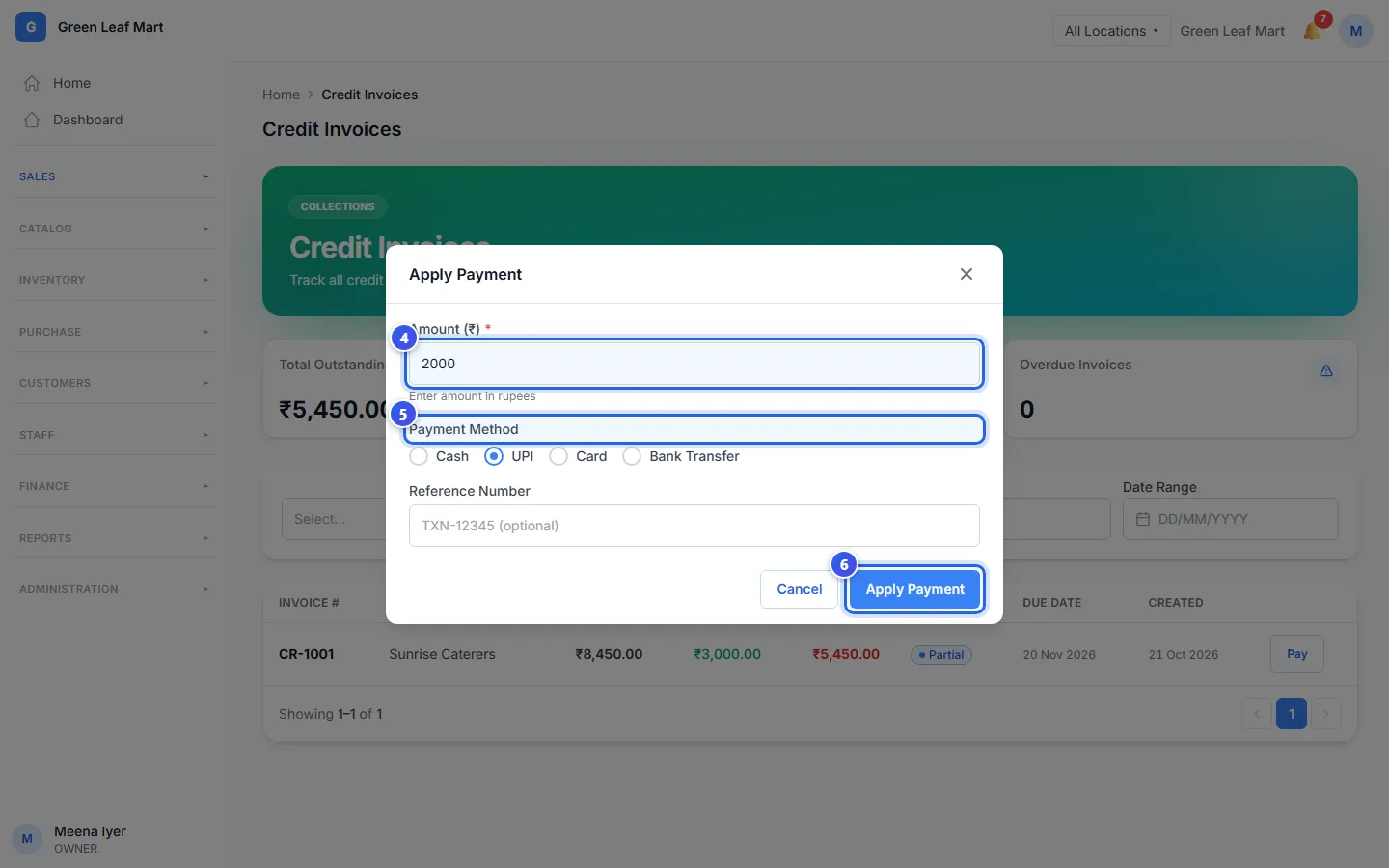
- Type how much they paid in Amount (₹).
- Choose the Payment Method. If you have a UPI or bank number, type it in Reference Number.
- Press Apply Payment.
The invoice now shows more in Paid and less in Balance. If the customer paid it all, it says Paid. If some is still left, it says Partial.
You can also do this from the customer's account. Open the account and press Invoices. Press Pay on the invoice, type the amount and press Record Payment.
Keep track of money owed
- At the top, Total Outstanding shows what all your credit customers owe you.
- Total Paid shows what they have paid on their invoices.
- Overdue Invoices counts the invoices that are past their Due Date.
- Choose a status at the top to see only the invoices you want, like Outstanding.
Related help
Still need help?