Accept an online order
See orders from your online store and accept or turn down each one.
Who can do this: Owner, Manager and Cashier
This is not in every plan. See Pricing.
When a customer orders on your online store, the order waits for you at the till. Check that you have the items. Then accept the order, and Orio360 turns it into a bill. An Owner, a Manager or a Cashier can do this.
Accept the order
- On the billing screen, press Online at the top.
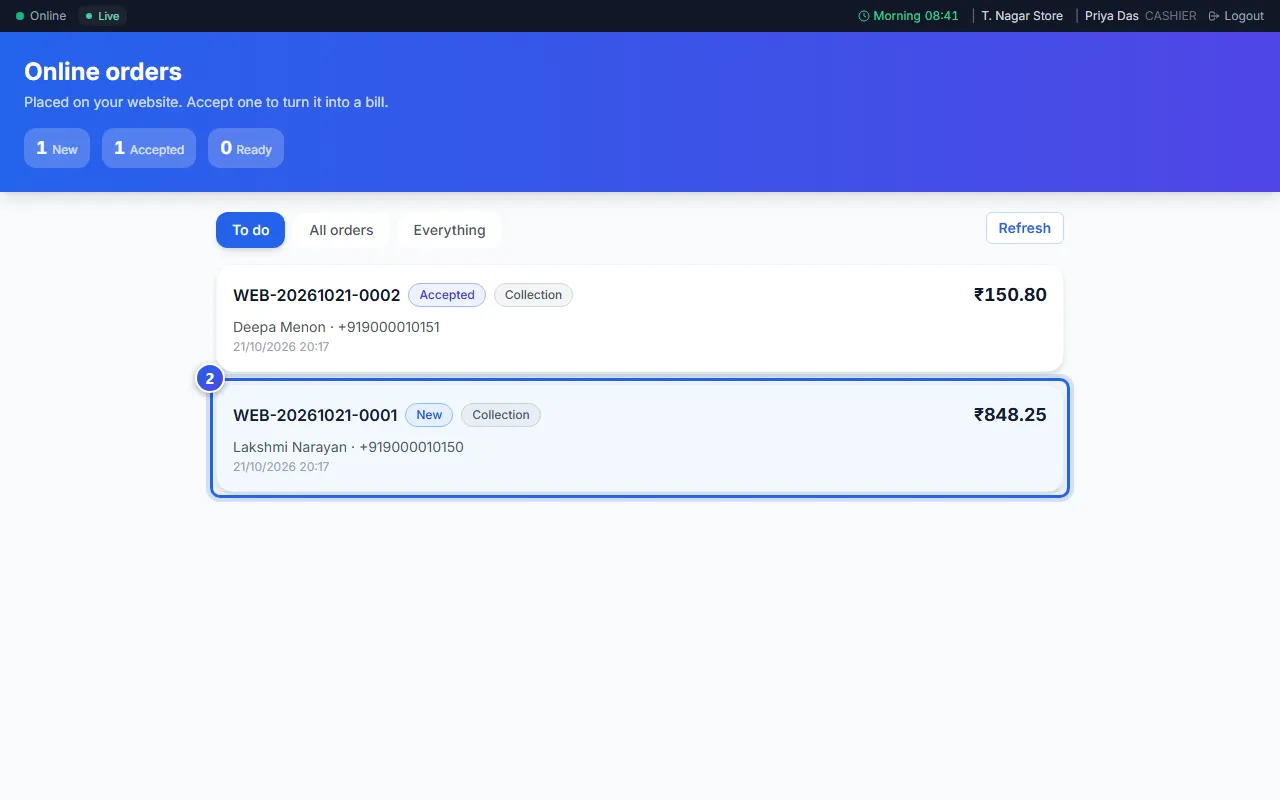
- Under To do, press an order that says New.
- Check each item. Are you short of one? Press the minus button next to it.
- Press Accept order.
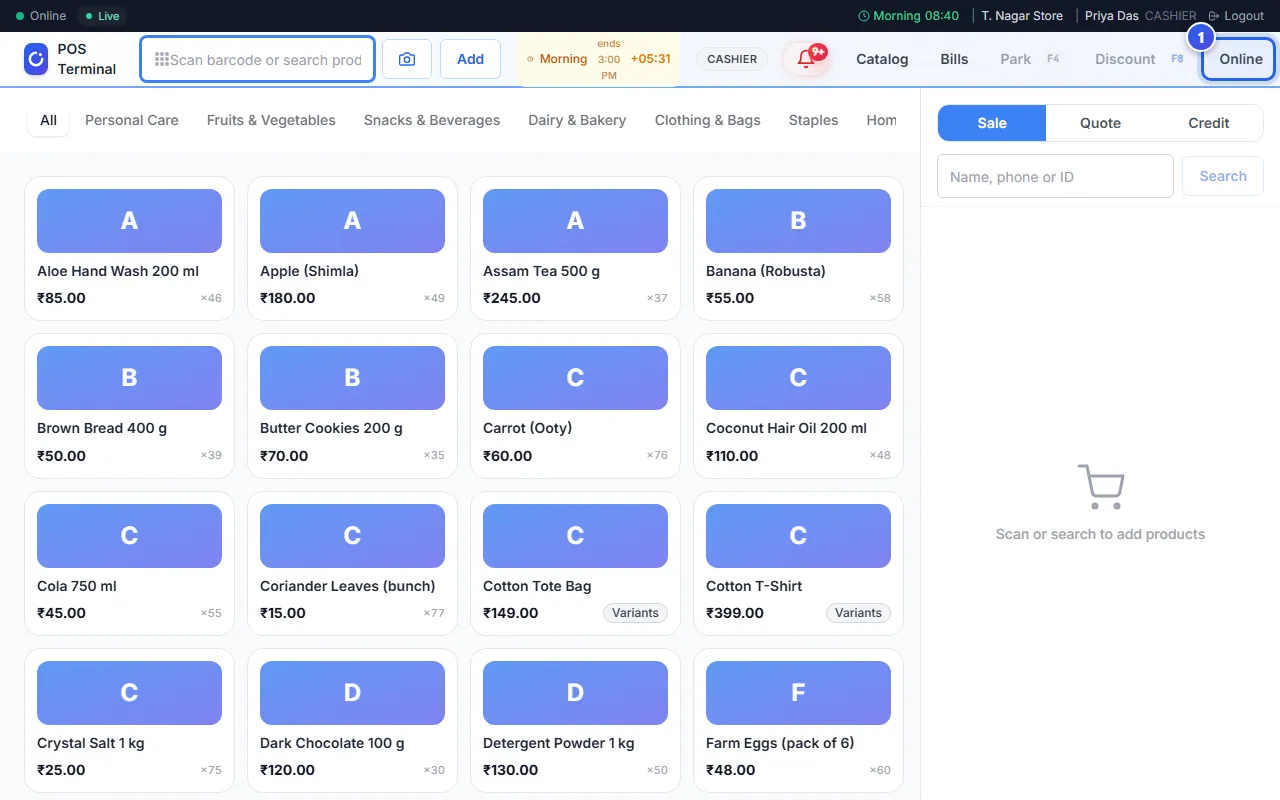
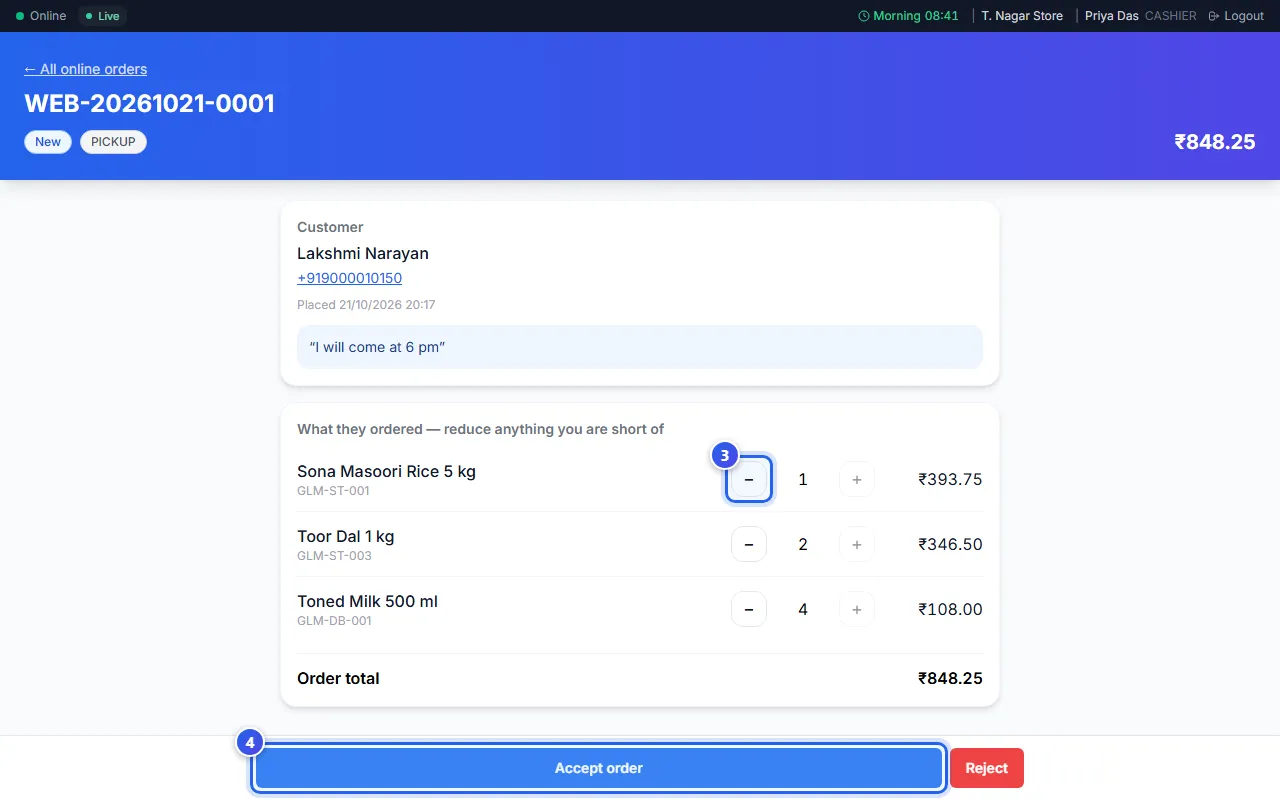
If you lower a number, the button shows how many items you can give, like Accept 6 of 7. The bill is made for what you give.
The order now says Accepted. Orio360 has made a draft bill for it. A draft bill is a bill that is not paid yet.
Hand the order over
- Pack the items. Then press Mark ready.
- When the customer comes, press Open the bill.
- Press Resume Bill. Take the payment as you do for any bill.
Turn an order down
Can you not fill the order? Press Reject. Type the reason in the box. The customer sees this reason, so tell them what they can do. Then press Reject order.
Good to know
- To do shows new, accepted and ready orders. All orders shows every sale, done or not. Everything also shows questions from customers.
- Some customers only ask about items. Their order says Enquiry. Call them and press Mark contacted. Later, press Won or Lost.
- Press Refresh to see new orders at once.
Related help
Still need help?