See staff and expense reports
See how each cashier is doing, and where your expense money goes.
Who can do this: Owner and Manager
This is not in every plan. See Pricing.
These reports show how your staff sell, and how they spend the money of the business.
See how each cashier is doing
- In the menu, open Reports and press Cashier Performance.
- Under Period, choose the dates.
- Read Performance by Cashier. Each row is one staff member.
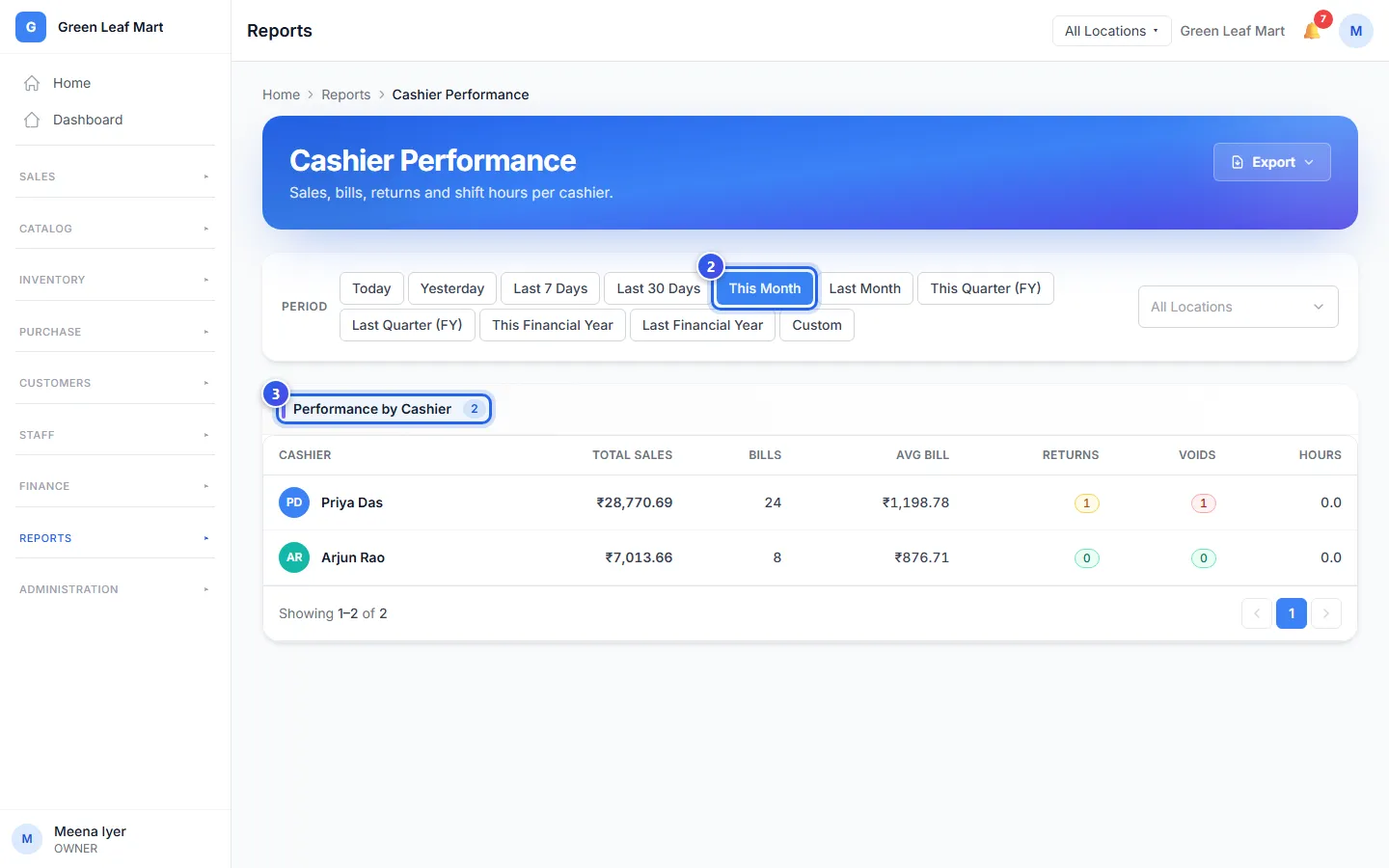
Each row shows the Total Sales, the Bills and the Avg Bill of that person. Returns counts their returns. Voids counts the bills they cancelled. Hours is the time in their shifts.
See where expense money goes
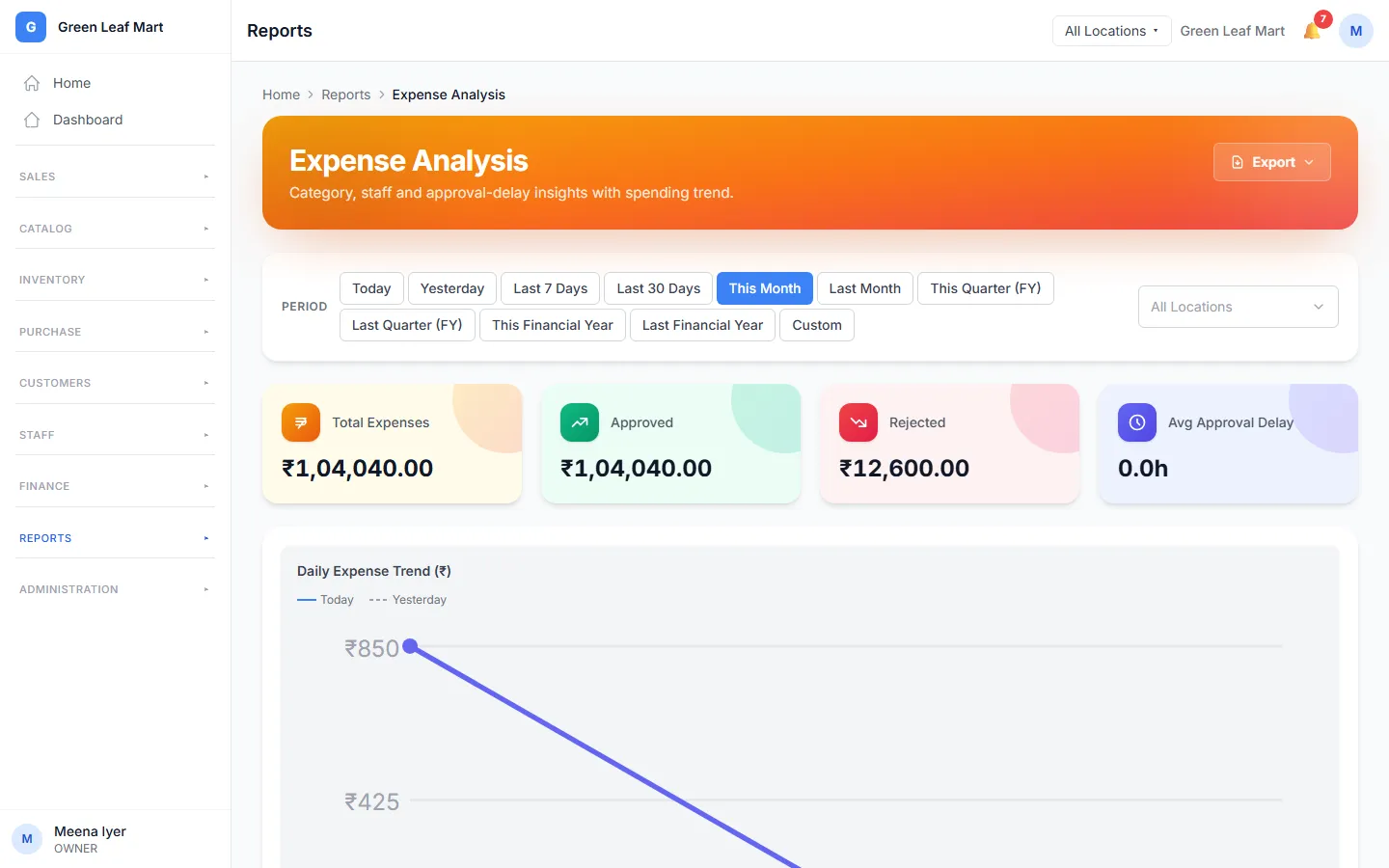
Expense Analysis shows your expenses in your dates.
- Total Expenses is your expense money in those dates.
- Approved and Rejected show the money in requests that were approved or turned down.
- Avg Approval Delay is how long a request waits before someone approves it.
- By Category and By Staff lower on the page show where the money went.
See each person's expenses
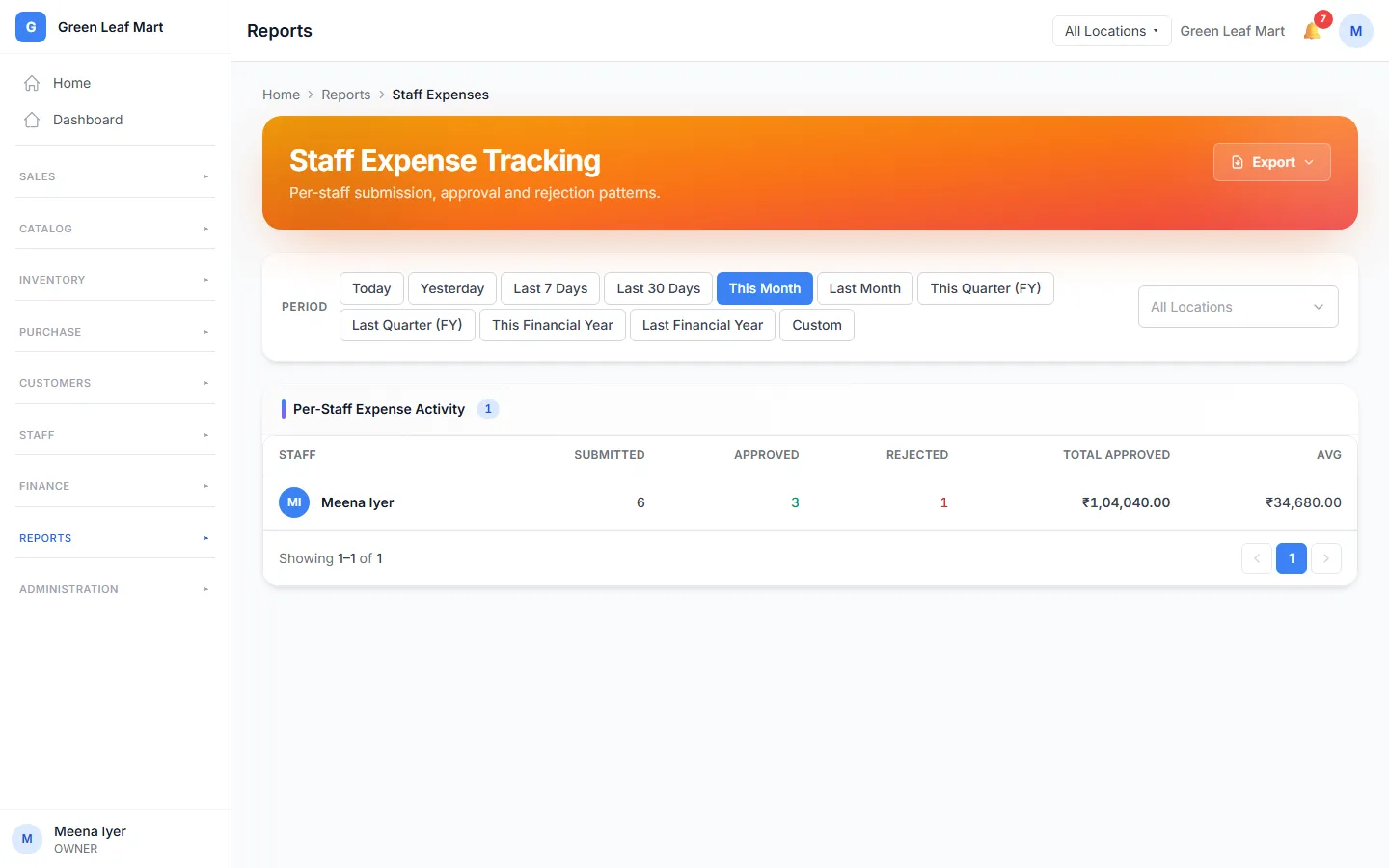
In the menu, under Reports, press Staff Expenses. The Staff Expense Tracking page has a row for each person. It shows how many expenses they Submitted, how many were Approved and how many were Rejected. Total Approved is the money that was approved.
Related help
Still need help?