See best sellers and busy hours
Find your best-selling items and groups, your busy hours and the discounts you gave.
Who can do this: Owner and Manager
This is not in every plan. See Pricing.
These reports show what sells best, and when your business is busy. They also show the discounts your staff gave.
See your best sellers
- In the menu, open Reports and press Top Products.
- Under Period, choose the dates.
- Choose how many items to see: Top 10, Top 25 or Top 50.
- Choose By Revenue to rank by money, or By Quantity to rank by how many you sold.
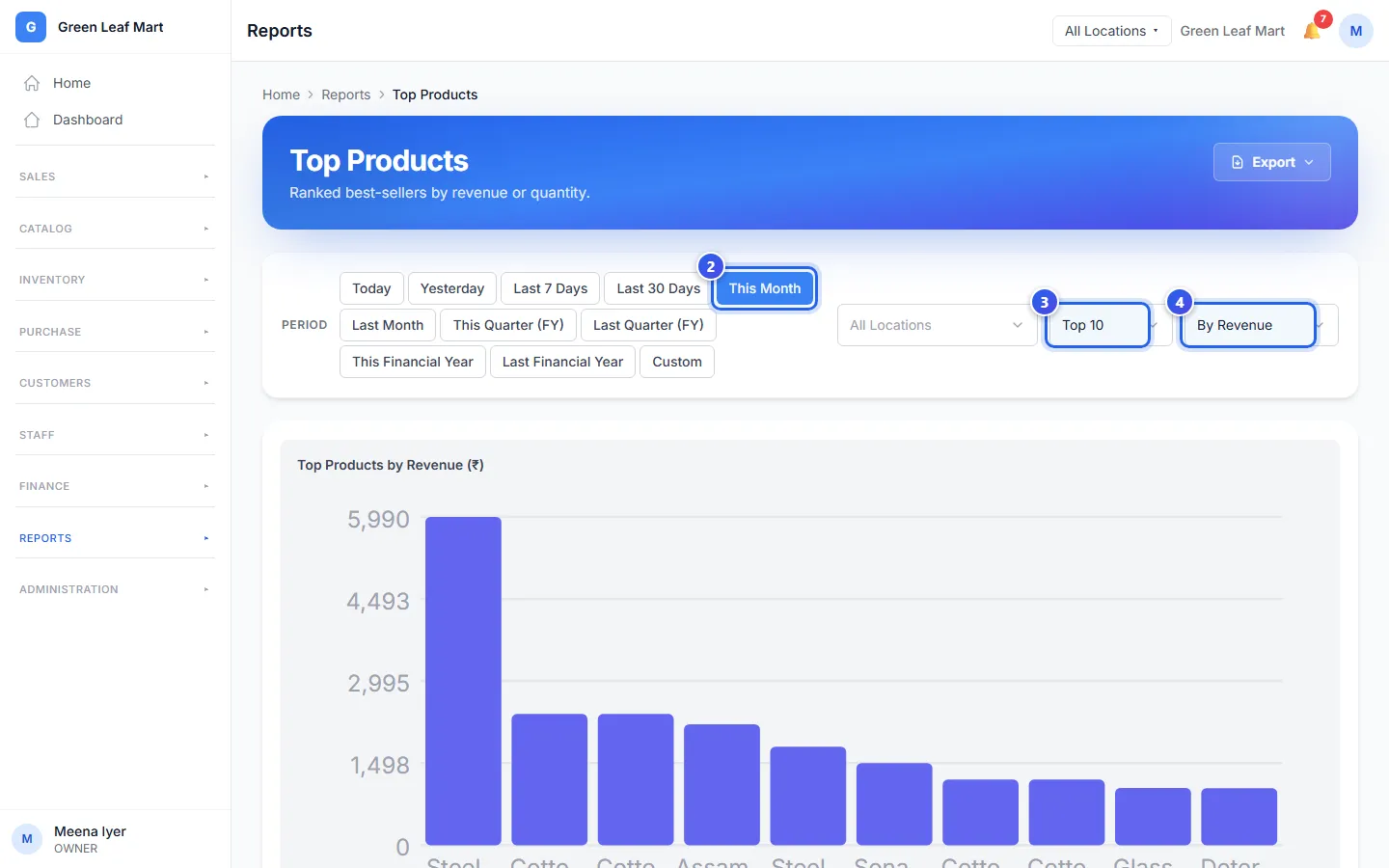
The chart shows your best sellers as bars. The table below lists each item with its rank.
Sales by group
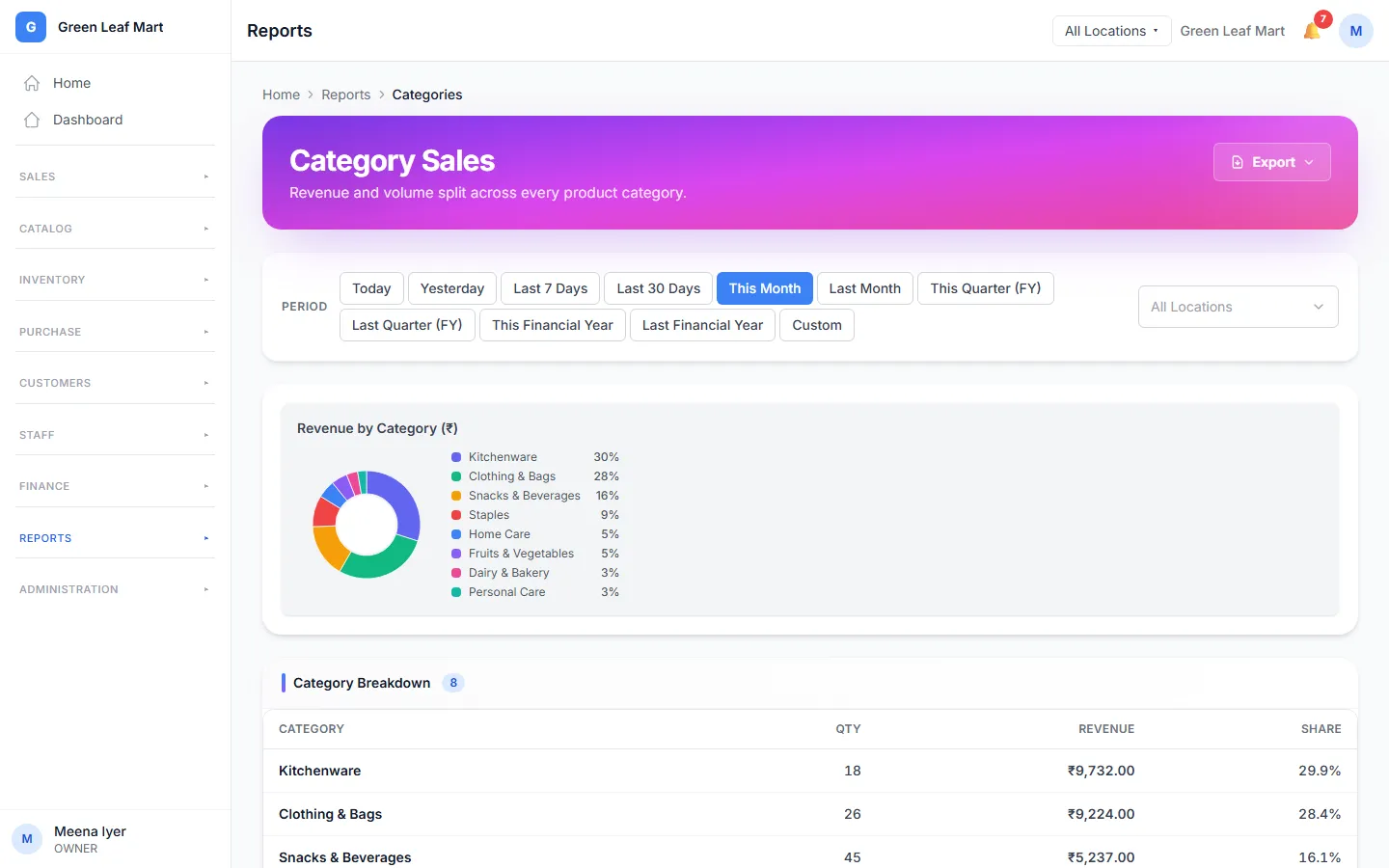
Category Sales shows how much each category sold. A ring chart shows the share of each one. The Category Breakdown table lists the Qty and the Revenue of each category.
Your busy hours
Peak Hours shows your sales at each hour of each day of the week. A darker square means more sales. The Hourly Breakdown table lists the bills and the sales for each hour. Use it to plan your staff and your stock.
The discounts you gave
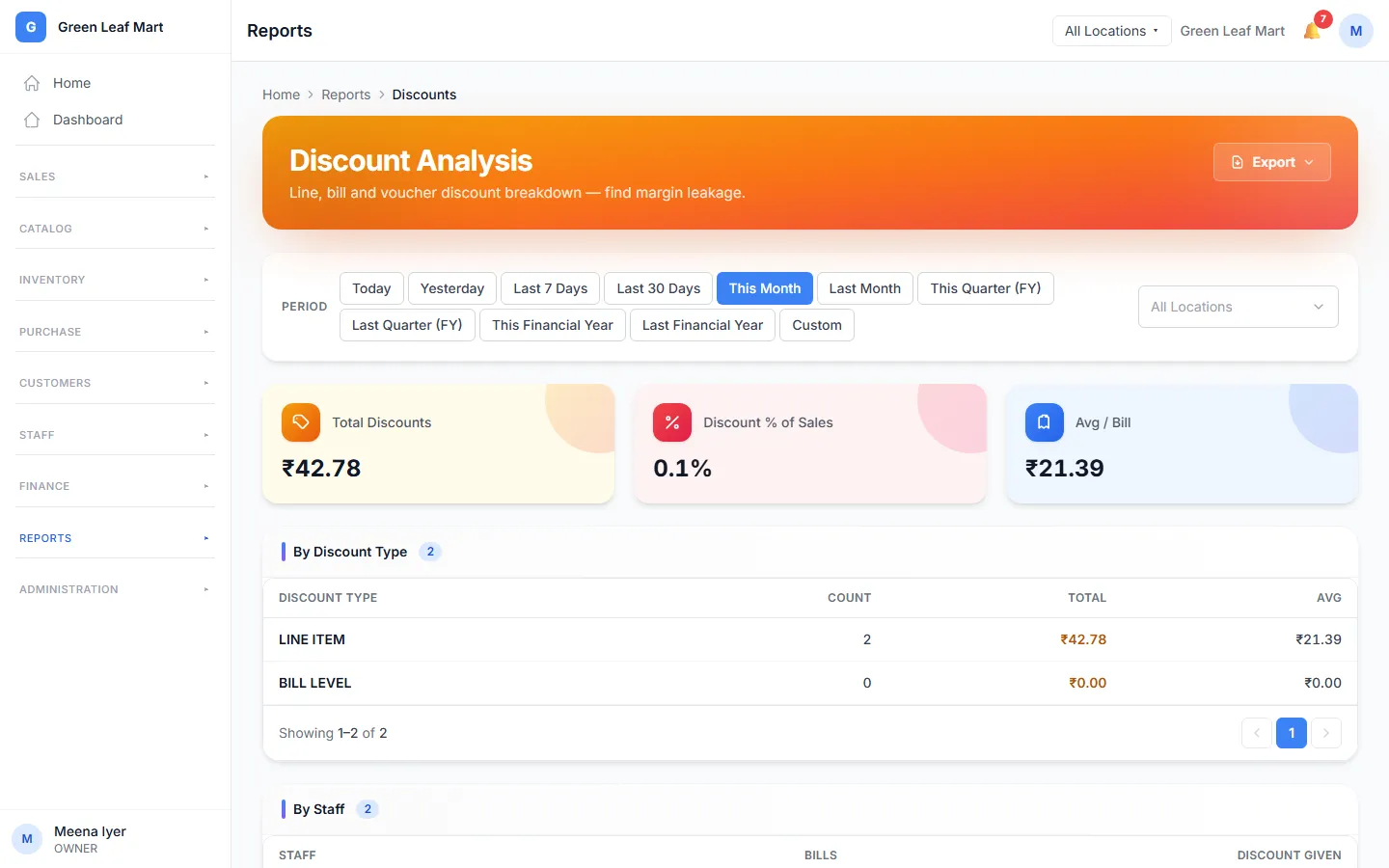
Discount Analysis shows every discount in your dates.
- Total Discounts is all the money you took off prices.
- By Discount Type splits it into discounts on one item and discounts on a whole bill.
- By Staff shows who gave the discounts.
- Top Discounted Products lists the items with the most discounts.
Related help
Still need help?