Give a discount on a bill
Take money off one item or the whole bill before the customer pays.
Who can do this: Owner, Manager and Cashier
You can take money off one item, or off the whole bill. Do it before the customer pays. Orio360 works out the GST again on the lower price.
Take money off one item
- On the bill, press Discount under the item.
- Press ₹ to take off an amount. Press % to take off a part of the price.
- Type the discount, like 10.
- Press Apply.
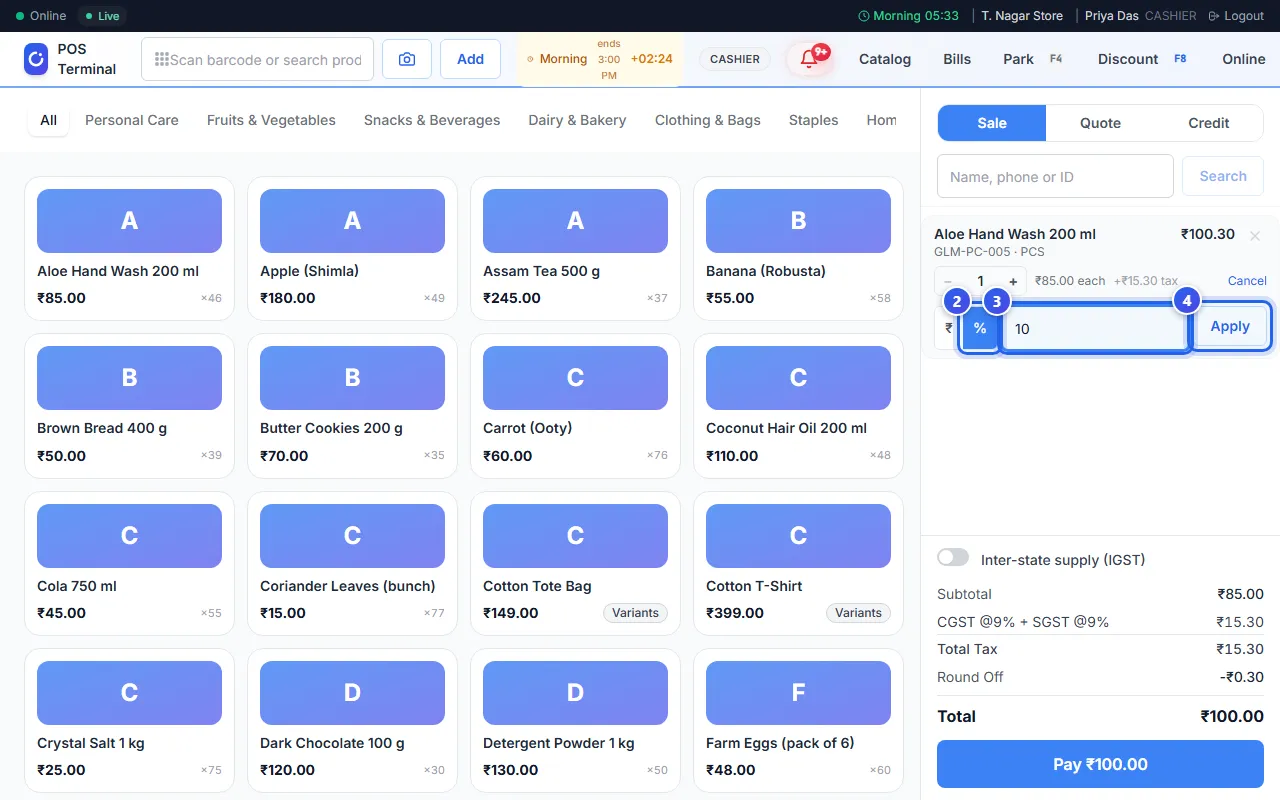
The item now shows how much you took off. To remove the discount, type 0 and press Apply.
Take money off the whole bill
- Press Discount at the top of the screen. You can also press the F8 key.
- Press ₹ or %, then type the discount.
- Press Apply to see the total after the discount.
- Type why you give it in Reason (required for audit).
- Press Apply discount.
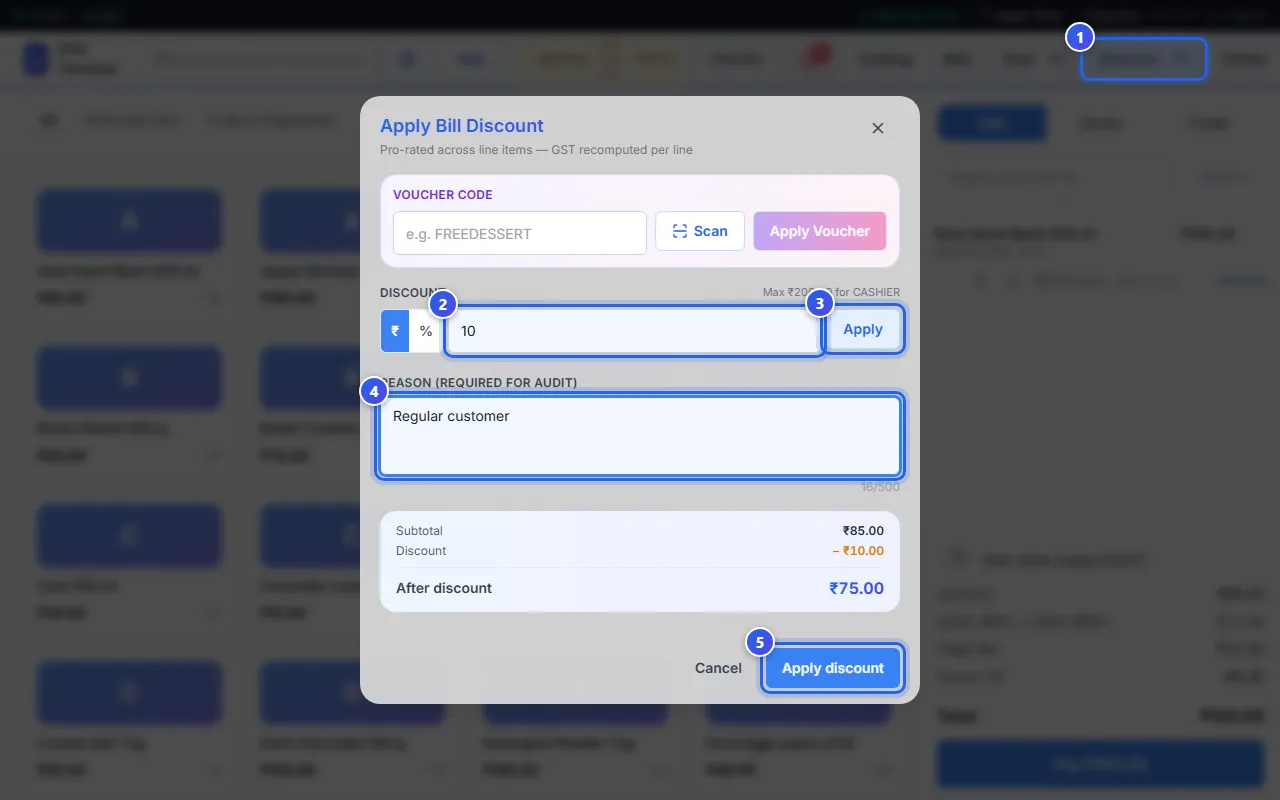
Orio360 shares the bill discount out over the items. The bill shows it as Bill Discount.
Your discount limit
Each role has a limit for bill discounts. The window shows yours, like Max ₹200.00 for CASHIER. Your Owner can change the limits.
Is your discount over your limit? Then the button says Request Approval. Press it. A Manager or an Owner gets a message to say yes or no. The bill shows Discount (pending) until then.
Related help
Still need help?