Check your online payments
Match the money customers paid online with your bills, day by day.
Who can do this: Owner and Manager
This is not in every plan. See Pricing.
The Reconciliation report shows the money customers paid you through Razorpay. It also finds bills that may be missing a payment. An Owner or a Manager can open it.
- In the menu, open Reports and press Reconciliation.
- Choose the first day in From and the last day in To.
- Look at Captured. It is the money Razorpay took for you.
- Look at Variance. It counts the bills with no online payment to match them.
- Press Export CSV to save all the numbers in a file.
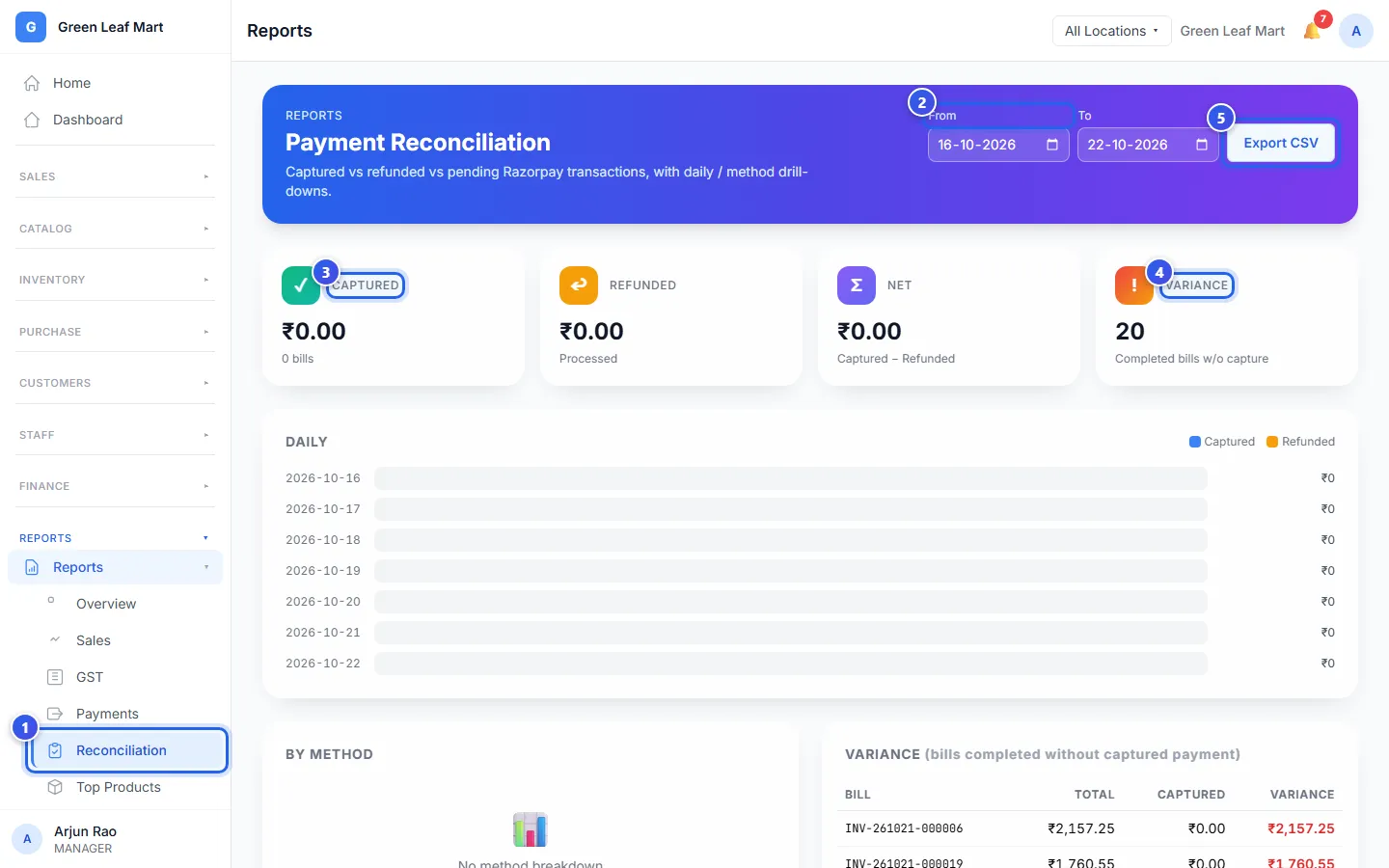
The page starts with the last 7 days. The file is a CSV file. You can open it in Excel or Google Sheets.
What the page shows
- Refunded is the money you gave back to customers online.
- Net is Captured minus Refunded.
- Daily shows the money for each day, as a bar.
- By Method shows how customers paid, like UPI or card.
- Razorpay Settlements lists the money Razorpay sent to your bank, with its fees and tax.
Check the variance list
The variance list shows each bill with its Total, the money Captured and the gap. The biggest gaps come first. The page shows 10 bills, and the file has them all.
A bill paid by UPI, card or wallet shows here when Razorpay has no payment for it. So a bill paid at your counter, on your own card machine, shows here too. Look at each bill before you worry.
Related help
Still need help?