Send a re-order link
Send a customer a link to order the same items again from an old bill.
Who can do this: Owner, Manager and Cashier
This is not in every plan. See Pricing.
A re-order link lets a customer buy the same items again. They open the link and change the numbers if they like. Then they confirm, and pay when they come to collect the order.
Send the link
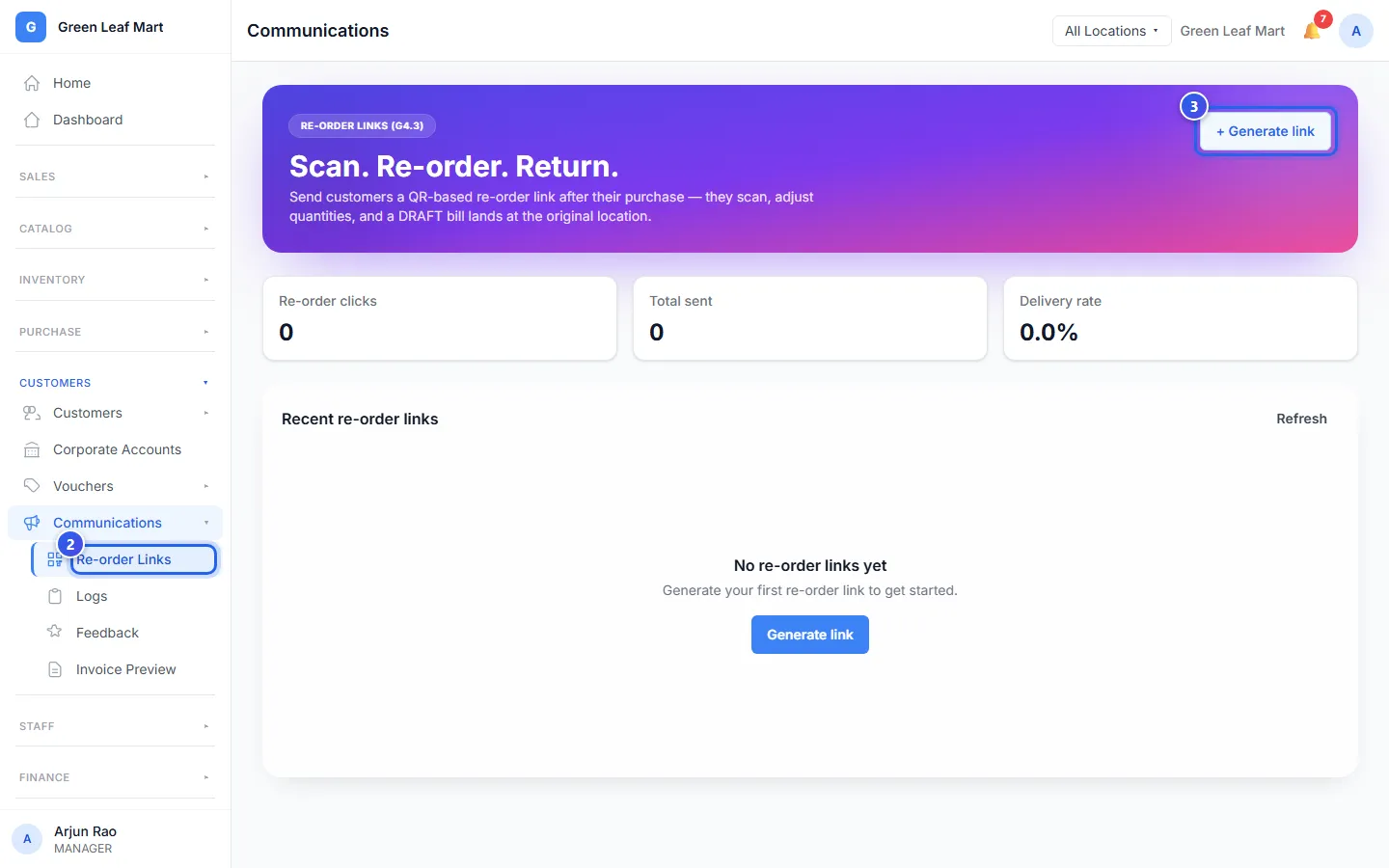
- Go to Communications.
- Press Re-order Links.
- Press + Generate link.
- In Bill, type the bill number and choose the bill.
- Choose WhatsApp or Email.
- Type the customer's WhatsApp number or Email address.
- Press Generate & send.
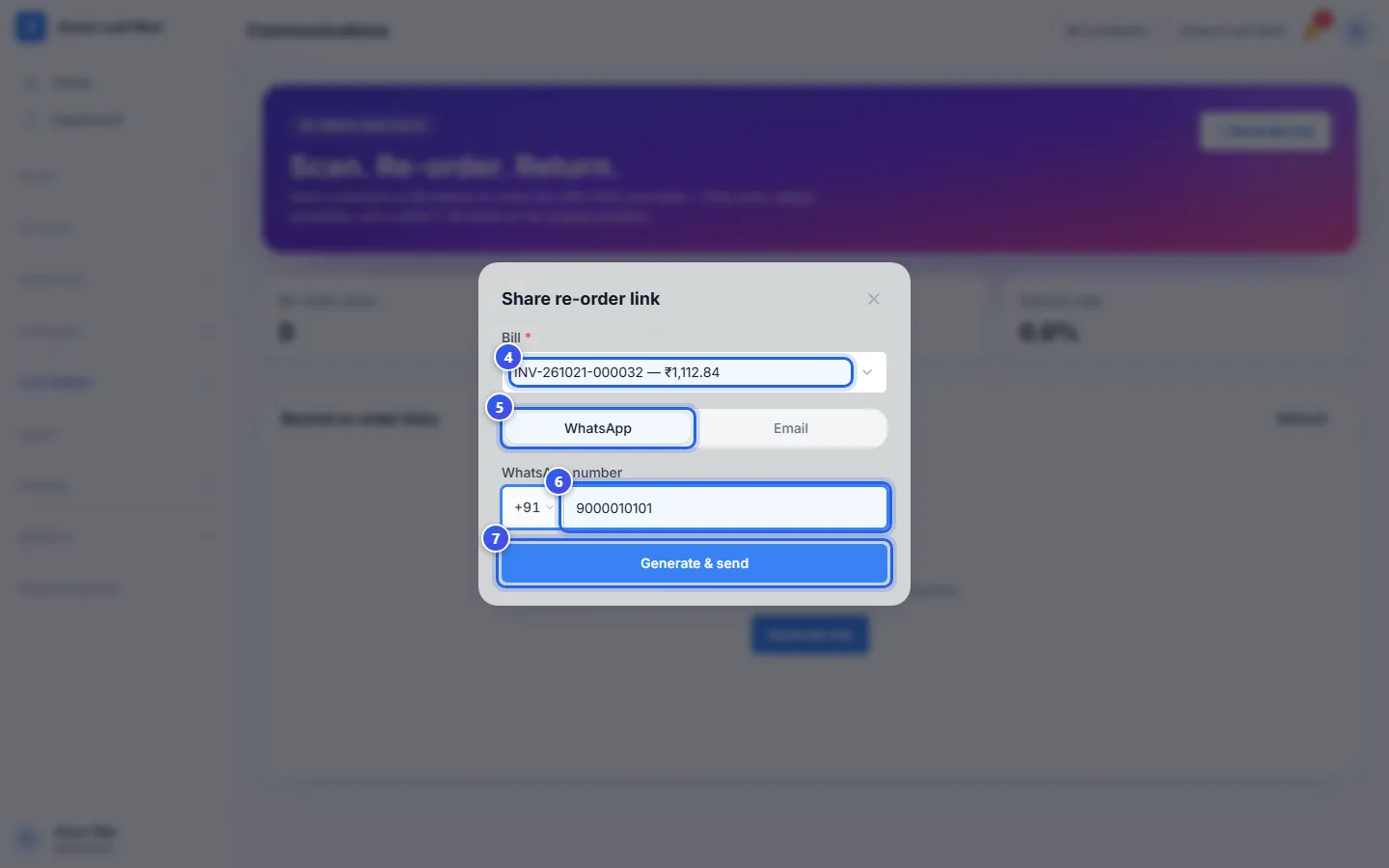
Orio360 sends the link. It also shows a QR code, so the customer can scan it on your screen. Press Copy link to share the link another way. Press Done to close the box.
At the till
After a paid bill with a customer on it, the till shows Share re-order QR. The customer's phone number is already filled in. Press Generate & send, or close the box to skip it.
What your customer sees
The link opens a page with your shop's name and the items from the old bill. The customer can:
- change how many of each item they want,
- check the Total under Order summary,
- press Confirm re-order.
The page then says Re-order confirmed. It asks the customer to visit the shop to pay and collect the items. Orio360 makes an unpaid bill for the order at the same shop.
Good to know
- Each link works once, for 30 days.
- An item that is out of stock shows Out of Stock.
- If a price changed since the old bill, the page tells the customer.
- The Re-order Links page lists the links you sent. Re-order clicks counts the times customers opened them.
Related help
Still need help?